
How to manage a chat — rename, save, download, or delete
Goal
Find the menu of actions tucked behind any chat's title, and know what each one does.
Quick path
Click the chat title at the top of the conversation.
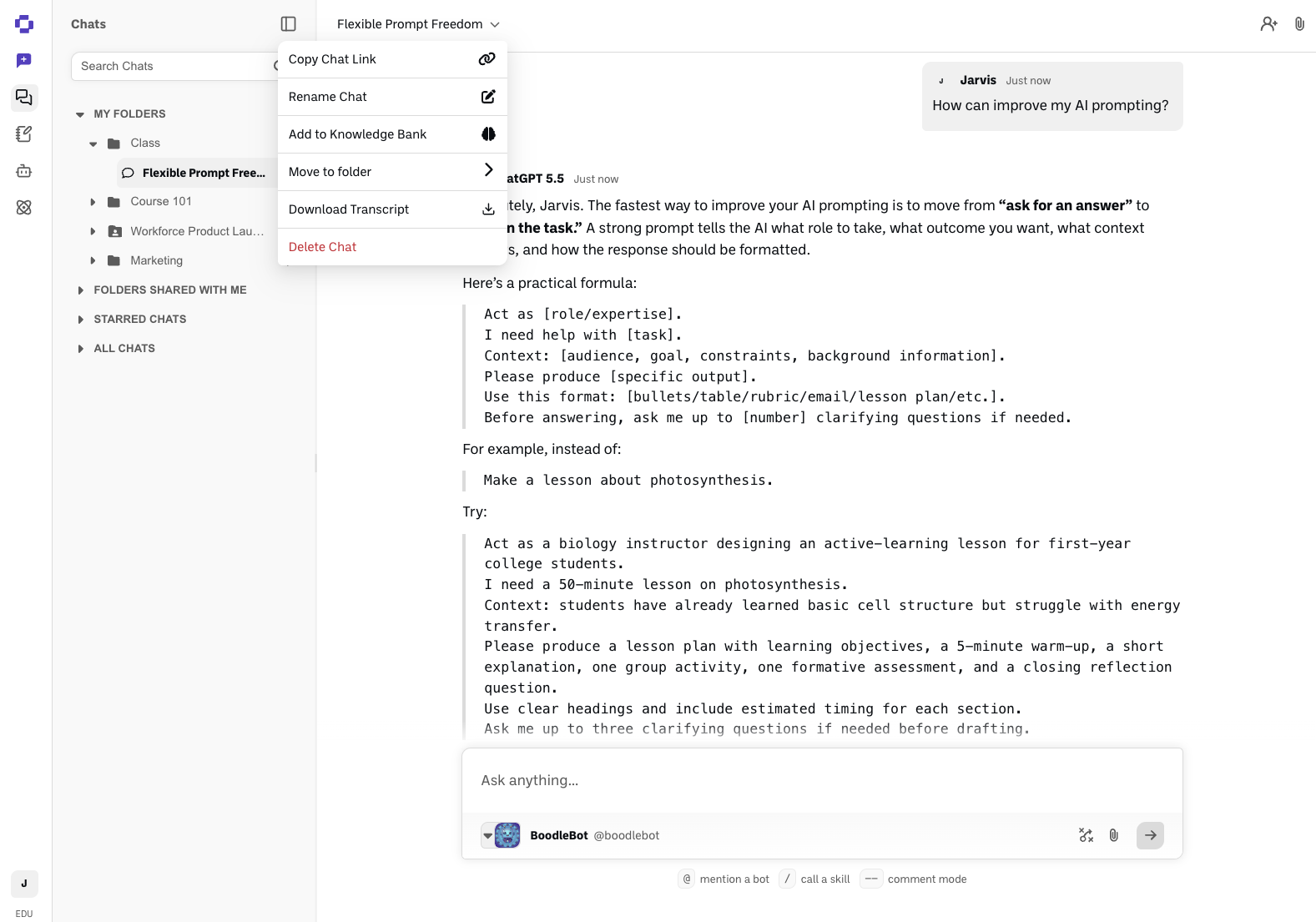
Pick an action — Copy Chat Link, Rename, Add to Knowledge Bank, Move to folder, Download Transcript, or Delete.
Step-by-step
Click the chat title at the top of the conversation to open its menu.
Choose what you want to do:
Copy Chat Link — copies the chat's web address so you can share it.
Rename Chat — give the chat a new name; it updates in the sidebar and at the top.
Add to Knowledge Bank — saves the whole conversation to your Knowledge Bank so you can attach it to future chats.
Move to folder — file the chat into a folder, or create a new one on the spot. A chat can be in one folder at a time, so this takes it out of any folder it was in.
Download Transcript — download the full conversation as a file.
Delete Chat — removes the chat permanently. There is no undo. If it was shared, everyone loses access right away.
Chats someone else owns
Only a chat's owner can delete it. If someone shared a chat or group chat with you and you want it out of your sidebar, leave it instead: click the three-dot icon next to the chat in the sidebar and choose Leave. If it does not disappear right away, open another chat and refresh the page. Once you leave, you cannot reopen the chat unless the owner shares it with you again. The chat itself stays intact for the owner and everyone else in it.
The same applies to a folder someone shared with you: three-dot icon next to the folder, then Leave folder.
Verify it's working
The action you picked takes effect — e.g., the new name shows in the sidebar, or the link is copied to your clipboard.
Still stuck?
You can also reach this menu from the three-dot icon next to a chat's name in the All Chats sidebar list. Reach out through our contact form and we'll get back to you.