
How to manage your team & users
Goal
See everyone in your workspace, invite new people, and manage your seats.
Before you start: make sure you're in the right workspace
Everyone has a Personal Account workspace, and this page doesn't exist there — a personal workspace can't have other people in it. You need to be in a team workspace, and you need to be its Owner or an Admin.
Click your initials at the bottom-left.
Your workspaces are listed there. The one with a check mark next to it is where you are now.
If that's Personal Account, click the team workspace you want — the check mark moves to it.
If you don't have a team workspace yet, click Create a Team Workspace in that same menu. You'll name it and choose how many seats to buy. A Personal Account cannot be converted into a team — creating a team workspace is the only way to add other people. See Team Admin Setup Checklist.
Quick path
Click your initials (bottom-left) and switch to your team workspace.
Go to Workspace Settings → Members.
Use Invite to add people and Manage Seats to adjust capacity.
Step-by-step
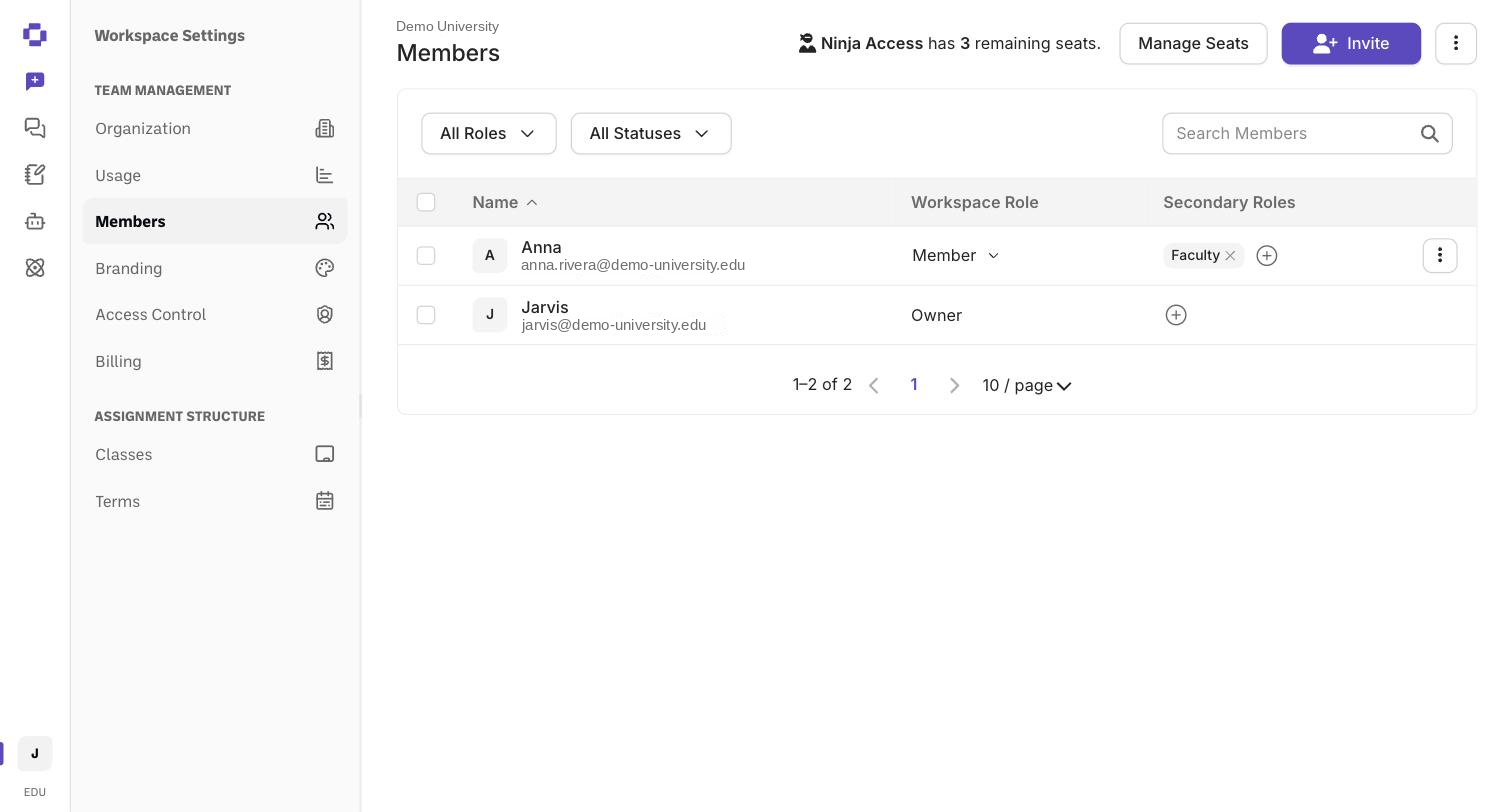
Open Workspace Settings → Members. Click your initials at the bottom-left, then click your workspace name under Workspace Settings, then choose Members. You'll see a roster listing each person's Name, Email, and Role.
(Team Management is a heading above Members in the sidebar, not a button — you don't click it.)
Find people fast with the All Members filter or the Search Members box. Each row has an Actions menu for managing that member.
Invite new people with the Invite button. If you've used all your seats, you'll be prompted to add more first.
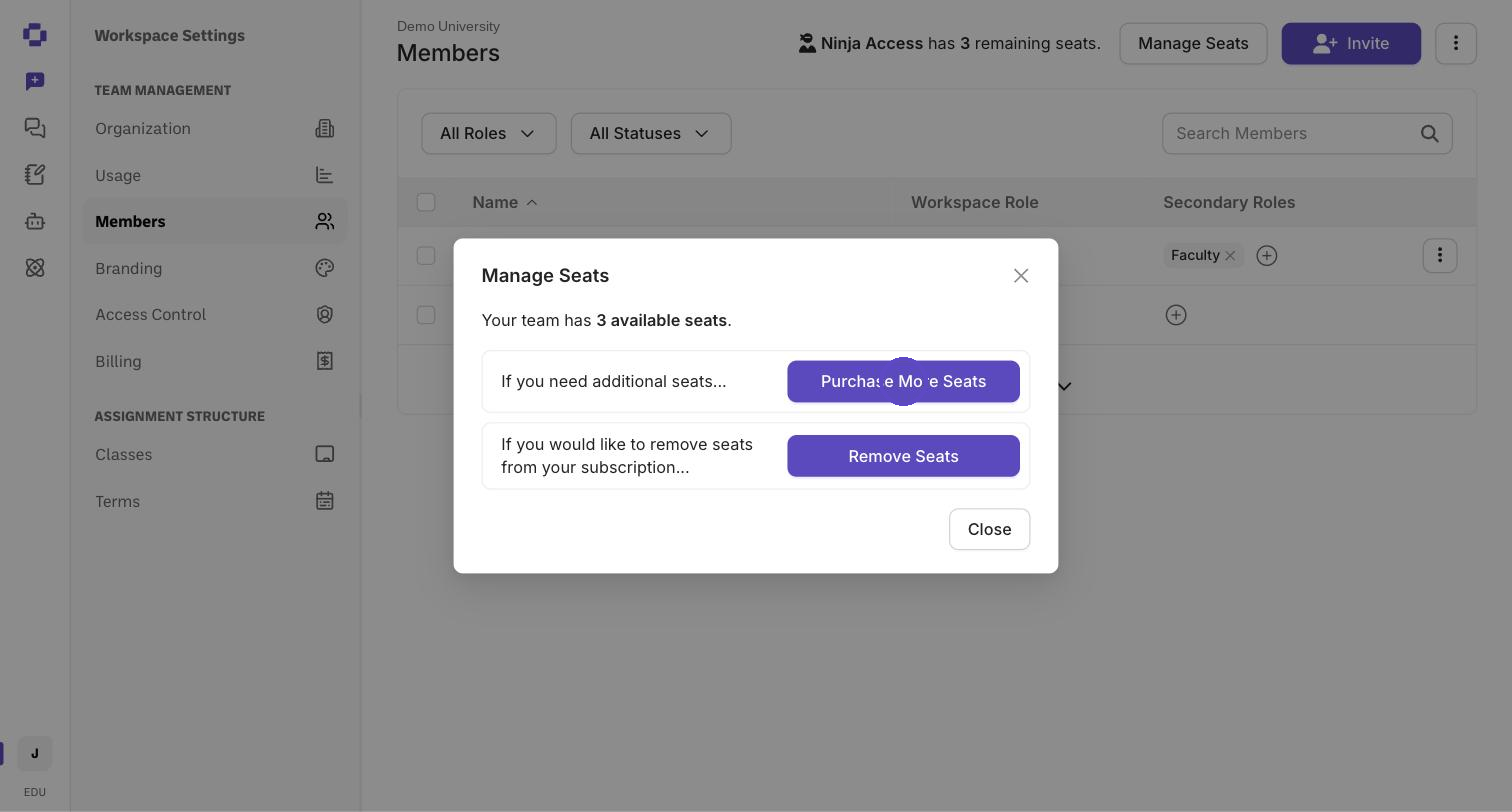
Adjust seats any time with Manage Seats — choose Purchase More Seats or Remove Seats. Use More team actions (top-right) for bulk operations.
Where to see your seat count
Your seat total lives on Workspace Settings → Organization, not on Members. It shows your workspace name and avatar plus a Seats panel ("Your plan includes N seats") with its own Manage Seats and Invite Members buttons.
Verify it's working
The roster lists each member with the correct role.
Workspace Settings → Organization shows a seat count that matches your plan.
Still stuck?
Running out of seats blocks new invites until you add capacity. Reach out through our contact form and we'll get back to you. (See also How to add or remove a whole group at once with a CSV.)