
How to control which AI models & bots your team can use
Goal
Decide which AI models and bots your whole team can use. Access is set at the team level.
You need a team workspace and admin rights for this. Click your initials at the bottom-left to see your workspaces — the one you're in has a check mark next to it. If that's your Personal Account, click the team workspace you want instead; Workspace Settings doesn't exist on a Personal Account. You also need to be the workspace Owner or an Admin.
Quick path
- Go to Workspace Settings → Access Control.
- Find a model/bot or group (filter + search).
- Flip a category's master switch, or expand it to toggle individual bots.
Step-by-step
-
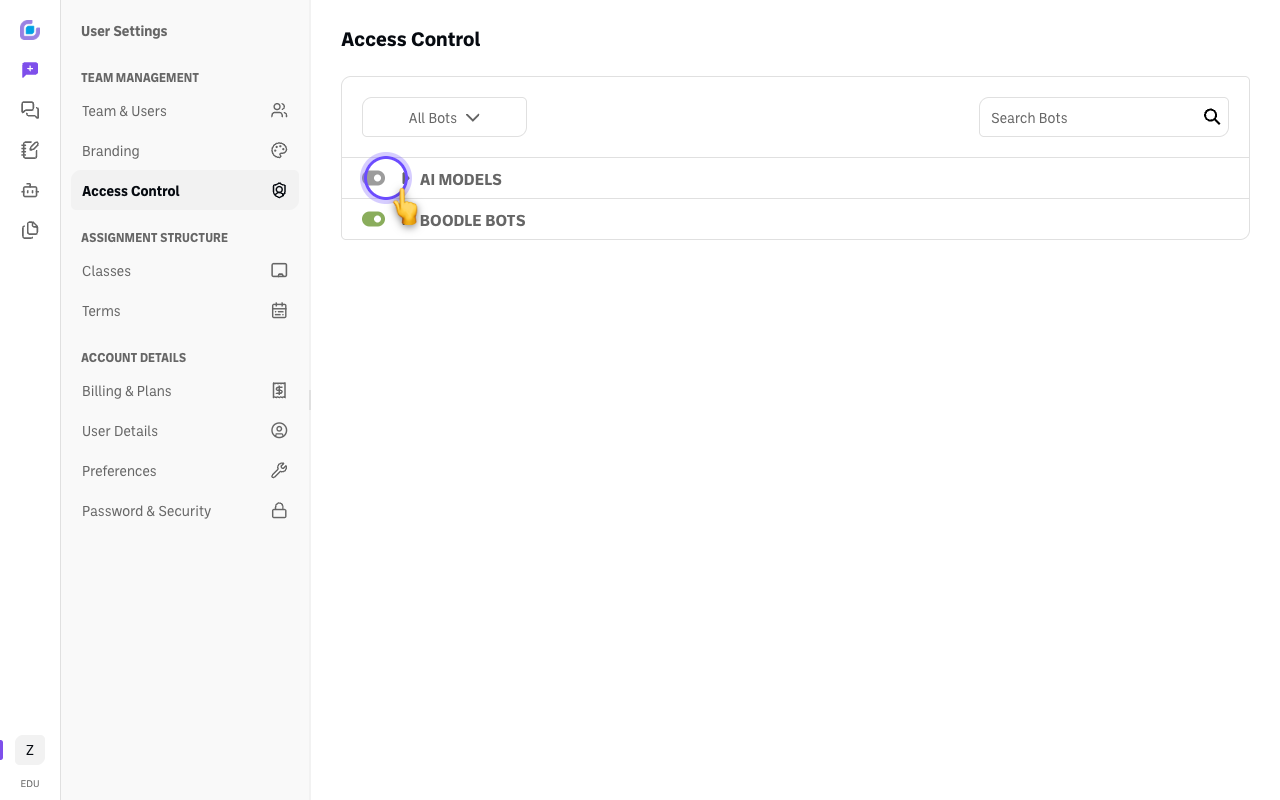
Go to Workspace Settings → Access Control. You'll see your bot categories — AI Models and Boodle Bots — each with a master toggle on the left and a ▶ arrow to expand it.
-
Expand a category to see what's inside. Click the ▶ arrow next to a category (here, AI Models).
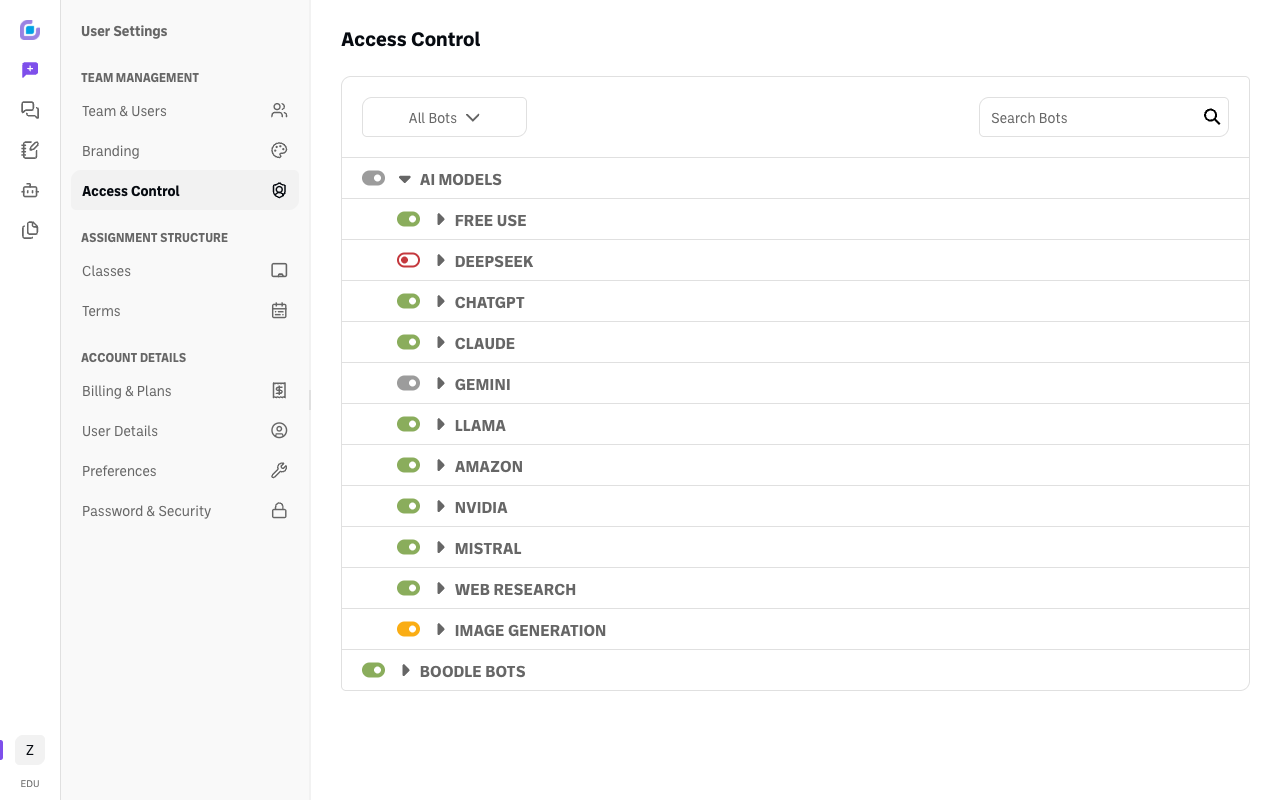
It opens to list each provider — Free Use, ChatGPT, Claude, Gemini, Llama, and more — each with its own toggle (and its own ▶ arrow to drill into individual models).
-
Turn access on or off:
- Flip a category's master toggle to allow or block the whole group at once.
- Or expand a category and flip a provider's toggle — or drill in further to toggle individual models/bots.
- Use the All Bots filter or the Search Bots box to jump straight to a specific one.
Verify it's working
- Turning a model or group off removes it from the model picker for everyone on the team.
Still stuck?
These settings apply to your whole team. Email success@boodle.ai — typical response within 8 business hours.