
How to brand your workspace (logos & colors)
Goal
White-label BoodleBox with your own team name, logo, and accent color — set separately for light mode and dark mode.
You need a team workspace and admin rights for this. Click your initials at the bottom-left to see your workspaces — the one you're in has a check mark next to it. If that's your Personal Account, click the team workspace you want instead; Workspace Settings doesn't exist on a Personal Account. You also need to be the workspace Owner or an Admin.
Quick path
- Go to Workspace Settings → Branding.
- Set your Team Name.
- Add a logo and accent color for Light Mode and for Dark Mode.
Step-by-step
-
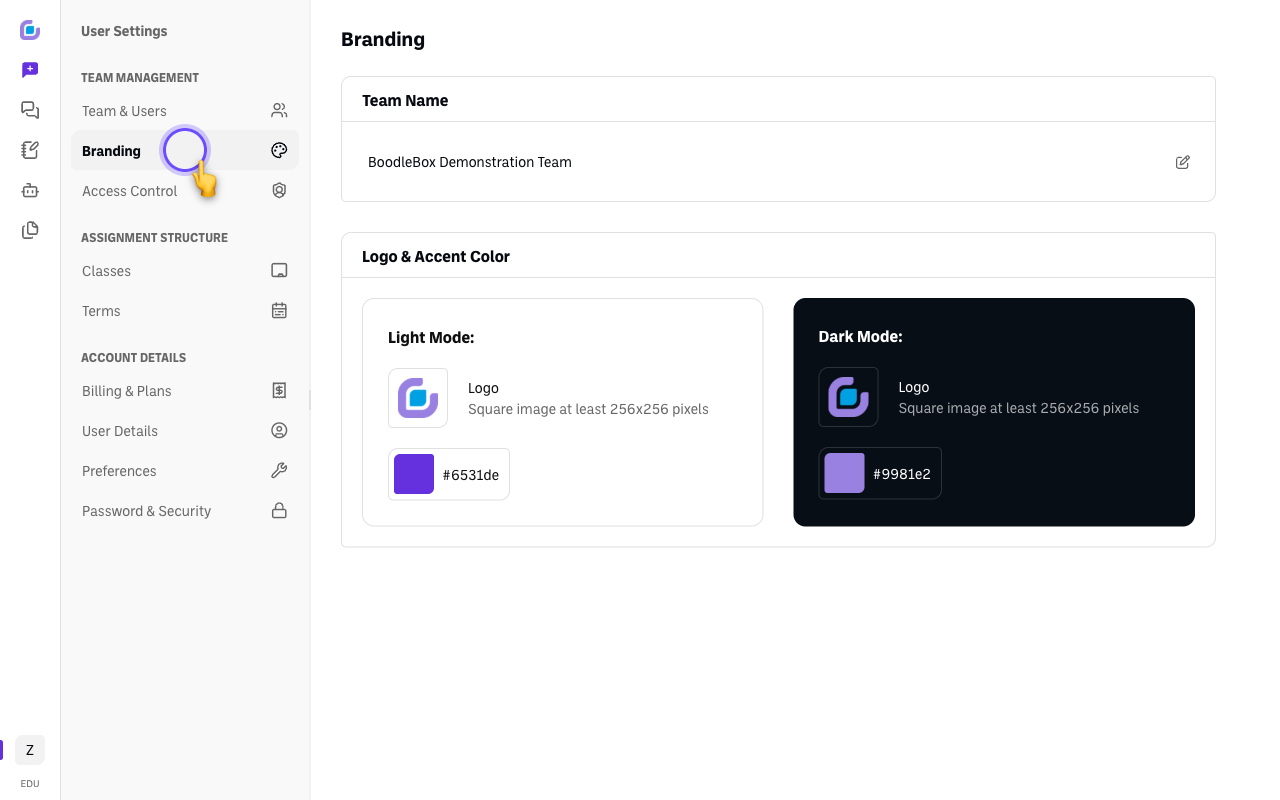
Go to Workspace Settings → Branding.
-
Set your Team Name. Click the field (or the edit icon) to change it.
-
Set your Logo & Accent Color. Under Light Mode, add your logo and choose an accent color with Set accent color. Then do the same under Dark Mode.
Verify it's working
- Your team name, logo, and accent color appear in the app in the corresponding mode.
Still stuck?
Light and dark mode are configured independently, so your branding looks right whichever mode a teammate uses. Email success@boodle.ai — typical response within 8 business hours.