
How to add or remove a whole group at once with a CSV
Goal
Instead of inviting people one at a time, upload a spreadsheet (CSV) to add (invite) or remove many team members in one go.
You need a team workspace and admin rights for this. Click your initials at the bottom-left to see your workspaces — the one you're in has a check mark next to it. If that's your Personal Account, click the team workspace you want instead; Workspace Settings doesn't exist on a Personal Account. You also need to be the workspace Owner or an Admin.
Quick path
- Workspace Settings → Members → More team actions → Bulk Manage Members.
- Upload a CSV of email addresses.
- Choose Add or Remove, then click Upload.
Step-by-step
-
Go to Workspace Settings → Members, click More team actions (top-right), then choose Bulk Manage Members.
-
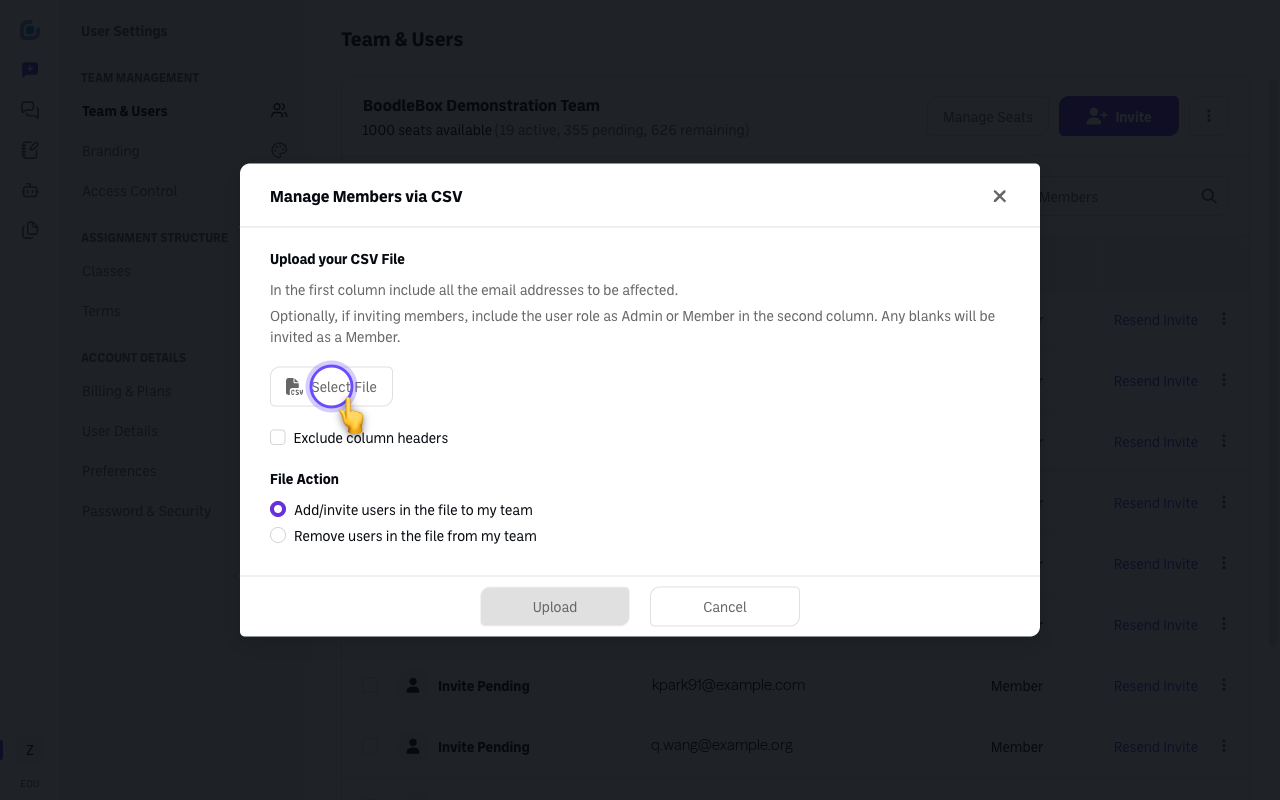
Prepare your CSV. Put all the email addresses in the first column. Optionally, add a second column with each person's role — Admin or Member. Anyone left blank is invited as a Member.
-
Click Select File and choose your CSV. If your file has a header row, tick Exclude column headers.
-
Pick the action — Add/invite users in the file to my team or Remove users in the file from my team — then click Upload.
Verify it's working
- After upload, the people in your file appear in (or disappear from) the Members roster.
Still stuck?
Before a big add, make sure you have enough seats for everyone in the file. Email success@boodle.ai — typical response within 8 business hours.