
How to manage a chat — rename, save, download, or delete
Goal
Find the menu of actions tucked behind any chat's title, and know what each one does.
Quick path
- Click the chat title at the top of the conversation.
- Pick an action — Copy Chat Link, Rename, Add to Knowledge Bank, Move to folder, Download Transcript, or Delete.
Step-by-step
-
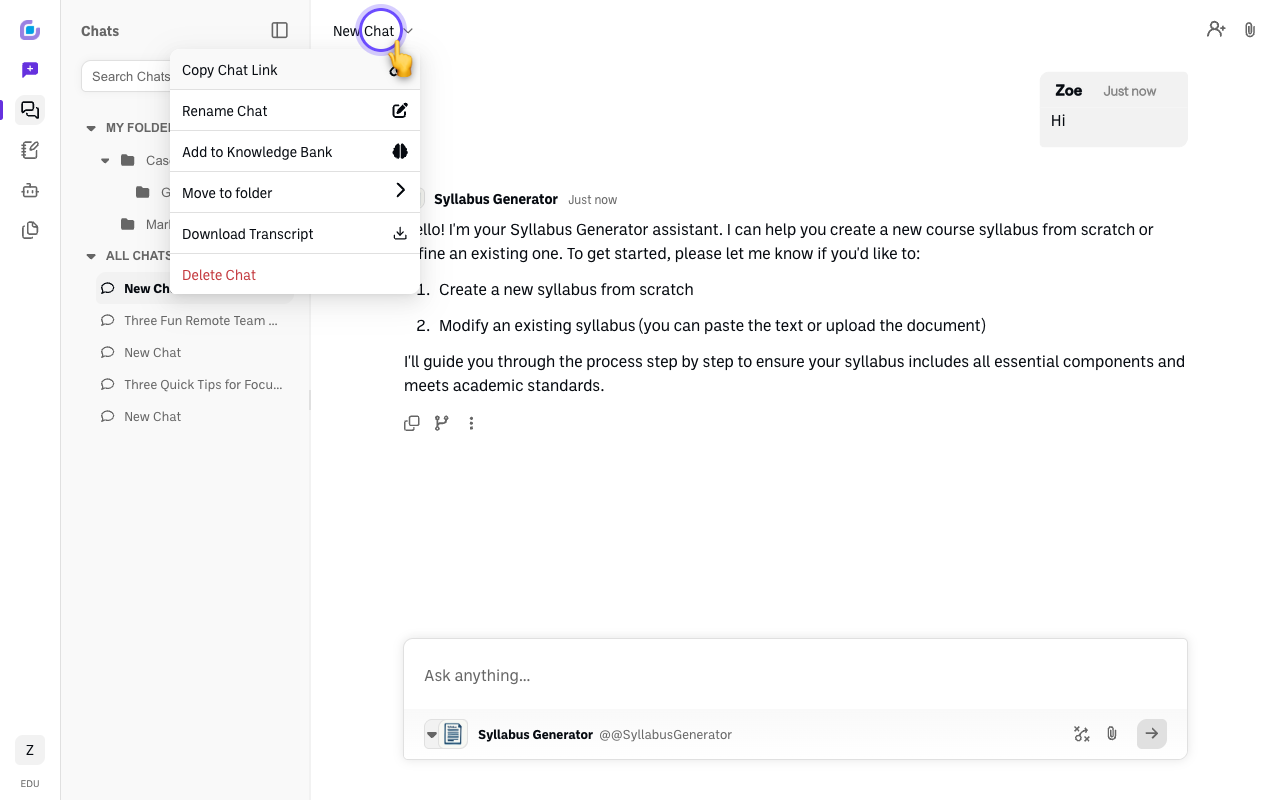
Click the chat title at the top of the conversation to open its menu.
-
Choose what you want to do:
- Copy Chat Link — copies the chat's web address so you can share it.
- Rename Chat — give the chat a new name; it updates in the sidebar and at the top.
- Add to Knowledge Bank — saves the whole conversation to your Knowledge Bank so you can attach it to future chats.
- Move to folder — file the chat into a folder, or create a new one on the spot.
- Download Transcript — download the full conversation as a file.
- Delete Chat — removes the chat. If it was shared, everyone loses access right away.
Verify it's working
- The action you picked takes effect — e.g., the new name shows in the sidebar, or the link is copied to your clipboard.
Still stuck?
You can also reach this menu from the three-dot icon next to a chat's name in the All Chats sidebar list. Email success@boodle.ai if something isn't working — typical response within 8 business hours.