
How to set up SAML SSO with rostering
Goal
Set up SAML-based single sign-on for your institution through Edlink, paired with a rostering source so users are both provisioned and able to sign in.
The #1 setup mistake is selecting SAML from the integration selection page, because SAML alone cannot provision users. SAML is an authentication/enrichment layer on top of a rostering source — it answers "how do users sign in?", not "who has access?". A SAML-only integration leaves users authenticated but unprovisioned, resulting in 400 errors. Always set up SFTP or CSV rostering first, then add SAML in the configuration.
Before you start
- Using Microsoft Entra, Google Workspace, or OneLogin? Use How to set up SSO with your identity provider instead — those native connectors are the simpler path. Use SAML for other SAML 2.0 providers such as Shibboleth or Okta.
- Claims-based provisioning via SAML attributes is not supported by Edlink. You cannot skip the SFTP/CSV rostering step by passing user attributes in the SAML assertion.
- Prepare your rostering source: SFTP server details or a roster CSV. Email is required; first name and last name are strongly recommended.
- Have your institution's SAML metadata ready (file or URL).
Steps
-
Open the integration link — https://ed.link/integrate/231f9d64-bdb9-4cc1-babc-1787d618e2aa — and sign in or create your administrator account using your school email. You'll be directed to the Edlink onboarding wizard.
-
Provide rostering data. Edlink supports two options:
- Option A — SFTP (recommended for automation). Select the option where Edlink pulls from your SFTP server. Provide your server address, username, and password/SSH key, and place updated CSVs on your server regularly (e.g. nightly). Double-check the direction (Edlink pulls from you) and the port — mismatched direction and non-standard ports (2022 vs 22) are the most common causes of failed SFTP connections.
- Option B — CSV upload. Upload your CSV in the portal and confirm column mappings.
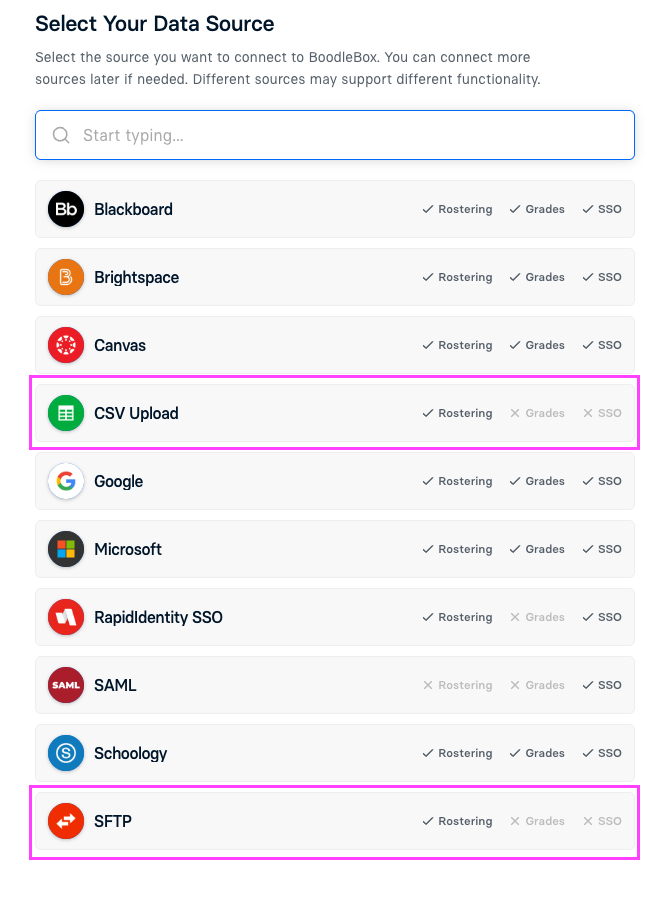
Note that SAML appears in this same list with rostering unavailable — which is why it can't be your only integration.
-
Configure SSO. When prompted "Would you like to set up SSO for your integration?", select Create Provider, then select SAML as the source.
-
Upload or provide your institution's SAML metadata (file or URL), using these settings:
- Initiator: IDP or SP
- SAML nameID format: Email
- SAML issuer type: Specific
- SAML signature element: Both
- Encrypt assertion: False
-
Add BoodleBox's metadata. Validate the metadata, map required attributes (NameID → Email), then save and activate the configuration.
-
Verify rostering data. In Edlink, go to the Data Sources tab, review your uploaded or synced file, confirm each record has a valid email (ideally with first and last names), and resolve any flagged errors.
-
Finalize and activate. The BoodleBox team reviews and activates your rostering source. If your SAML file is also being used to provision your BoodleBox account, notify your Customer Success representative.
Common issues
- User authenticates but gets a 400 error → they're not in the rostering source, or the roster hasn't synced yet. See Troubleshooting SSO and sign-in errors.
- SFTP connection failing → verify credentials, confirm Edlink is set to pull from your server, and confirm the port.
- Sync stopped after a file update → the filename or columns changed. When uploading a new CSV, the file name and all columns must remain identical to the original; a renamed file is treated as a new data source and requires full remapping.
- A user's email changed on your side and they can't log in → update the roster file, allow a sync cycle (or trigger a manual sync in the Edlink dashboard), and confirm the new email matches what the IdP asserts.
Good to know
- Roster sources (SFTP/CSV) sync every 24 hours. A manual sync can be triggered from the Edlink dashboard.
- Always include first and last names in your roster file, even though only email is required.
- Prefer SFTP over manual CSV uploads for automated updates, and keep emails unique and valid — the roster email must exactly match the email your IMP asserts.
Still stuck?
- BoodleBox integration questions → email success@boodle.ai, typical response within 8 business hours.
- Edlink-specific questions → support@ed.link
See also
How to set up SSO with your identity provider · SSO integration FAQs · Troubleshooting SSO and sign-in errors.