
How to submit assignments
Goal
Do your assignment in BoodleBox and submit it.
Quick path
- Open the assignment under Assigned to Me and click Start Work.
- Do the work in the assignment — read the instructions and chat with the assignment's AI bot.
- Click Submit when you're done.
Step-by-step
-
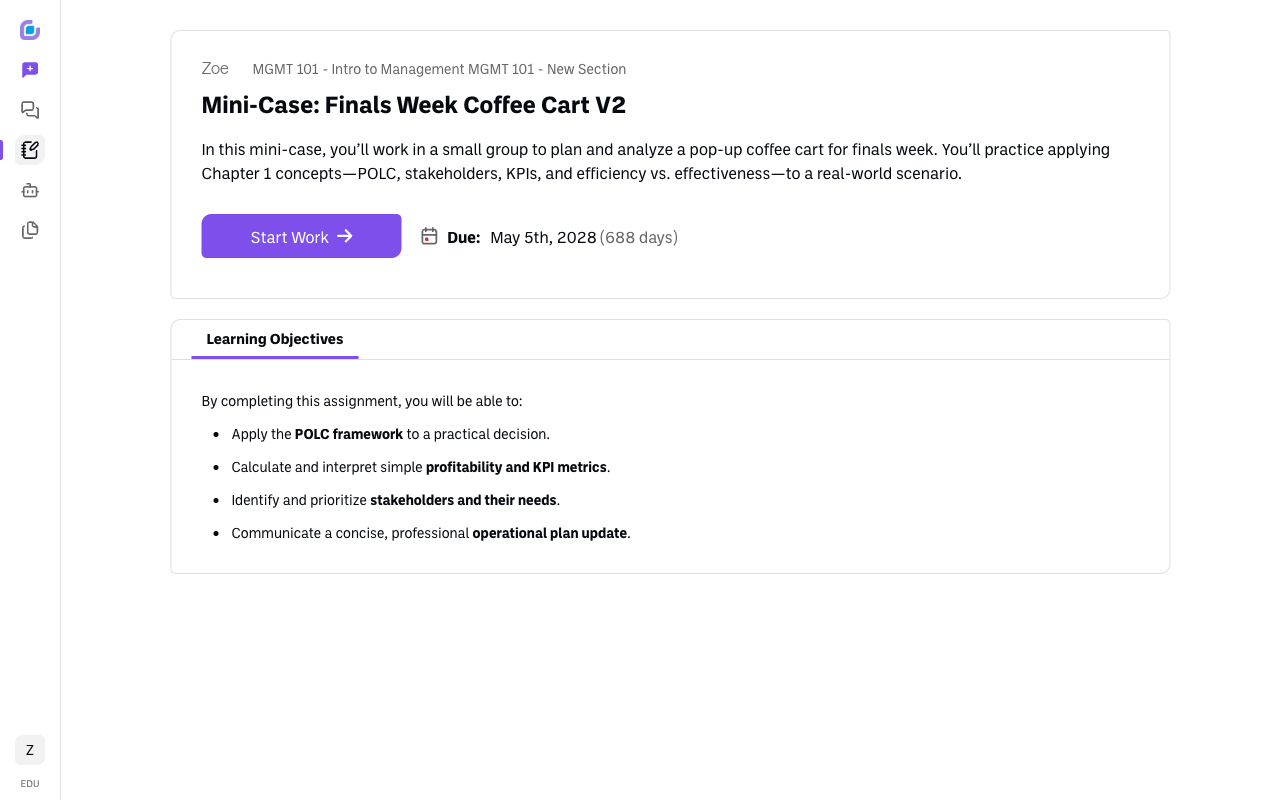
Open the assignment. Go to Classroom → Assigned to Me and open it. You'll see the title, the learning objectives, and the due date.
-
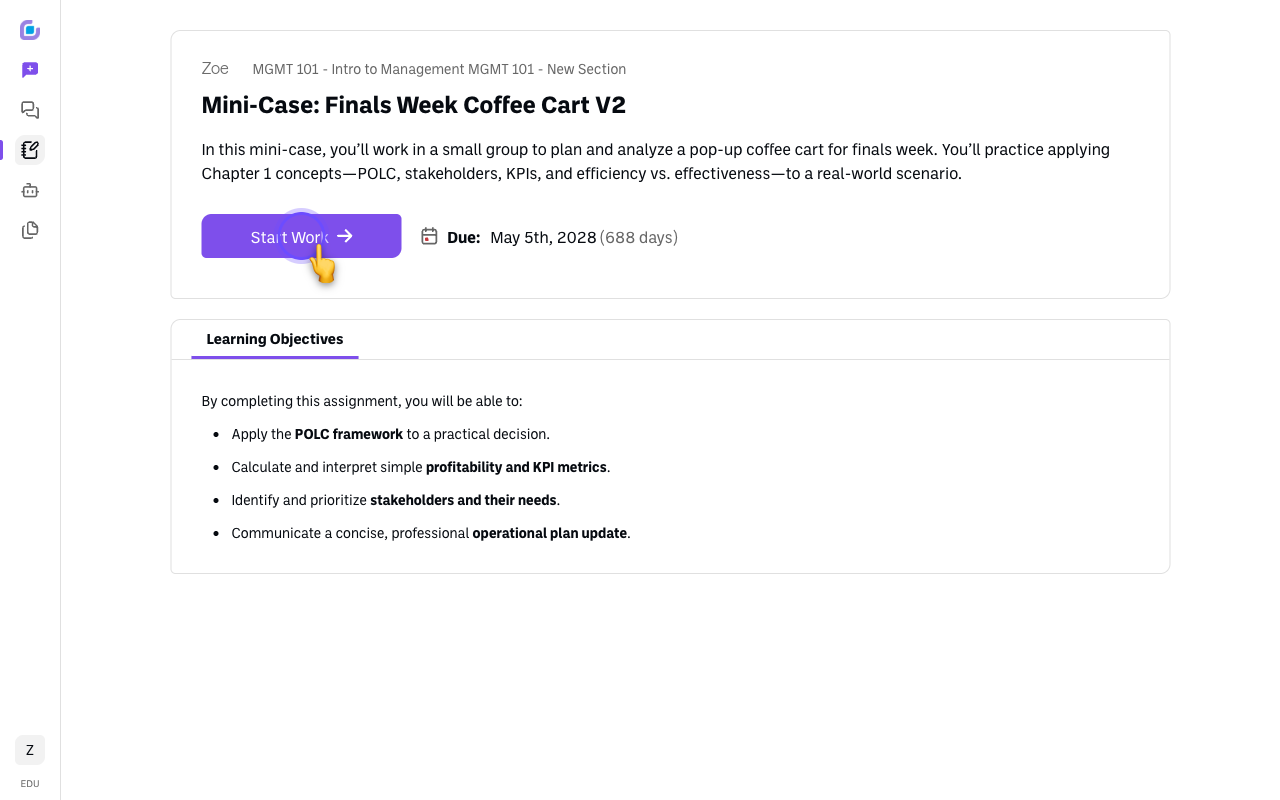
Click Start Work to open the assignment.
-
Do the work inside the assignment. The assignment opens with the instructions and materials on the left and an AI chat on the right. Many assignments give you a specific bot to work with (here it's CafeCoachAI) — your teacher may limit which bots and models you can use. Read the instructions, then work through the deliverables in the chat.
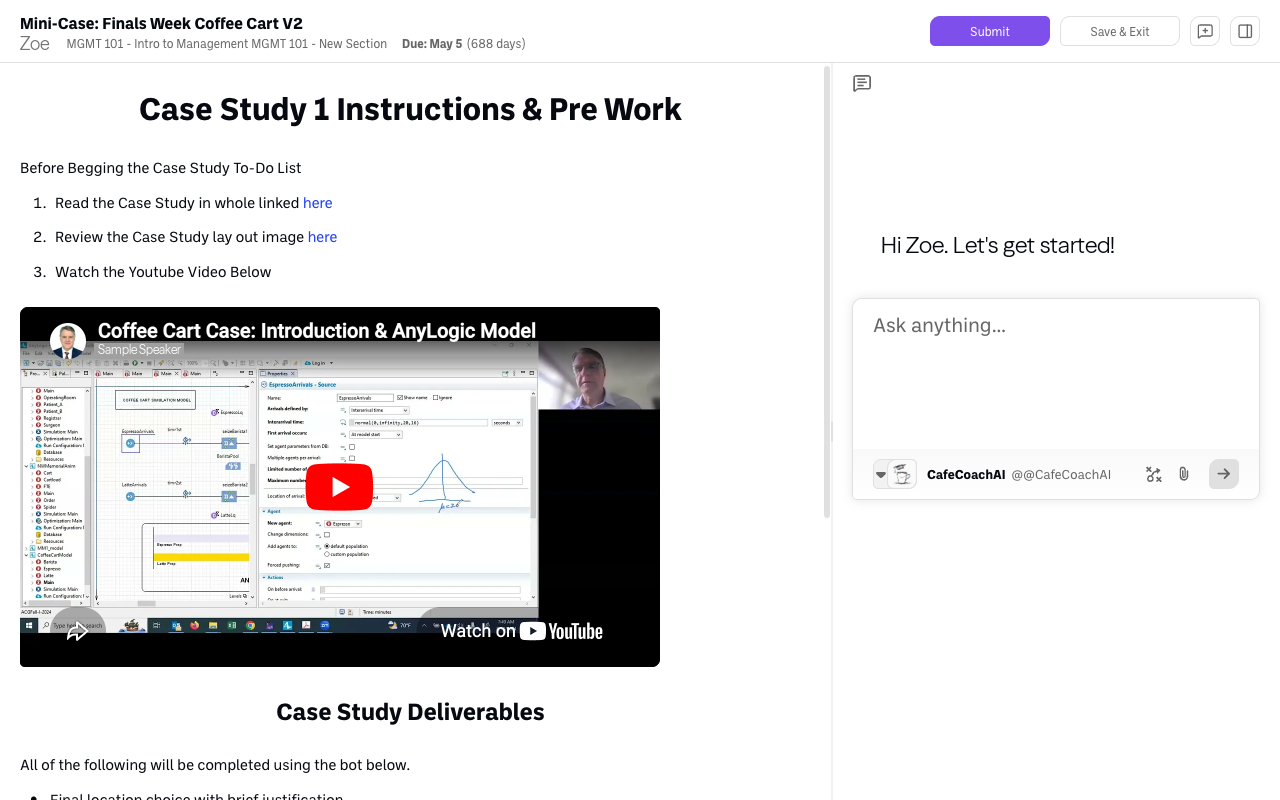
Use Save & Exit to step away and come back later — your work is saved.
-
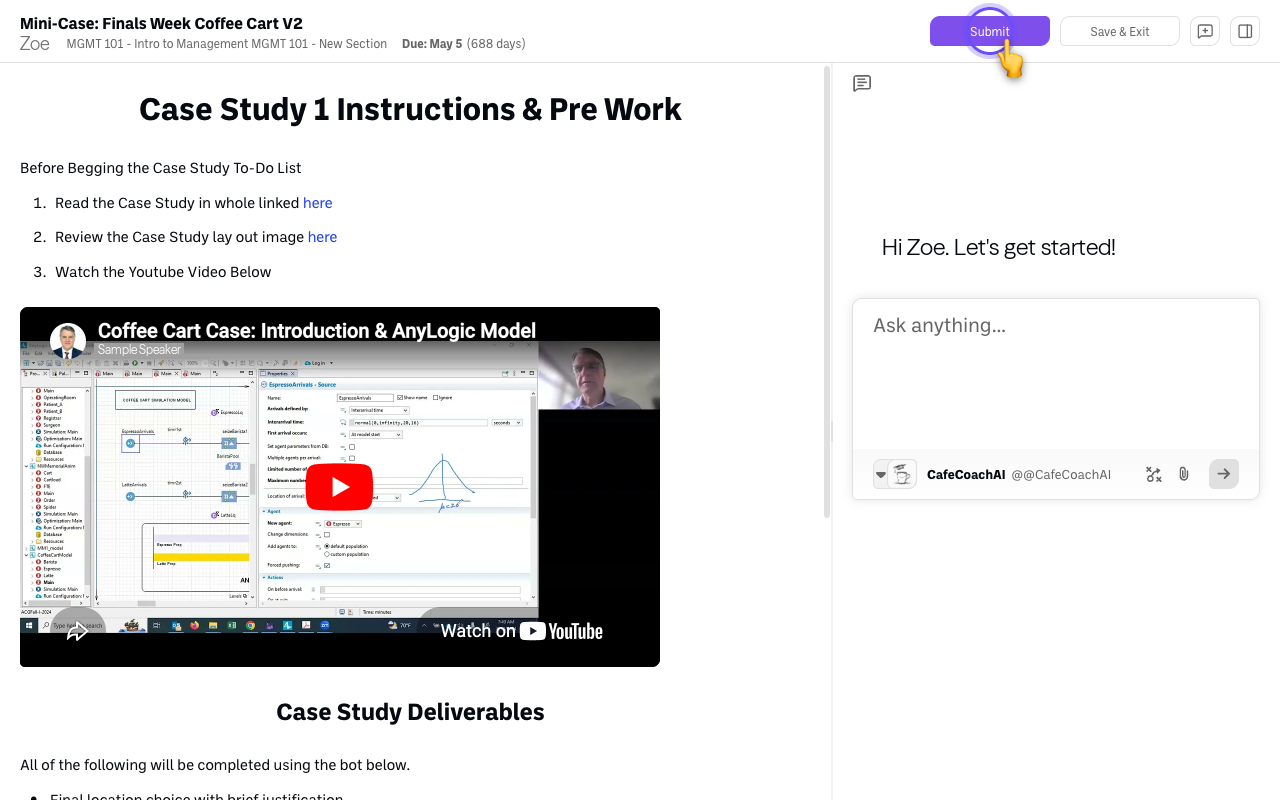
Submit. When you're done, click Submit at the top. Its status changes to Submitted.
Important: work in the assignment
BoodleBox can tell whether work was done in the assignment or in a personal chat — personal-chat work isn't credited to the assignment. Always do graded work inside the assignment itself.
Good to know
- Your teacher can see your activity from the moment you start — you don't have to submit for them to see your work.
Still stuck?
Ask your teacher, or email success@boodle.ai — typical response within 8 business hours.