
How to update your payment method
Goal
Update the card or payment method on your BoodleBox subscription.
Quick path
- Open the billing page for the subscription you're changing, then Manage Subscription (opens the Stripe Billing Center).
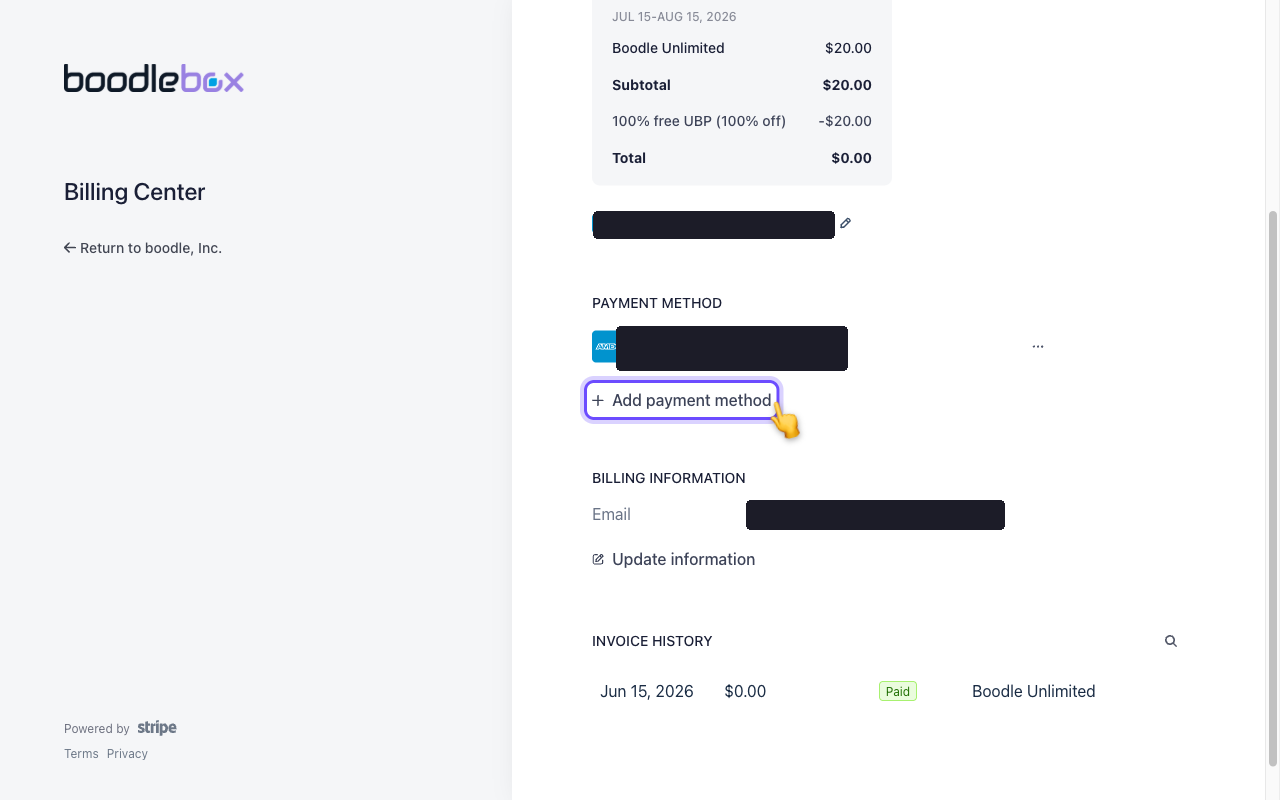
- Under Payment method, click Add payment method — or use the ⋯ menu on your current card to edit or remove it.
If a payment just failed
If a charge fails, BoodleBox emails you an automated link to update your payment details. That link is the fastest way to fix a failed charge — open it and update your card there.
Update it yourself anytime
-
Open the right billing page. Click your initials at the bottom-left. For your own subscription choose Personal Settings → Billing & Plans; for a team subscription switch into that workspace, then click your workspace name under Workspace Settings and choose Billing. The two bill separately, so make sure you're on the one you mean to change.
-
Click Manage Subscription. This opens your Stripe Billing Center.
-
Add or change your card. Under Payment method, click Add payment method to add a new card. To edit, set as default, or remove an existing card, use the ⋯ menu next to it. (Billing email/address live under Billing information → Update information.)
Verify it's working
- Your new card appears under Payment method in the Billing Center (set it as default if you want it used for the next charge).
Questions?
Your billing email is the same as your account email. If you can't find the option or need to update billing for an institutional account, email success@boodle.ai — typical response within 8 business hours.