
How to control which AI models & bots your team can use
Goal
Decide which AI models and bots your whole team can use. Access is set at the team level.
You need a team workspace and admin rights for this. Click your initials at the bottom-left to see your workspaces — the one you're in has a check mark next to it. If that's your Personal Account, click the team workspace you want instead; Workspace Settings doesn't exist on a Personal Account. You also need to be the workspace Owner or an Admin.
Quick path
Go to Workspace Settings → Access Control.
Find a model/bot or group (filter + search).
Flip a category's master switch, or expand it to toggle individual bots.
Step-by-step
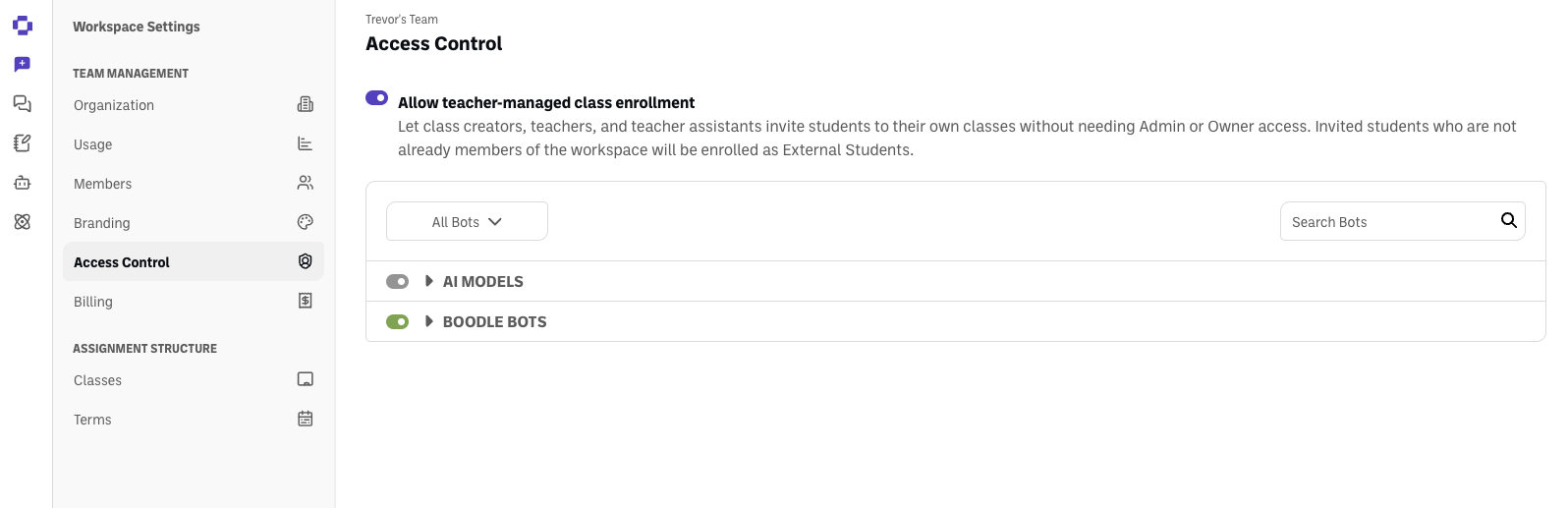
Go to Workspace Settings → Access Control. You'll see your bot categories — AI Models and Boodle Bots — each with a master toggle on the left and a ▶ arrow to expand it.
Expand a category to see what's inside. Click the ▶ arrow next to a category.
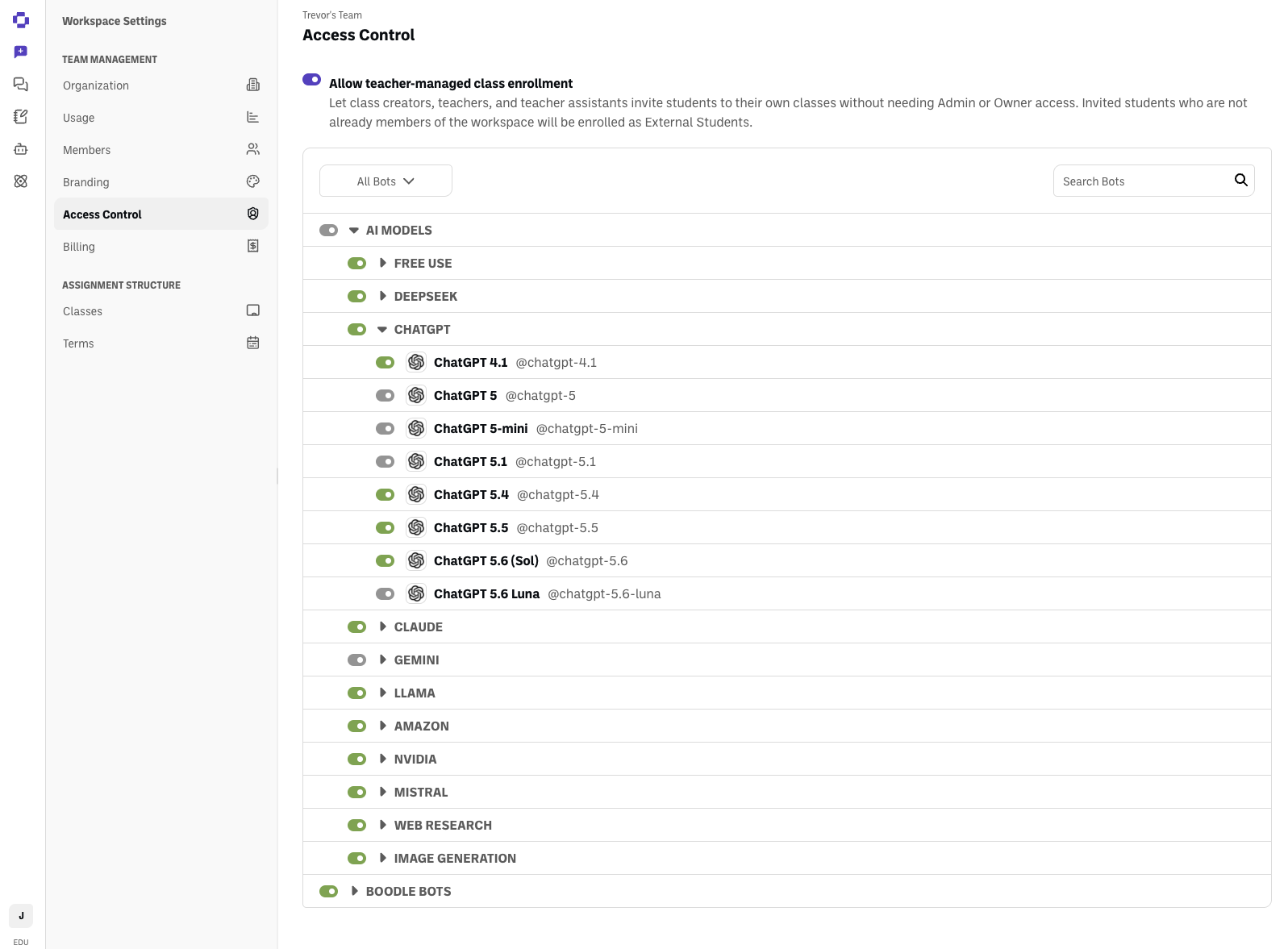
It opens to list each provider — Free Use, ChatGPT, Claude, Gemini, Llama, and more — each with its own toggle (and its own ▶ arrow to drill into individual models).
Turn access on or off:
Flip a category's master toggle to allow or block the whole group at once.
Or expand a category and flip a provider's toggle — or drill in further to toggle individual models/bots.
Use the All Bots filter or the Search Bots box to jump straight to a specific one.
Good to know
This same page also has an unrelated Allow teacher-managed class enrollment toggle above the bot categories — it controls whether teachers can enroll students into their own classes without Admin rights, not model/bot access. See How to enroll students in a classroom.
Verify it's working
Turning a model or group off removes it from the model picker for everyone on the team.
Still stuck?
These settings apply to your whole team. Reach out through our contact form and we'll get back to you.