
How to enroll students in a classroom
Audience: Teacher · Last updated: August 2026
Goal
Add students (and co-teachers or assistants) to one of your classes.
Most teachers don't need to do this
Enrolling a roster by hand is slower than letting students join themselves. Instead, set your assignment to allow anyone with the link, and share that link. Students are enrolled in the class automatically the first time they open it. No roster work needed. See How to create a class and an assignment.
Enroll manually when you specifically need to:
pre-populate a roster before term starts, or
satisfy an institutional policy that requires students to be formally enrolled.
Adding a co-teacher or TA instead of a student? See How to add a co-teacher or TA to a class — same Enrollments tab, dedicated walkthrough.
Check your institution's policy. Some institutions require students to be enrolled explicitly. Most don't — but that call isn't ours to make for you.
If you do need to enroll manually
Teachers, class creators, and teacher assistants can enroll students directly on their own class — Admin or Owner access is not required for this.
Quick path
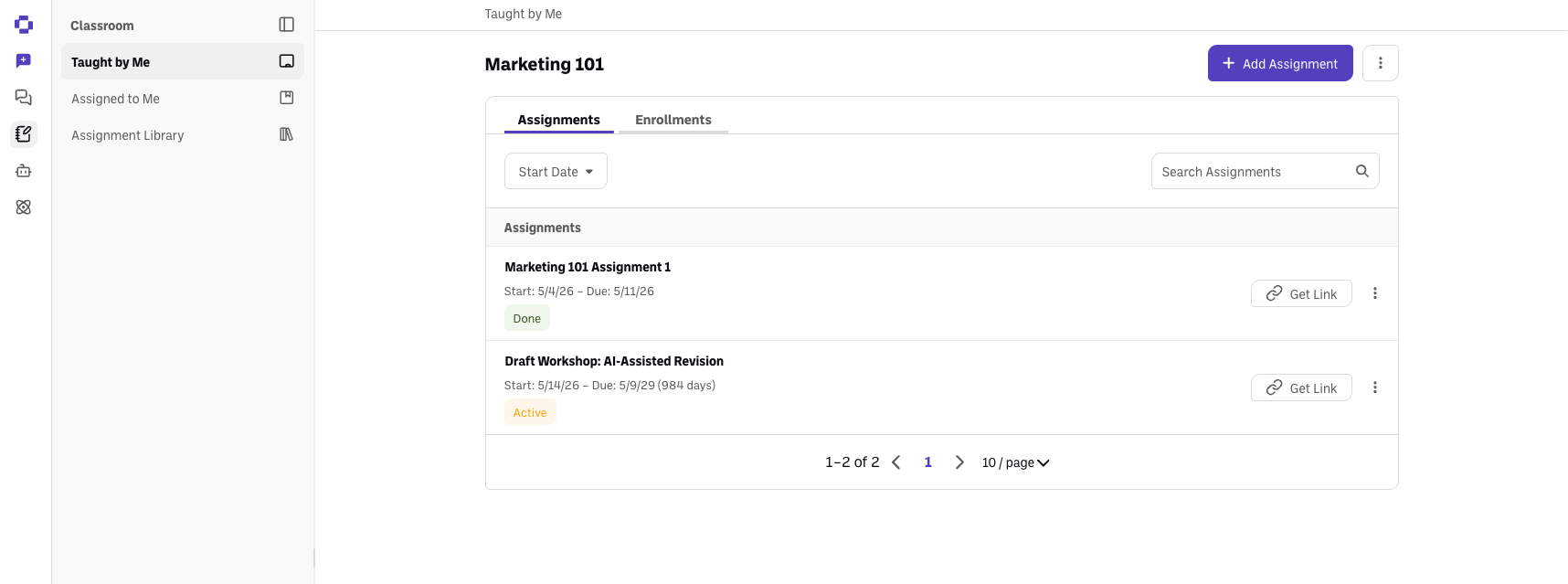
Classroom → Taught by Me, open your class.
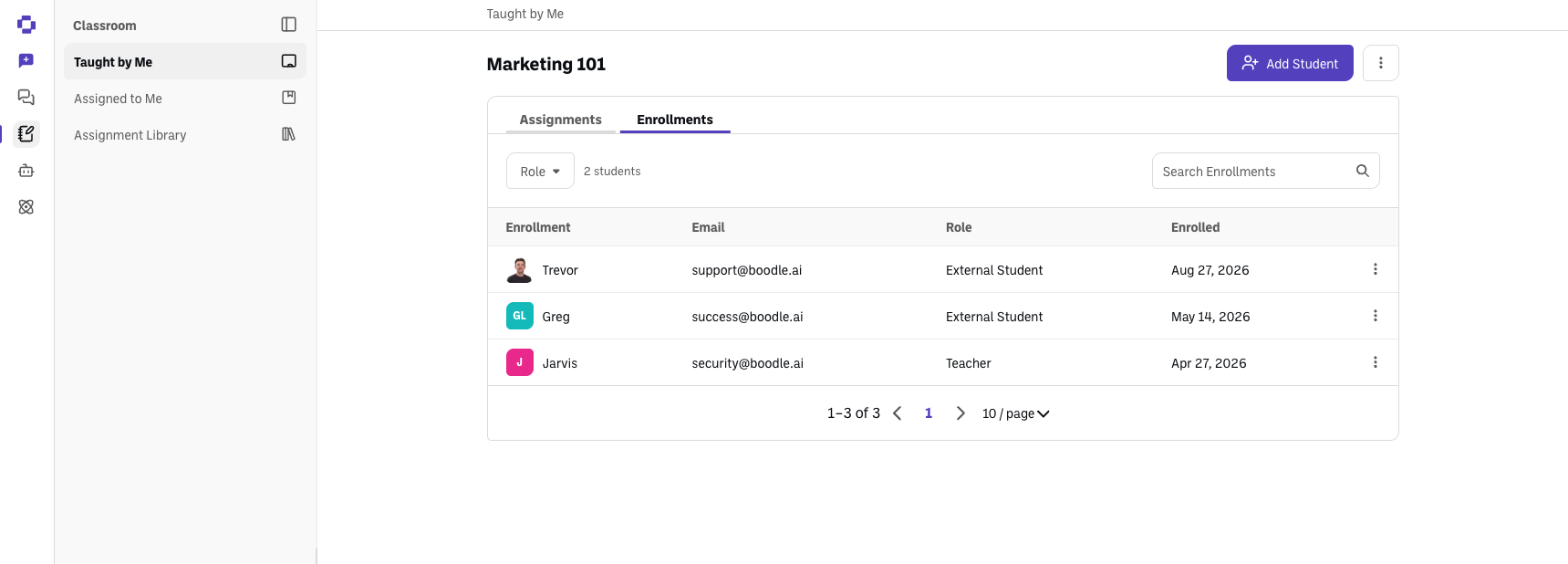
Click the Enrollments tab, then Add Student.
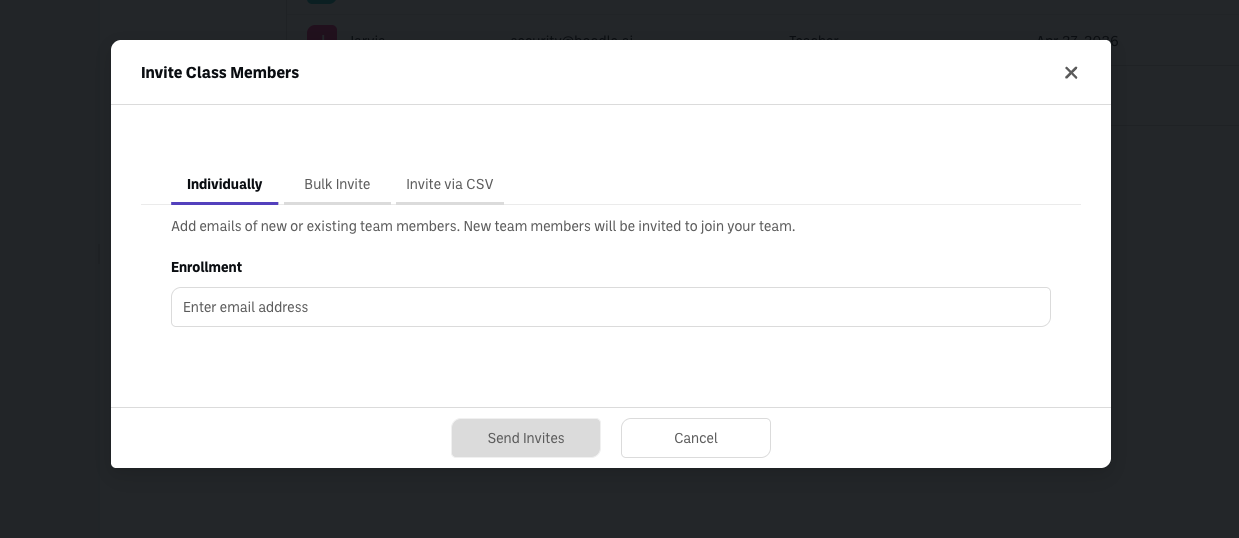
Choose Individually, Bulk Invite, or Invite via CSV, pick roles, and send.
Step-by-step
Open your class. Go to Classroom → Taught by Me and click into your class.
Open Enrollments. Click the Enrollments tab, then Add Student.
Pick an enrollment method:
Individually — add one person by email.
Bulk Invite — paste a list of emails to invite many at once.
Invite via CSV — upload a CSV of emails; best for a full roster (see How to import classroom rosters).
Choose roles for anyone already on your team — Student, Teacher (co-teaching), or Assistant (view-only teacher access). Anyone you invite who isn't already in your workspace is enrolled as an External Student automatically. See Understanding classroom roles in BoodleBox.
Prefer the admin route instead?
Workspace Owners and Admins can still manage enrollment for any class — not just their own — from Workspace Settings → Classes → [class] → Enrollments.
Good to know
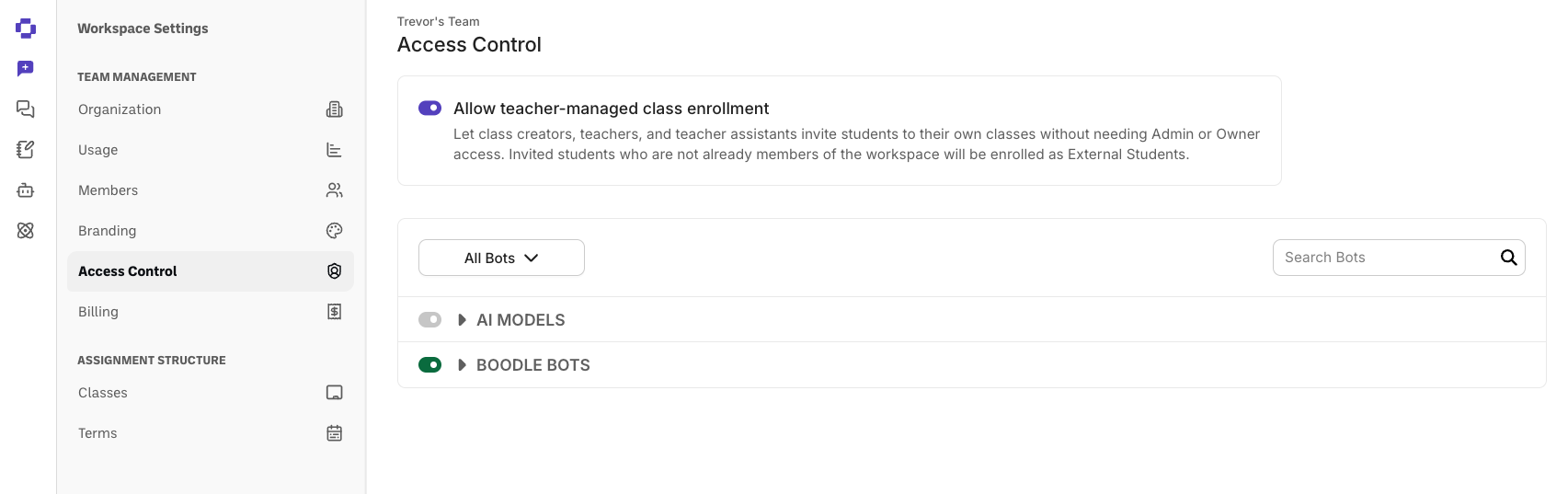
Your workspace Admin can turn teacher-managed enrollment off in Workspace Settings → Access Control → Allow teacher-managed class enrollment. Only workspace Owners and Admins see Workspace Settings in the left sidebar — if you don't have access, or don't see an Enrollments tab on your class, ask a team admin to enable it there.
Verify it's working
Enrolled people appear in the class's Enrollments tab with the role you assigned, and assignments show up for them under Assigned to Me.
Still stuck?
Reach out through our contact form and we'll get back to you.