
How to attach knowledge to a bot
Goal
Make a custom bot an expert on your files by adding them to its Knowledge.
Quick path
Open the bot in Bot Builder → Configure.
In the Knowledge section, add files (upload or pick from your Knowledge Bank).
Publish Changes.
Step-by-step
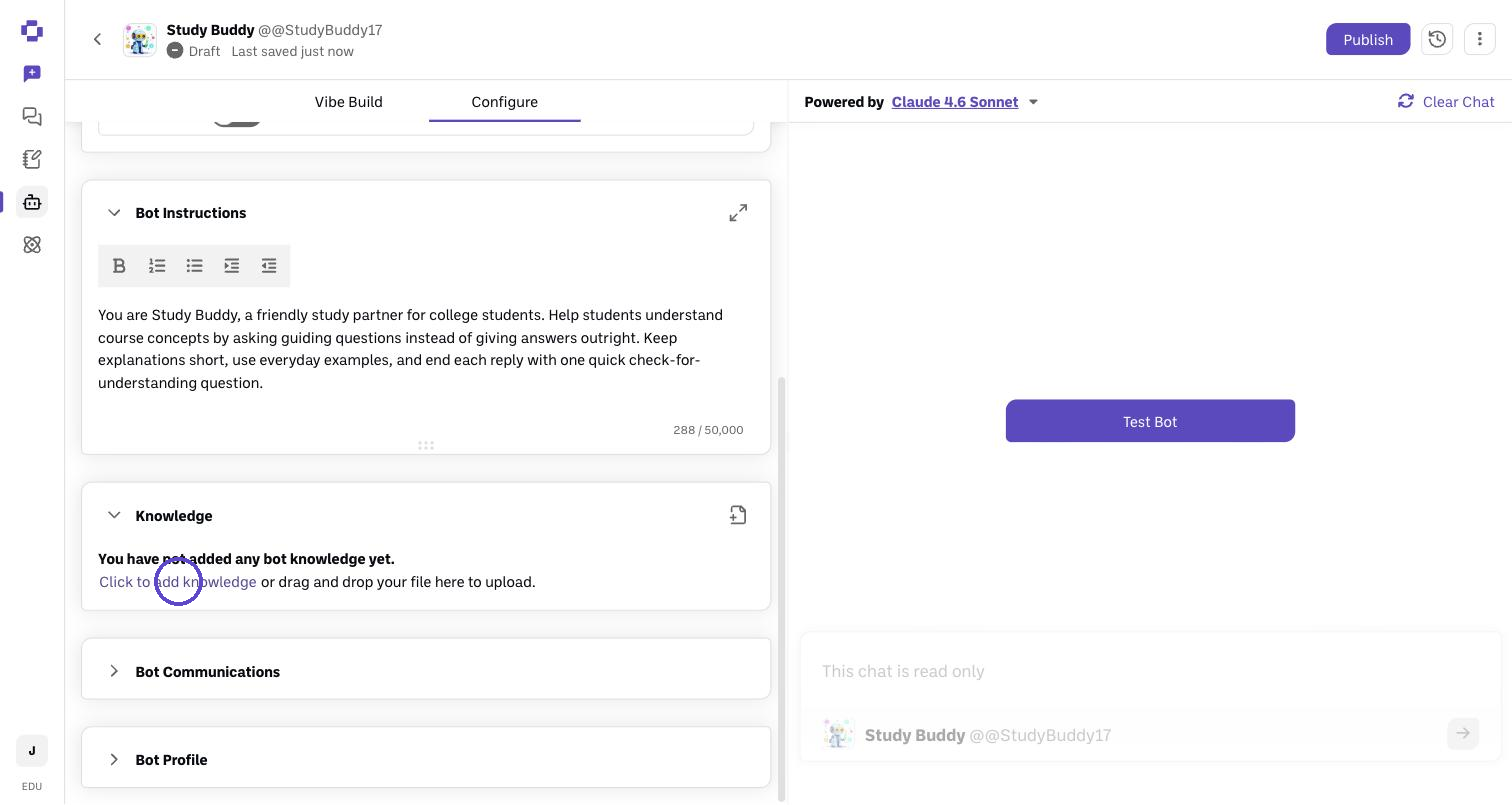
Open the bot in Bot Builder and go to the Configure tab.
Find the Knowledge section. Drop files in directly, or add them from your Knowledge Bank. Files attached here are encrypted end-to-end and used only by this bot.
Mind the limits. A bot can hold up to 30 Knowledge files, or 100 on Boodle Power, and up to 5 of them can be CSV/XLSX spreadsheets. The Knowledge card shows how many files the bot has out of your limit (for example, 3 / 30). When you reach the limit, the add button turns off. See Supported file types and size limits for the file types you can add, and Bot cannot access uploaded documents if Publish is greyed out.
Publish Changes. The bot can now reference those documents in its answers.
Bot Knowledge vs. the Knowledge Bank
These are different:
A bot's Knowledge (here) makes that specific bot an expert on the files. The files stay with the bot.
The Knowledge Bank is your platform-wide file library that you can attach to any chat or bot.
Verify it's working
Open the bot in a chat and ask it about something only in the attached file — it should answer from the document.
Still stuck?
If the bot can't seem to read a file, see Bot cannot access uploaded documents. Reach out through our contact form and we'll get back to you.