
How to change a user's role within a team
Goal
Change a team member's role — Workspace Role (Admin/Member) and, on edu workspaces, Secondary Roles (Faculty/Staff/Student) — either one person at a time or for several people at once.
You need a team workspace and admin rights for this. Click your initials at the bottom-left to see your workspaces — the one you're in has a check mark next to it. If that's your Personal Account, click the team workspace you want instead; Workspace Settings doesn't exist on a Personal Account. You also need to be the workspace Owner or an Admin.
One at a time
Quick path
Go to Workspace Settings → Members.
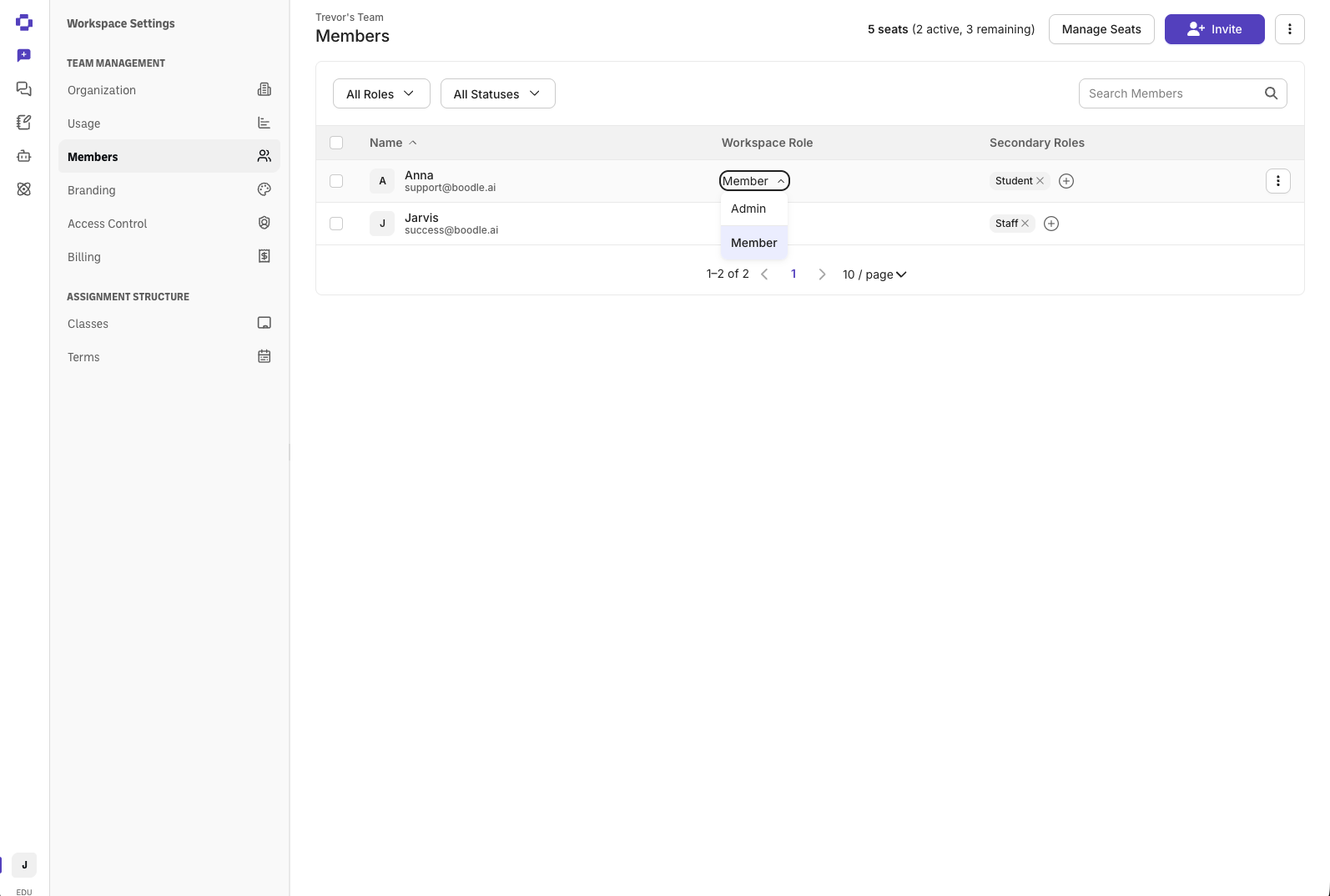
Find the person and open the Role dropdown on their row.
Pick Admin or Member.
Step-by-step
Open Members. Go to Workspace Settings → Members. Use the search or filter to find the person.
Open the Role dropdown on that person's row — the Member ▾ / Admin ▾ control in the Workspace Role column.
Pick the new role — Admin (can invite people and manage seats) or Member (standard access). The change applies right away. (The per-row ⋮ menu is for Remove Member, not role changes.) See Understanding team roles and permissions.
Secondary roles are set separately — on edu workspaces, click the + in that person's Secondary Roles column and pick Faculty, Staff, or Student.
In bulk
Update the role for several people in one action — useful after a CSV import, or any time a group needs the same change.
Quick path
Go to Workspace Settings → Members.
Check the box next to each person you want to change.
Click the Change Role icon in the bulk-action bar and pick a role.
Step-by-step
Open Members. Go to Workspace Settings → Members.
Select the people you want to change using the checkboxes on the left of each row (or the header checkbox to select everyone on the page).
Click the Change Role icon — the card-shaped icon that appears in the action bar once you have people selected, next to the resend-invite and delete icons.
Pick a role from the dropdown — Admin, Member, Faculty, Staff, or Student. It applies to everyone selected immediately.
Good to know
Admin and Member are unavailable in the dropdown if your selection includes the workspace Owner — bulk actions can't change or be applied to the Owner. Deselect the Owner and the rest of the roles become available for the others.
This is different from the CSV bulk upload, which adds or removes members — its role column only sets the role for new invites, not people already on the team.
Good to know
Default to Member for most people; grant Admin only to those who help manage the team.
Edu workspaces also have secondary roles — Faculty, Staff, and Student — that layer on top of Admin/Member rather than replace it. See Understanding team roles and permissions for what each secondary role does and its current limits.
Verify it's working
Each person's role updates in the roster right away, whether changed one at a time or in bulk.
Still stuck?
Reach out through our contact form and we'll get back to you.