
Navigating the BoodleBox interface
Goal
Find your way around BoodleBox's main areas in a minute.
Quick path
The left icon rail takes you to each main area.
Your initials (bottom-left) open your settings, switch between workspaces, and reach support.
The left navigation rail (top to bottom)
BoodleBox logo — home.
New Chat — start a new conversation.
Chats — your saved conversations and folders.
Classroom (beta) — your classes and assignments.
Bot Builder — your custom bots.
Banks — your saved resources, split into two:
Knowledge — your uploaded files.
Skills — your reusable Skills (saved instructions the AI can call on in any chat).
Your initials (at the bottom) — the account menu, covered below.
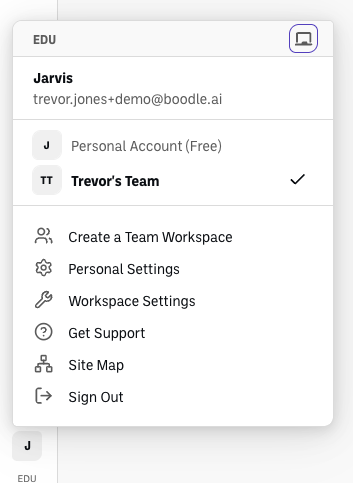
The account menu (your initials, bottom-left)
This menu is how you move between your personal account and any team workspace, so it's worth knowing:
Your BoodleBox Experience — the experience tag applied to your account (for example EDU), linking to your preferences.
Your name and email, with Upgrade Personal Plan.
Your workspaces — every workspace you belong to, with Personal Account listed alongside any team workspaces. A check mark shows which one you're in; click any other one to switch to it.
Create a Team Workspace — the only way to get a workspace you can add other people to.
Personal Settings — your profile, preferences, password, and personal billing.
Workspace Settings — administration for whichever team workspace you're currently in: Organization, Usage, Members, Branding, Access Control, and Billing.
Get Support, Site Map, Sign Out.
Which workspace you're in changes what you can see, so if a settings page seems to be missing, check here first — see How to manage your team & users.
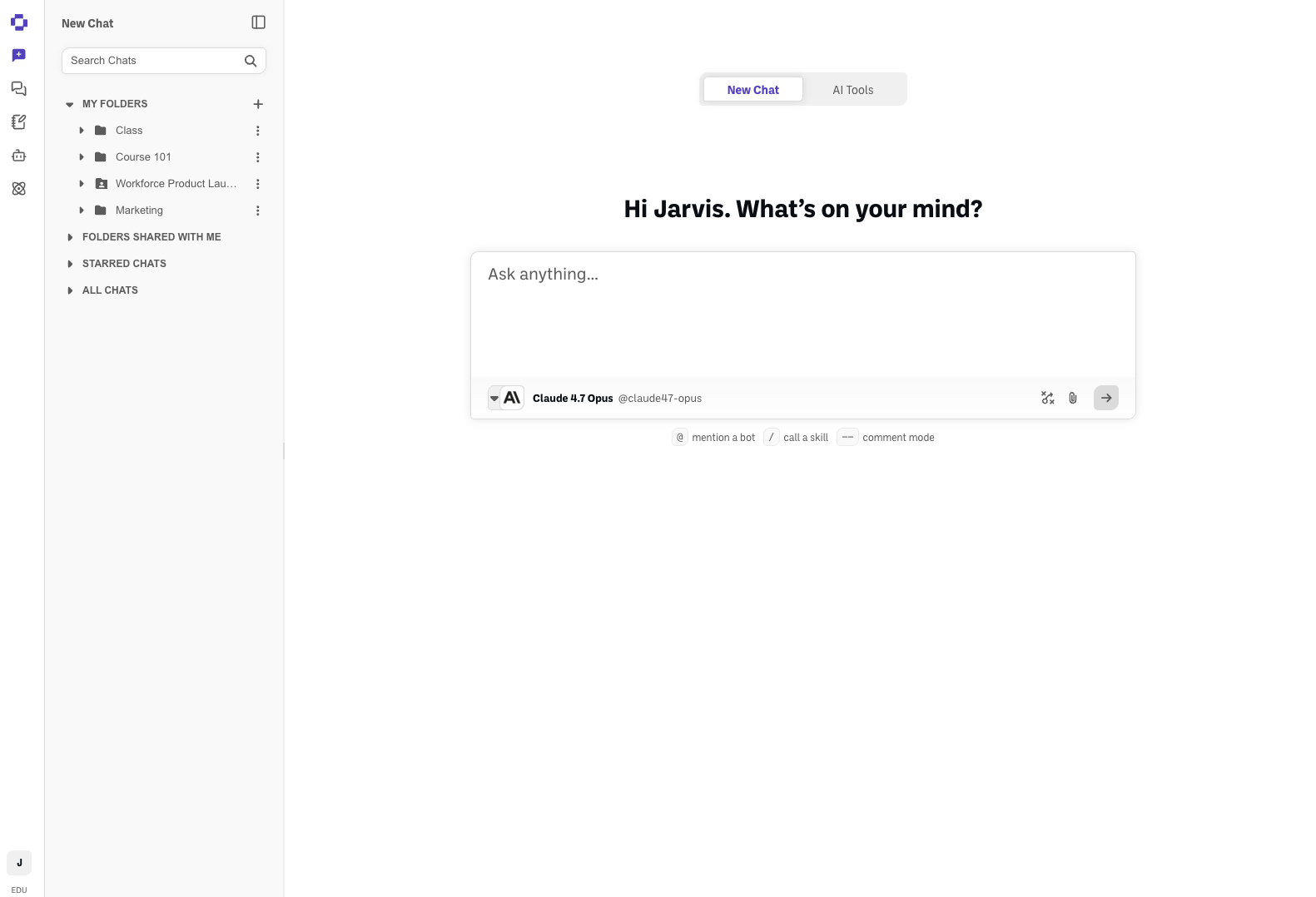
The chat screen
A greeting and the prompt box, where you type. At the bottom of the box you'll see the current model name, the prompt-modes icon, and Attach Knowledge.
Tabs at the top switch between New Chat and AI Tools.
Verify it's working
Clicking each rail icon opens that area; clicking your initials opens the profile menu.
Still stuck?
Reach out through our contact form and we'll get back to you.