
How to update your profile & account settings
Goal
Manage your personal account — your public profile, your app preferences, and your password — all under Personal Settings. These are yours alone and stay with you whichever workspace you're in.
Quick path
Personal Settings → User Details — edit your profile.
Preferences — set color mode and user type.
Password & Security — change your password, or delete your account (see How to delete your account).
Your profile (User Details)
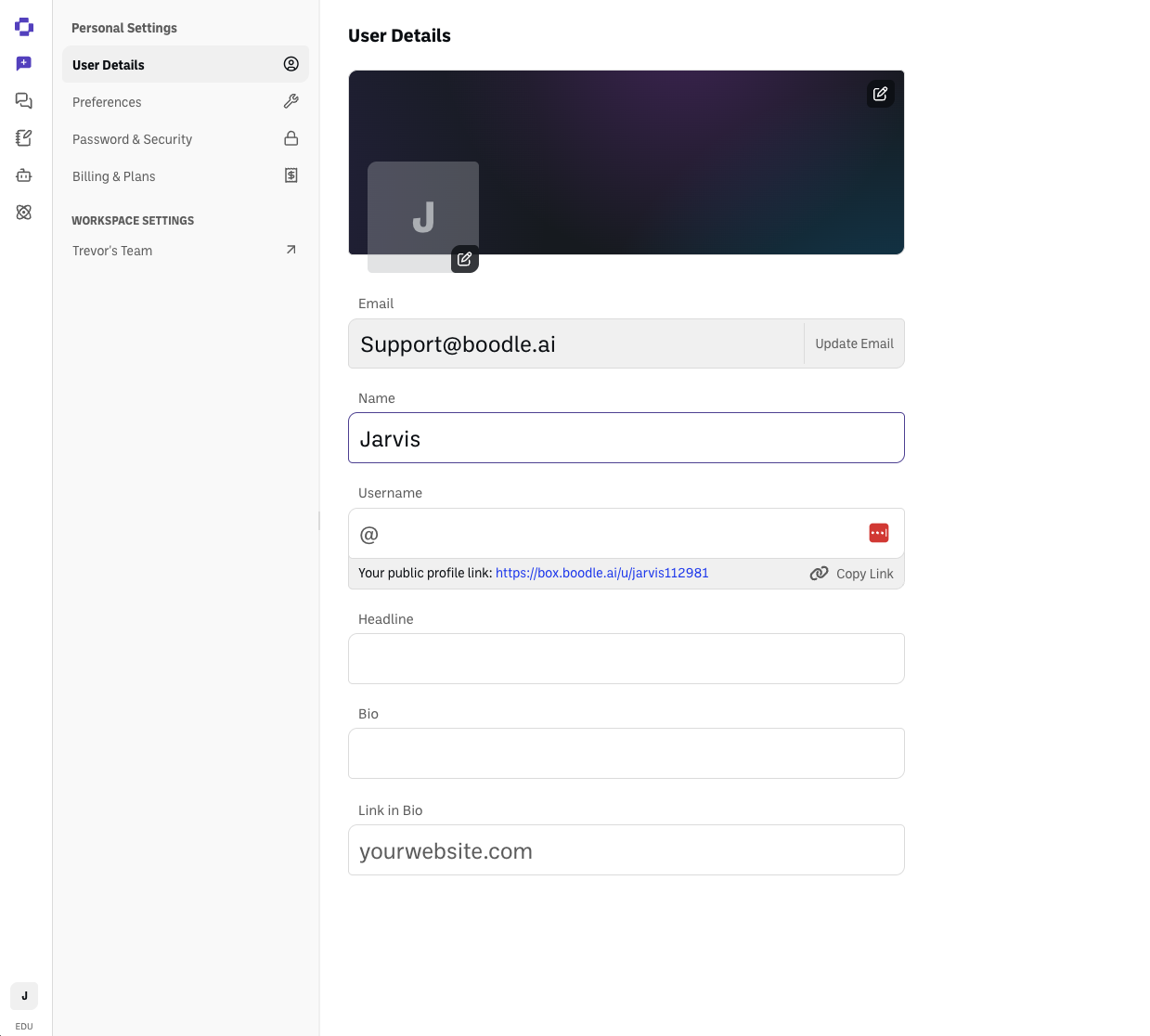
Go to Personal Settings → User Details. Set your display Name, Headline, Bio, and a Link in Bio, and upload an avatar and cover image. Your email is shown here too, along with your Username and a copyable public-profile link.
Your username. You can change your Username here. A new username must:
Be 4 to 30 characters long.
Use only lowercase letters (a–z), numbers, periods, underscores and hyphens.
Start and end with a letter or a number.
A few names are reserved and can't be used, such as admin, support and boodlebox. If your new username isn't accepted, check it against these rules. Usernames created before October 14, 2026 keep working even if they don't follow them.
Your preferences
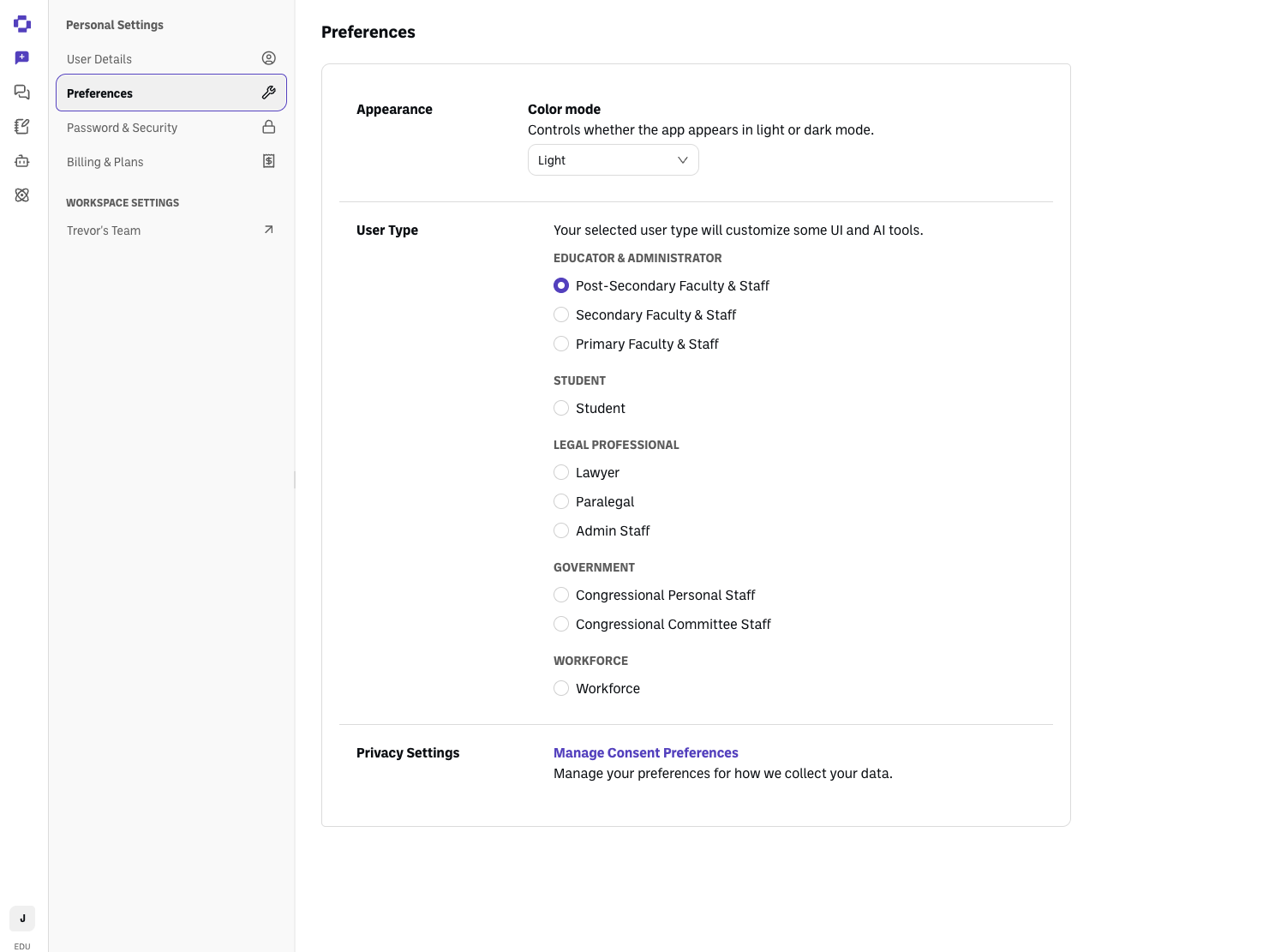
Go to Personal Settings → Preferences. Choose light or dark Color mode, set your User Type (this customizes parts of the UI and which AI Tools you see), and open Manage Consent Preferences to control how your data is used.
Your password
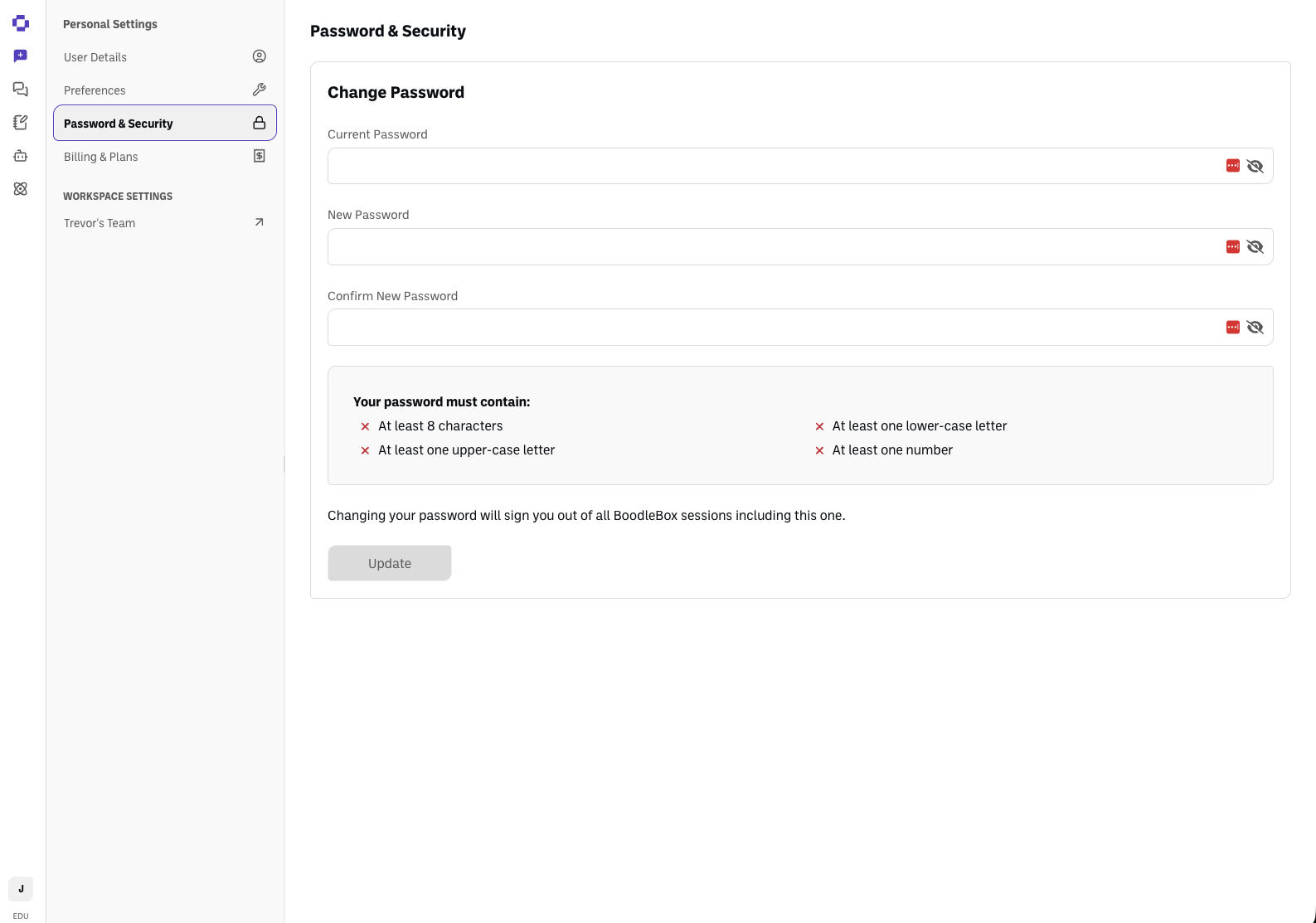
Go to Personal Settings → Password & Security. Enter your current password, then your new password and confirm it, and click Save. You need your current password to set a new one.
Verify it's working
Your changes save (the page confirms), and your updated name/avatar show across the app.
Still stuck?
Changing your User Type in Preferences is what changes the AI Tools set you see on the chat home. Reach out through our contact form and we'll get back to you.