
How to accept a team invitation
Goal
Join your institution's (or organization's) BoodleBox team after an admin invites you.
Good to know
There's no separate "Accept" button or email link to click. In BoodleBox you're connected to a team by your email address — so "accepting" simply means signing in with the invited email and selecting the team.
Steps
-
Sign in with the invited email. Go to box.boodle.ai and sign in (or sign up) using the exact email the invite was sent to. If your institution uses SSO, use Sign In with Your EDU Account (see How to sign in with SSO).
-
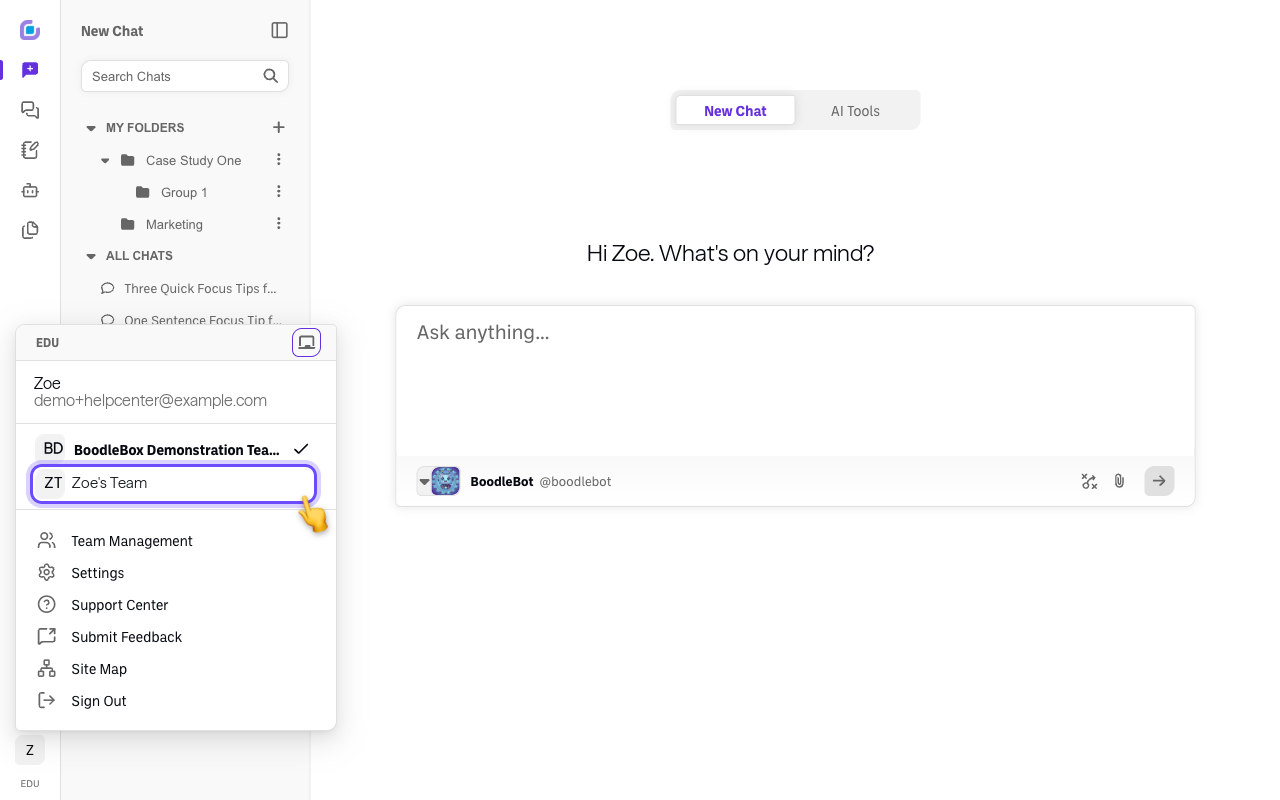
Open the team menu. Click your initials at the bottom-left. You'll see every team you've been added to listed there.
-
Select your institution's team. Click it in the list to switch to it. (A checkmark shows which team you're currently in.)
Important: use the matching email
You're connected to the team by your email. If you sign in with a different email than the one you were invited with, your institution's team won't appear — you'll land on your own Personal Account or a duplicate account instead, and your institution's workspace won't be there. Always use the invited email.
Verify it's working
- Your institution's team appears in that list with a checkmark next to it, and any shared bots/assignments are available to you.
Still stuck?
If you don't see the team, ask your admin to confirm you were added (and with which email). Email success@boodle.ai — typical response within 8 business hours.