
How to use AI Tools
Goal
Use a ready-made BoodleBox assistant — like a Syllabus Generator, Rubric Generator, or Socratic Question Generator. Pick one and it opens a chat already set up to do that job.
The tools you see depend on your User Type
AI Tools are not the same for everyone. The set you see is tailored to your User Type, so a student sees different tools than a faculty member, and someone on Workforce sees a different set again. If a colleague mentions a tool you can't find, this is usually why.
Your User Type lives in Personal Settings → Preferences, under User Type:
- Post-Secondary Faculty & Staff
- Secondary Faculty & Staff
- Primary Faculty & Staff
- Student
- Congressional Personal Staff
- Congressional Committee Staff
- Workforce
- Explorer
Pick the one that matches how you actually use BoodleBox. You can change it whenever you like, and the AI Tools grid updates to match.
It also changes Coach Mode. Your User Type tailors the tips Coach Mode adds to the AI's responses, so they're pitched at your role — see How to use prompt modes (Coach, Message, Memory, Knowledge to Context).
Quick path
- On the chat home, click the AI Tools tab.
- (Optional) Filter by category.
- Click any tool to start a chat with it.
Step-by-step
-
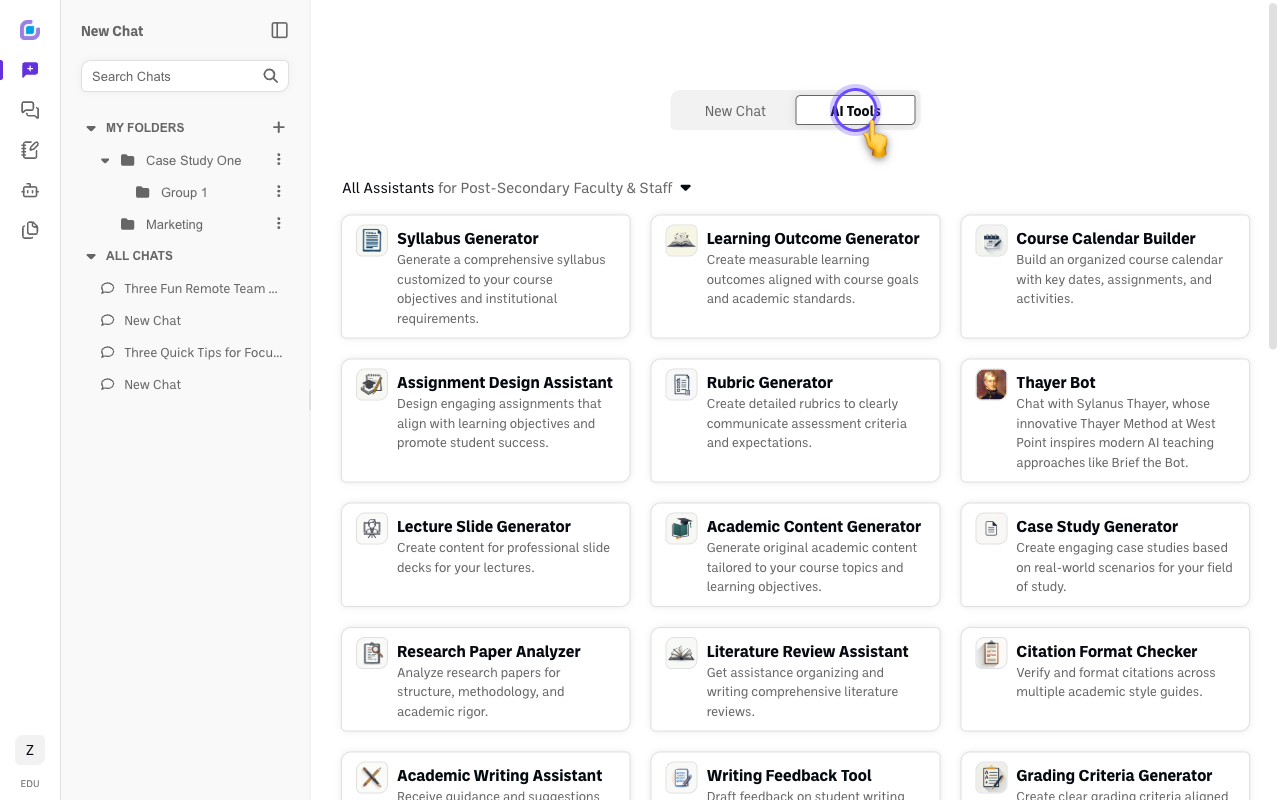
Click the AI Tools tab on the chat home. You'll see a grid of tools tailored to your user type.
-
Optional: filter by category using the dropdown at the top (it shows your experience category).
-
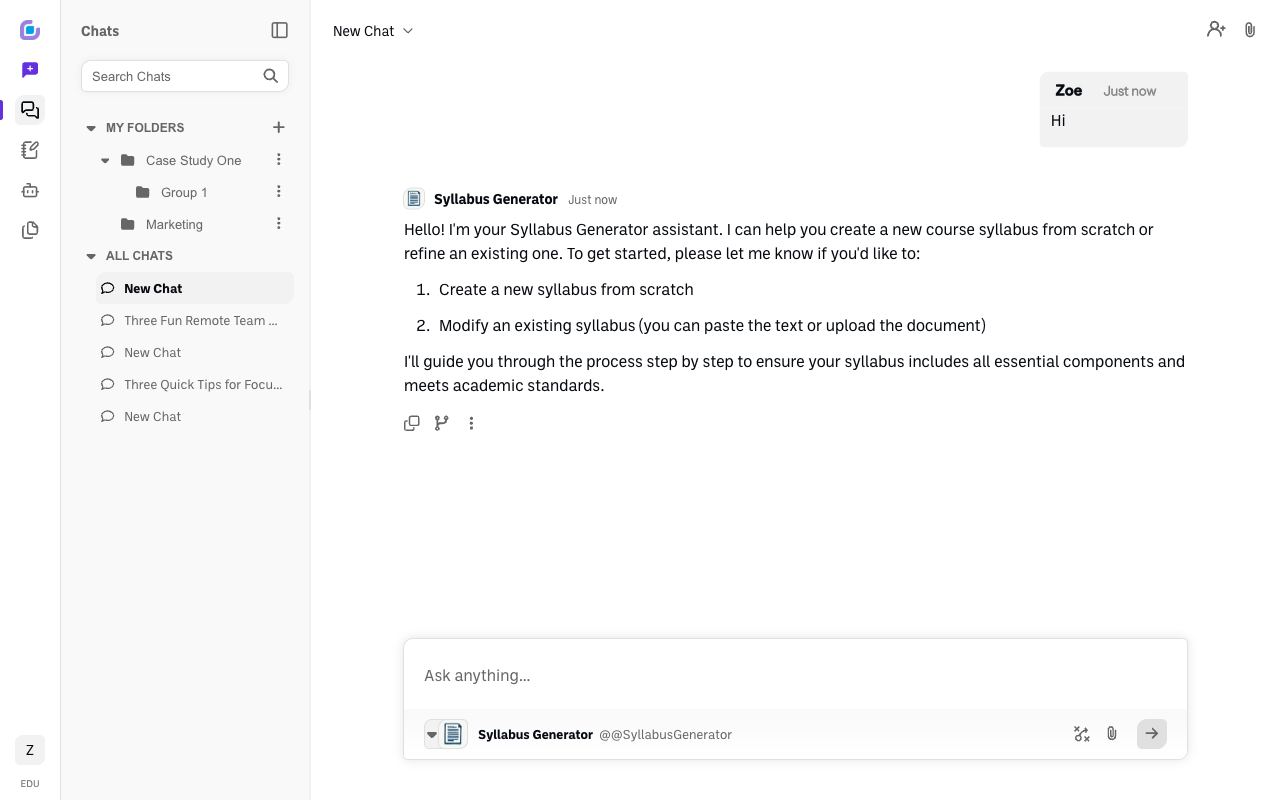
Click any tool to start. It opens a new chat already powered by that tool, and the tool greets you with what it can do and how to begin.
Verify it's working
- Clicking a tool opens a new chat where that tool introduces itself and is the active bot.
Still stuck?
Can't find a tool a colleague described? Check your User Type in Personal Settings → Preferences — it decides which tools you see. Email success@boodle.ai — typical response within 8 business hours.