
How to use prompt modes (Coach, Message, Memory, Knowledge to Context)
Goal
Change how the AI behaves in a chat by switching prompt modes on or off. You can combine them.
Quick path
- In the chat input, click Set prompt mode.
- Toggle the modes you want.
Step-by-step
-
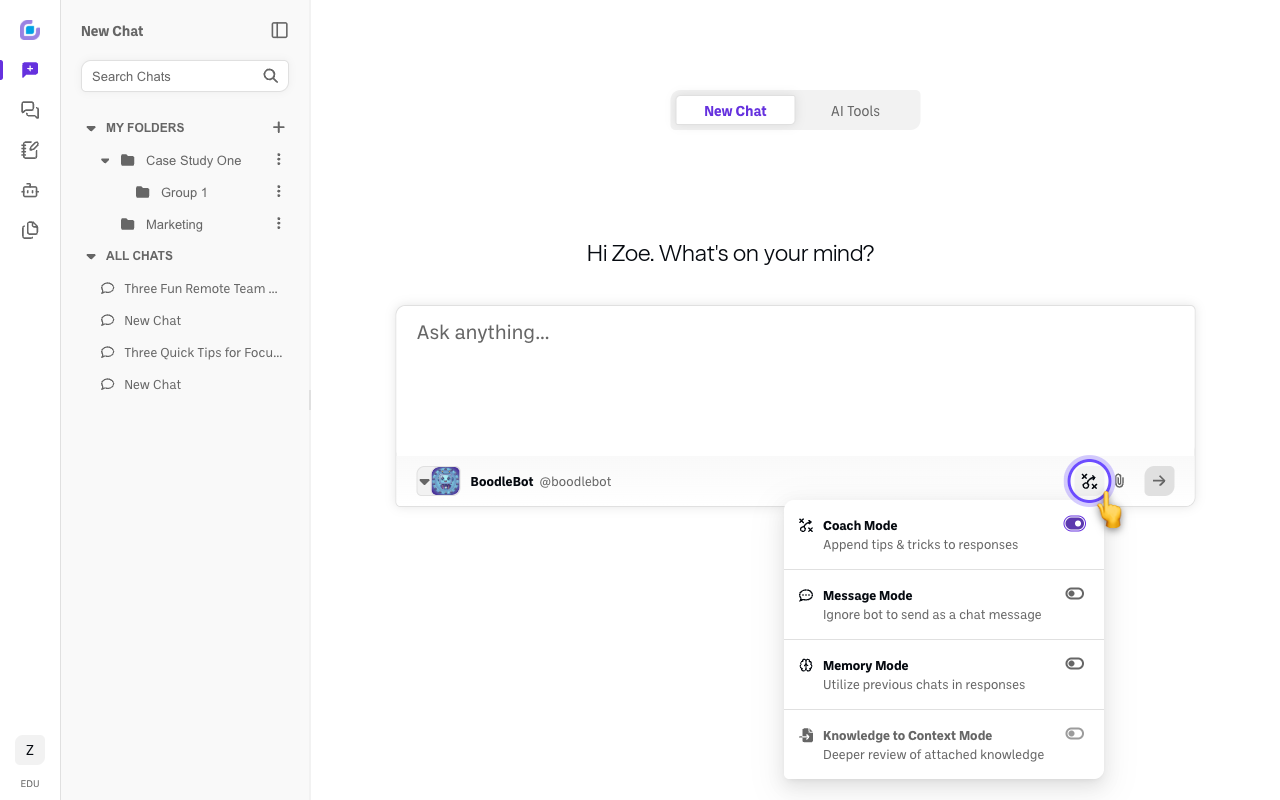
Click Set prompt mode near the bottom-right of the chat prompt box. A panel opens listing the four modes.
-
Switch on the ones you want:
- Coach Mode — appends tips & tricks to the AI's responses. These are tailored to your User Type, so the coaching a student gets is pitched differently from what a faculty member or someone on Workforce gets. You can change your User Type in Personal Settings → Preferences — see How to use AI Tools.
- Message Mode — skips the bot and posts your text as a plain message in the chat (handy in shared chats).
- Memory Mode — lets the AI use your previous chats when it answers.
- Knowledge to Context Mode — loads your attached documents in full, up front. You usually don't need this. BoodleBox already loads a full document automatically whenever your request calls for it, so this is a shortcut for starting a session in full-document mode rather than something you have to remember. Available once the chat has knowledge attached. See How BoodleBox reads your documents.
Verify it's working
- The modes panel shows which modes are active, and the input's mode indicator reflects your choices.
Still stuck?
Modes can be combined — for example, Coach + Memory at once. Email success@boodle.ai with what you're seeing — typical response within 8 business hours.