
How to use more than one AI in the same chat
Goal
Bring different AI models into a single conversation. Each model you switch to can see everything that came before — so one model can draft something and another can review or build on it.
Quick path
There are two ways to bring in another model — use whichever is faster for you:
- Type
@in the chat input and pick a model, or click the model name at the bottom-left and pick from the picker. - Send — your message goes to that model, with the full conversation so far.
Method 1: type @ in the chat
-
Type
@in the chat input. A list of models pops up — your recent ones first. Keep typing to filter to a specific model.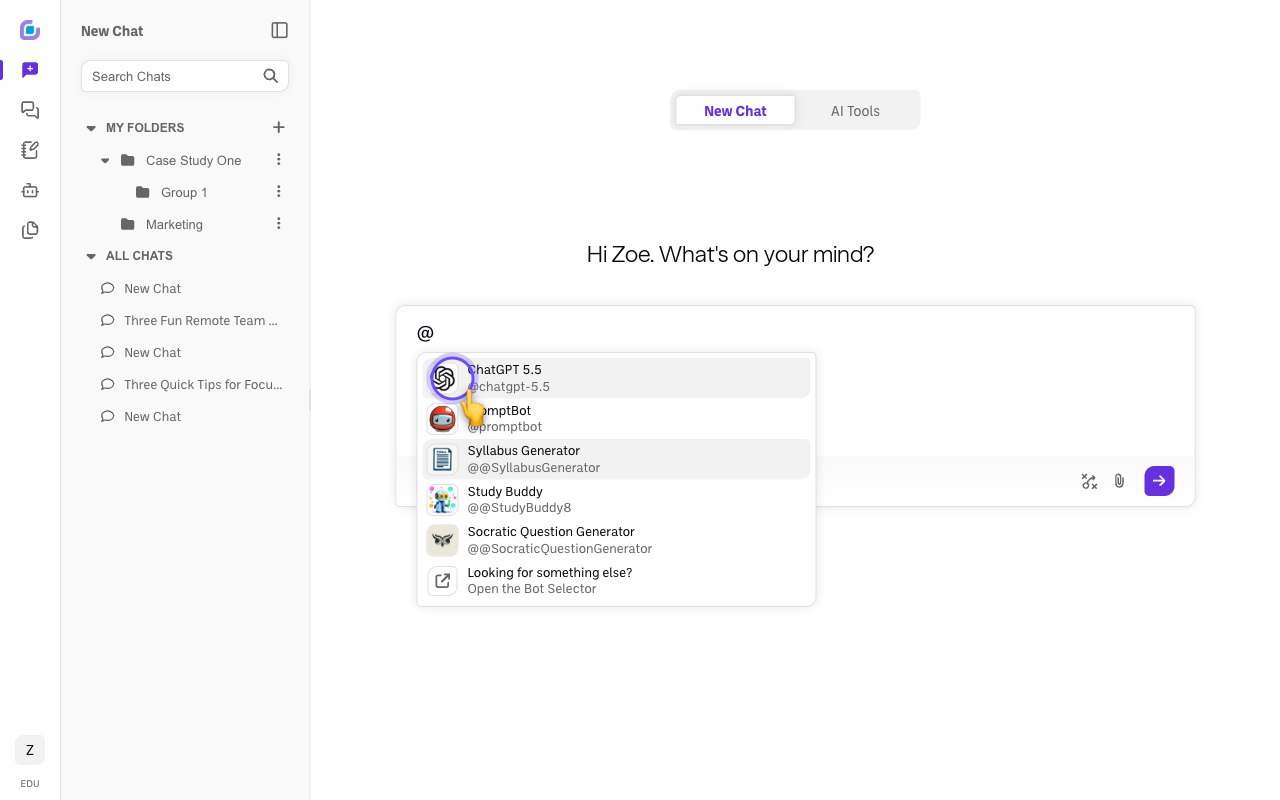
-
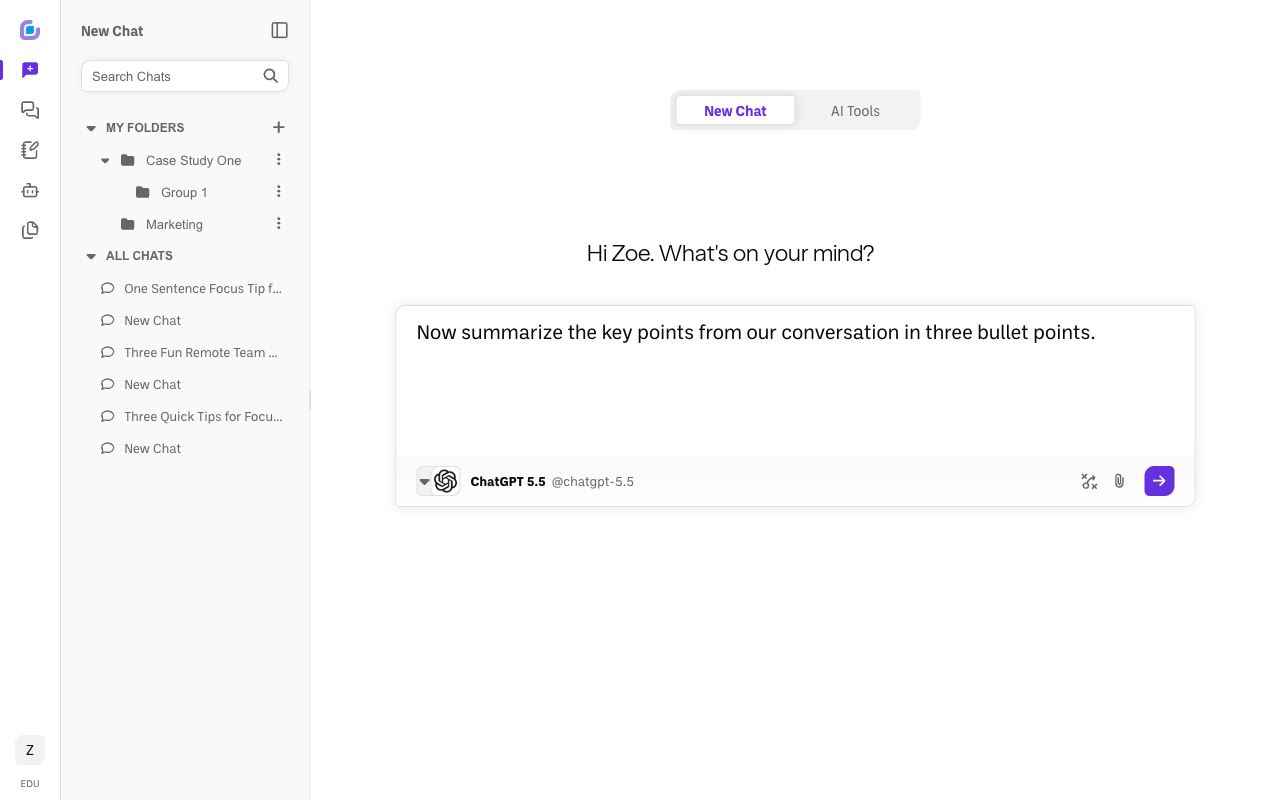
Click the model you want (here, ChatGPT 5.5). The model name at the bottom of the input switches to it. Your next message goes to that model, and it can see the whole conversation so far.
-
Send your message. To bring in another model later, just type
@again and pick a different one.
Method 2: pick from the model selector
-
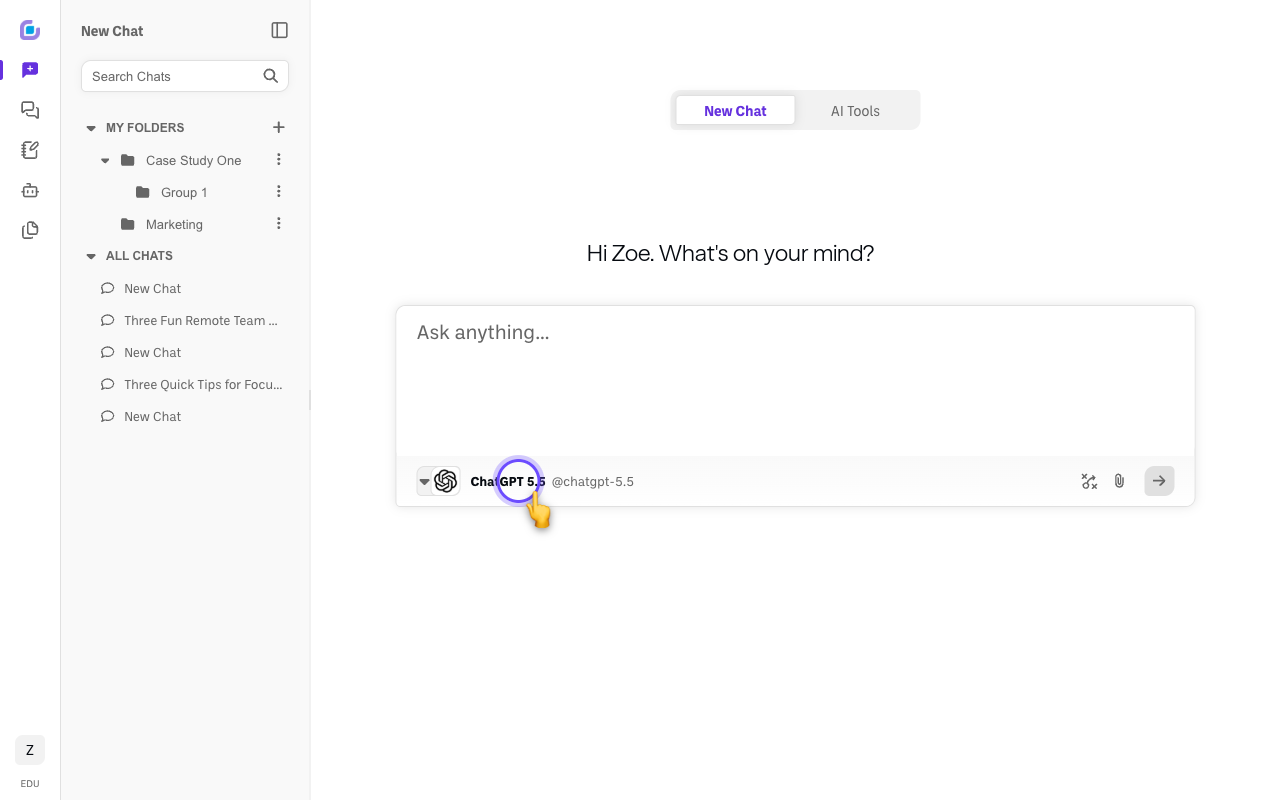
Click the model name at the bottom-left of the chat input (here it's ChatGPT 5.5, the model from Method 1).
-
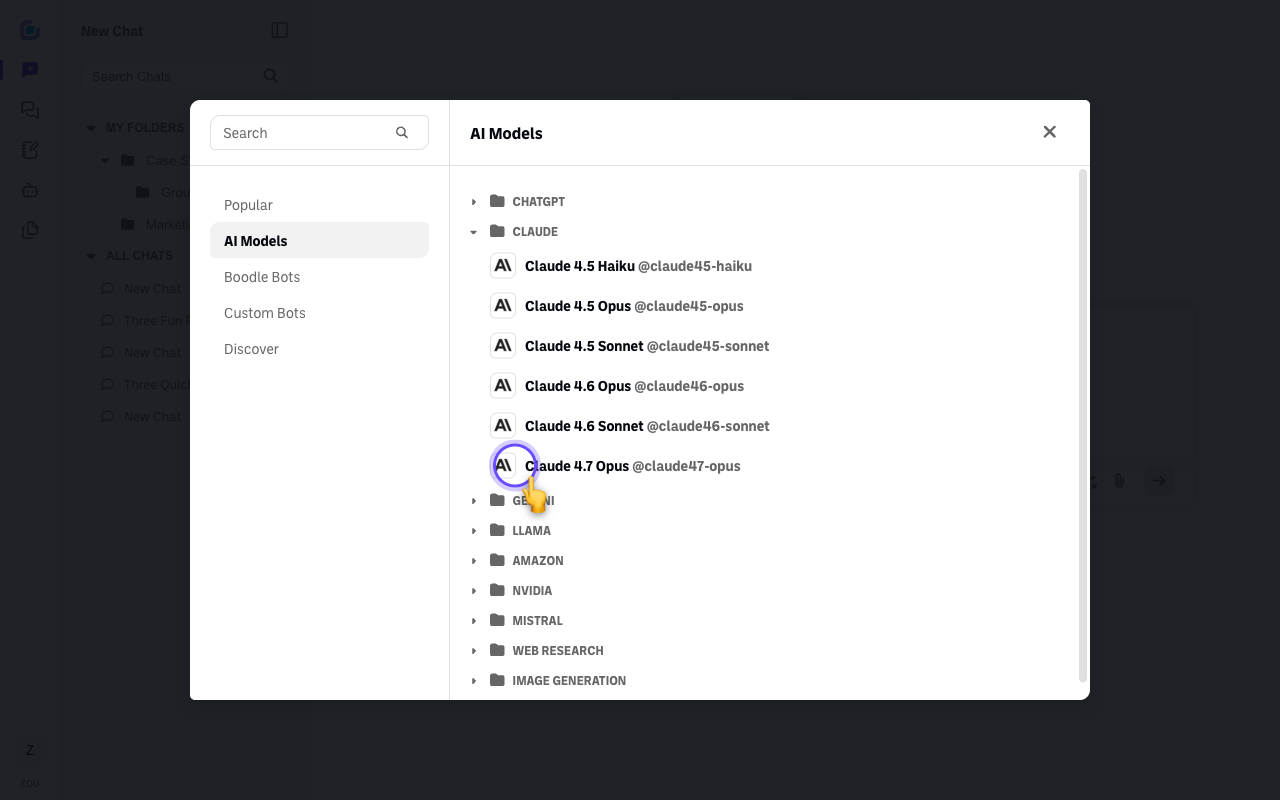
Open the AI Models tab and choose the exact model. In the picker, click AI Models on the left, expand a provider — for example, Claude — and pick the model you want, like Claude 4.7 Opus. (This is the same picker covered in How to switch the AI model you're chatting with.)
-
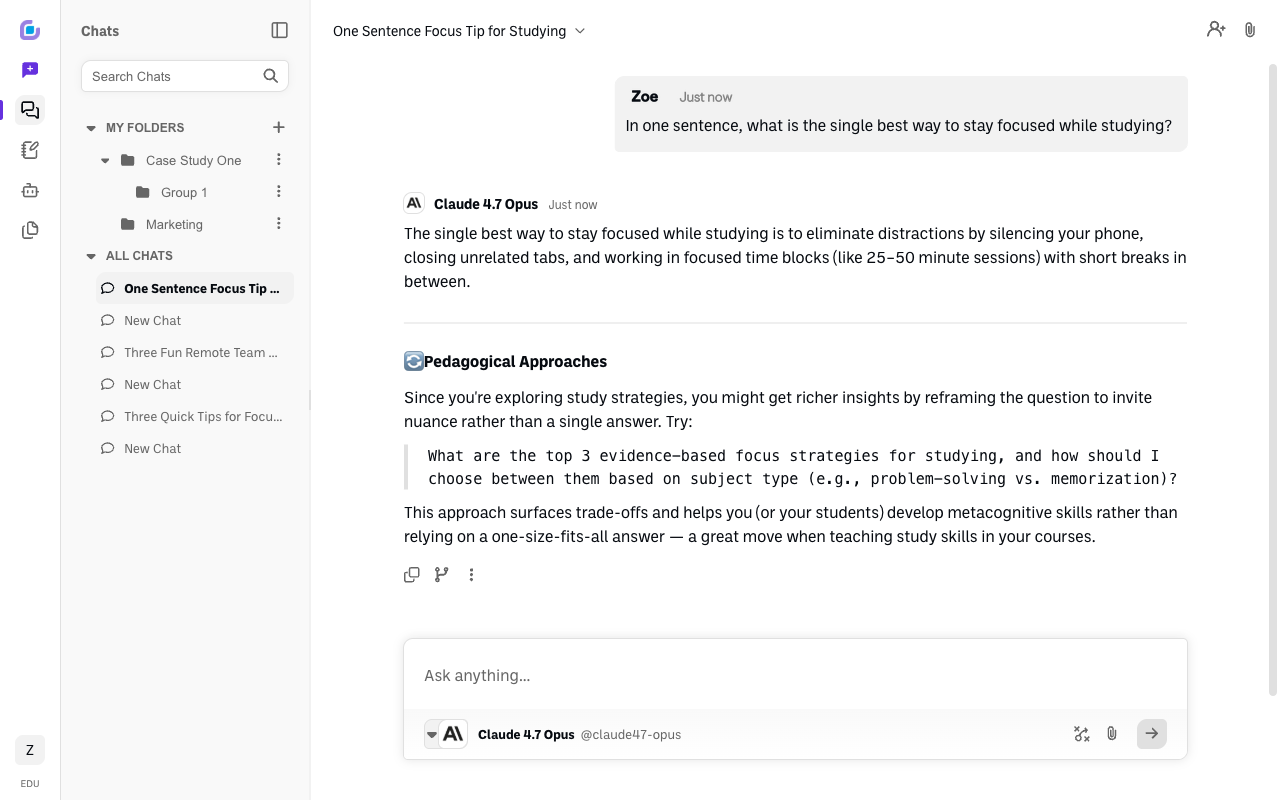
Send your message. It now goes to the model you picked — here Claude 4.7 Opus — and that model can see the whole conversation so far.
Verify it's working
- The model indicator at the bottom of the input shows the model you @-mentioned.
- The new model's reply reflects the earlier conversation.
Still stuck?
Don't see the model you want? Choose "Open the Bot Selector" at the bottom of the list for the full picker. Email success@boodle.ai — typical response within 8 business hours.