
How to create terms for classes
Goal
Create an academic term (like a semester) so your classes are organized under it.
You need a team workspace and admin rights for this. Click your initials at the bottom-left to see your workspaces — the one you're in has a check mark next to it. If that's your Personal Account, click the team workspace you want instead; Workspace Settings doesn't exist on a Personal Account. You also need to be the workspace Owner or an Admin.
Quick path
- Go to Workspace Settings → Terms.
- Click Add Term.
- Enter a name and date range, then save.
Step-by-step
-
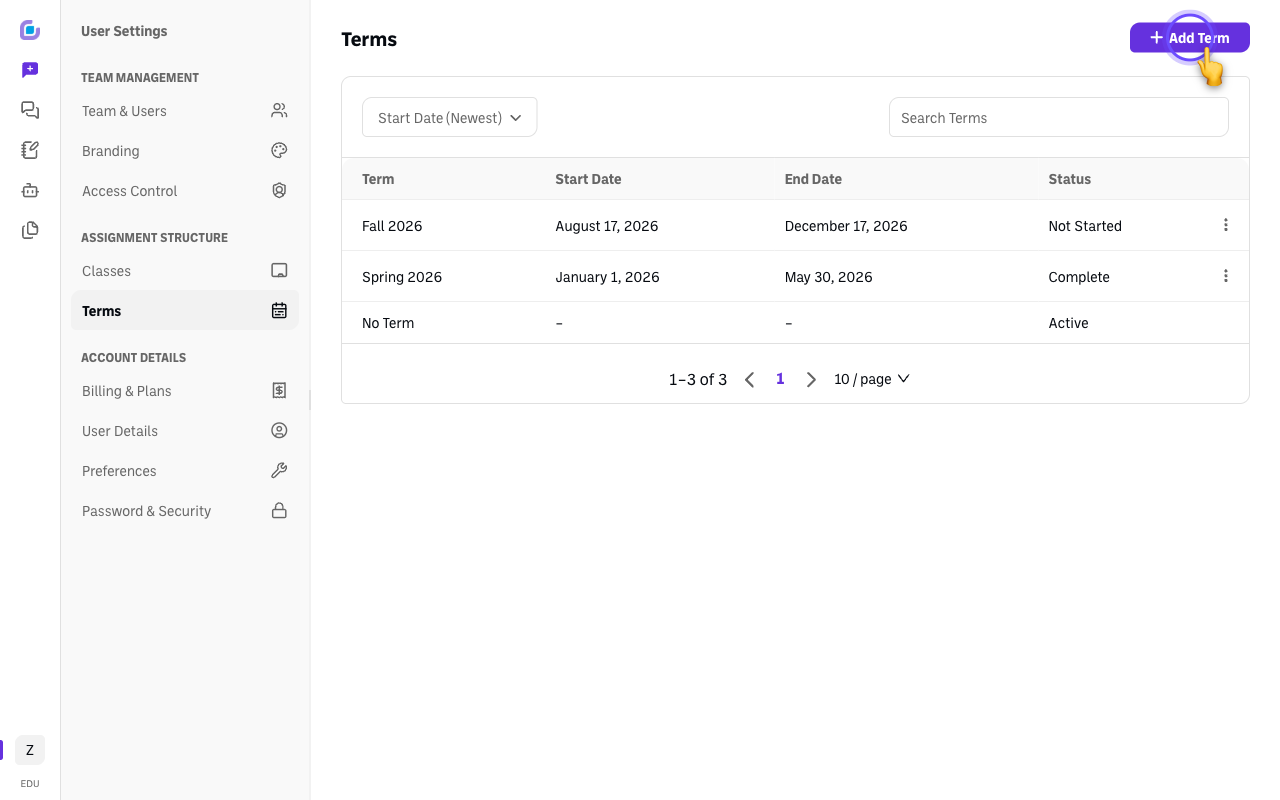
Open Terms. Go to Workspace Workspace Settings → Terms.
-
Create a term. Click Add Term, give it a name (e.g., Fall 2026) and a date range.
-
Save. Your classes can now be assigned to this term when you create them.
Good to know
- Terms are like semesters in an LMS — they group your classes.
- Your team admin may reserve term creation as an admin-only action. If you don't see Workspace Settings → Terms, ask your admin.
Verify it's working
- The new term appears in the Terms list and is selectable when creating a class.
Still stuck?
Email success@boodle.ai — typical response within 8 business hours. (See also How to create a class and an assignment.)