
How to create a class and an assignment
Goal
Set up a class, build an AI-powered assignment from scratch, and assign it to your class with due dates.
Quick path
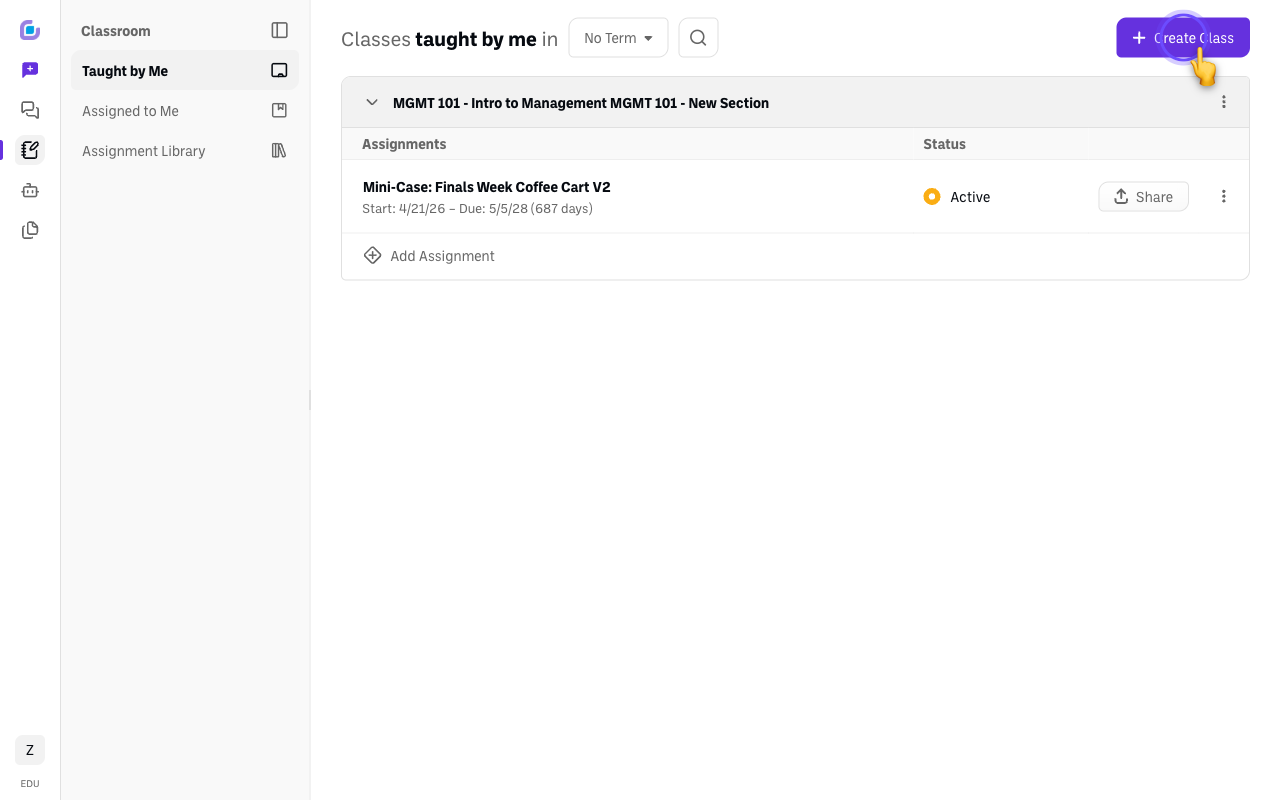
- Classroom → Taught by Me → Create Class; fill in the details and save.
- Assignment Library → Create Assignment; name it and Continue.
- Build it across the tabs (Details, Directions, Learning Objectives, Bots, Settings), Publish, then add it to a class.
Create a class
-
Go to Classroom → Taught by Me and click Create Class.
-
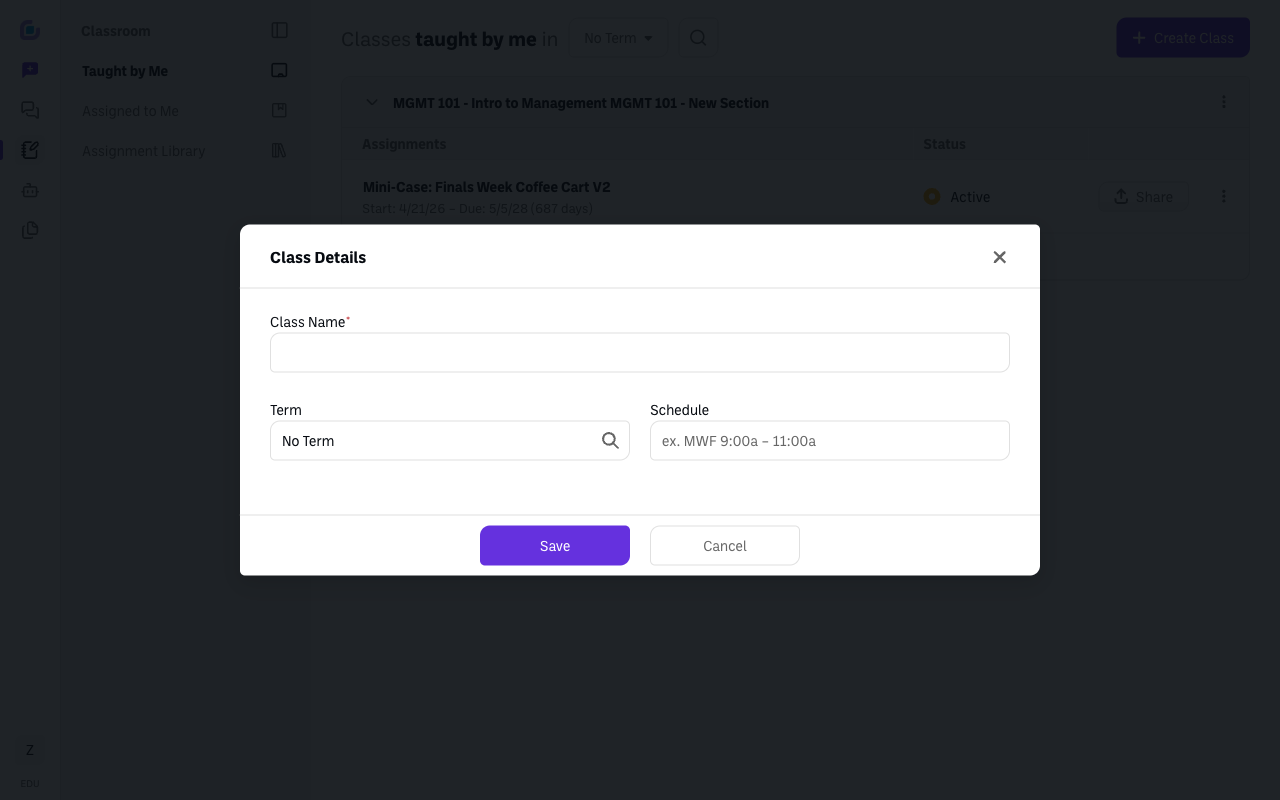
Fill in the class details (class name, and term/section if you use them) and click Save. The class appears under Taught by Me.
Build an assignment
-
Go to the Assignment Library and click Create Assignment. Give it a name and a short description, then click Continue — you land in the assignment builder. It has five tabs down the left: Details, Directions, Learning Objectives, Bots, and Settings.
-
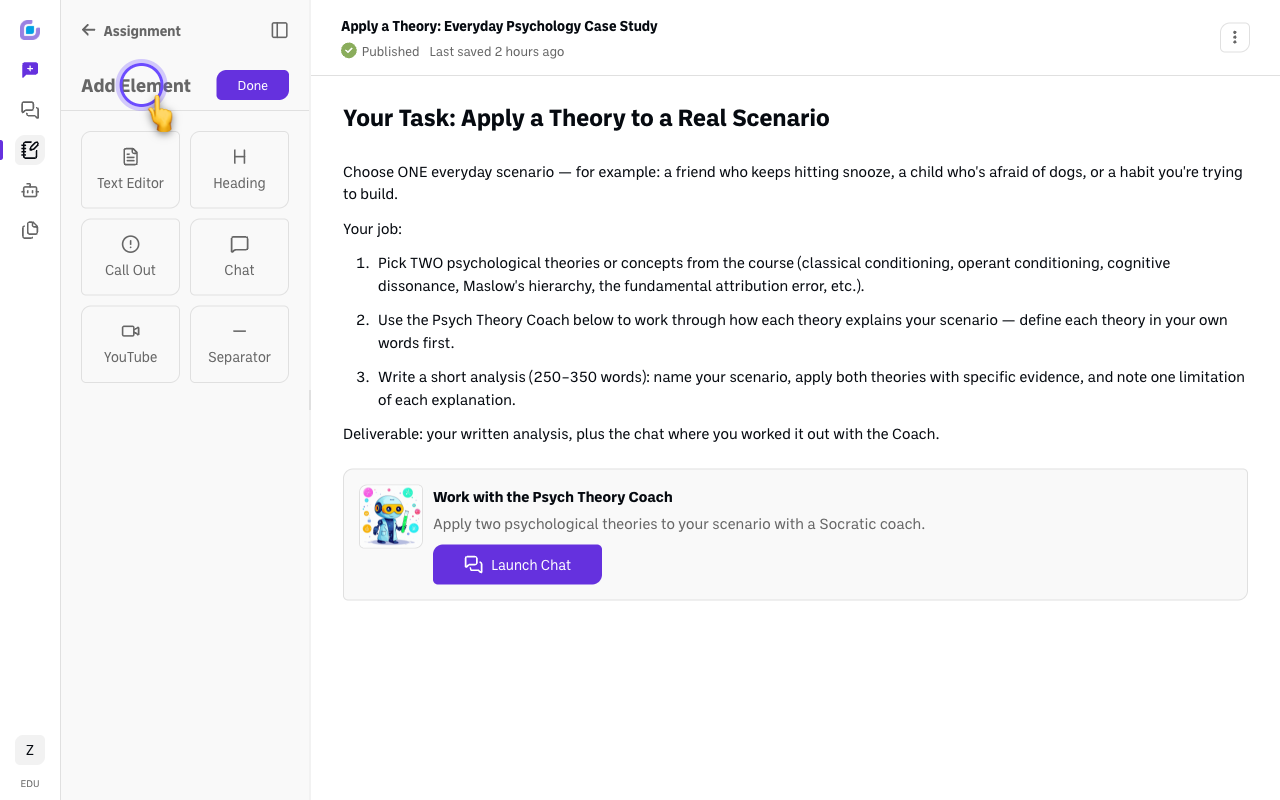
Directions — add the content students see. Click + Add Element and pick from six block types: Heading, Text Editor, Call Out, Chat (an AI chat powered by a bot — including your own custom bot), YouTube, and Separator.
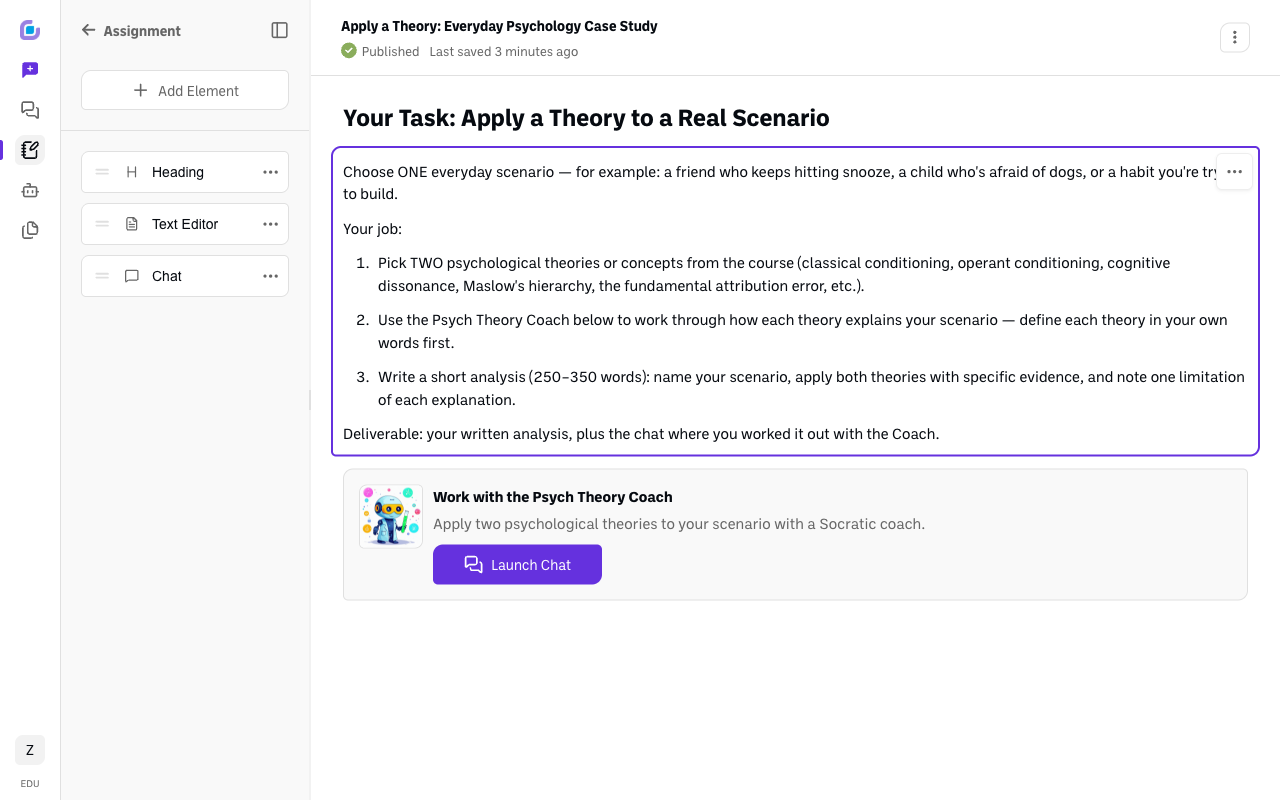
Build it out. The example below is a PSY 101 "Apply a Theory" case study — a heading, the task instructions, and a Chat element powered by a custom Psych Theory Coach bot.
-
Learning Objectives (optional). Spell out what students should be able to do — these also help guide the bot's responses.
-
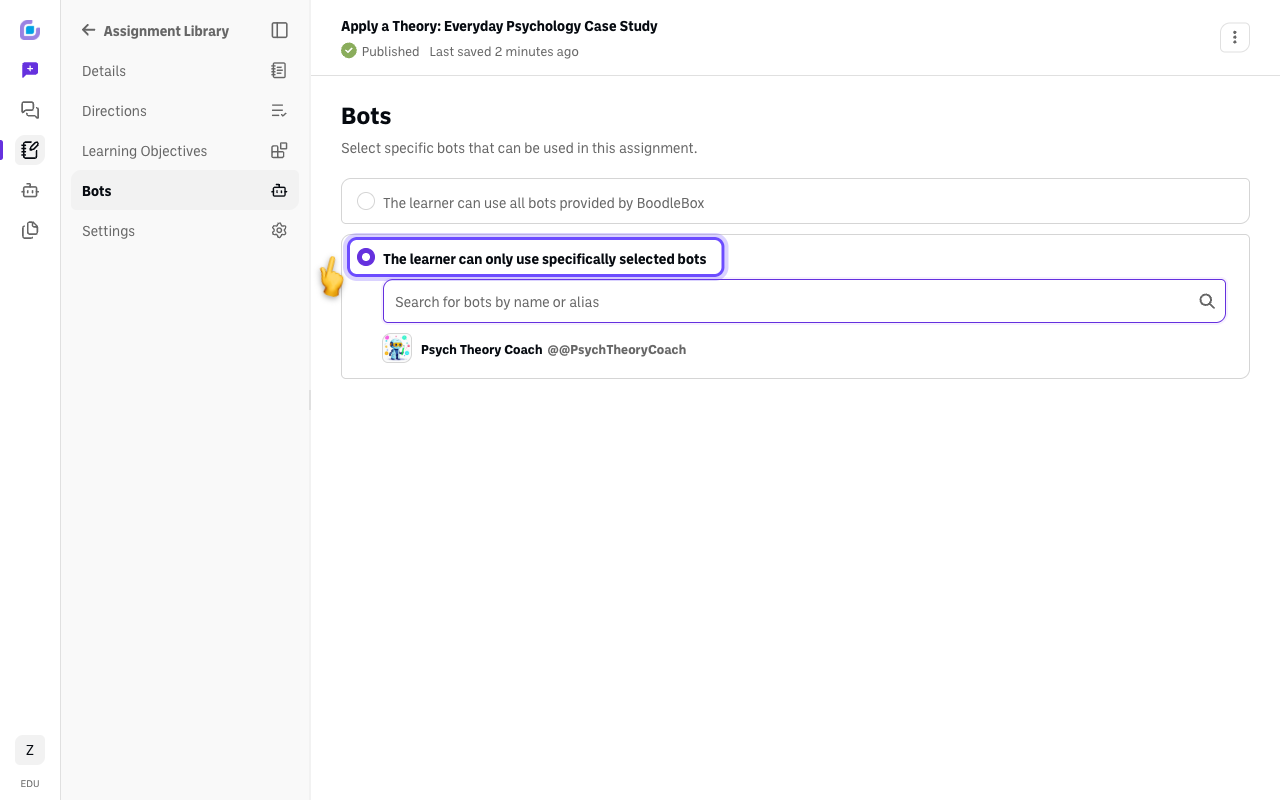
Bots — sandbox which AIs students may use. Choose all bots provided by BoodleBox, or only specifically selected bots and search for the ones you want. In the example, the assignment is locked to just the custom Psych Theory Coach bot — so that's the only AI students can use here.
-
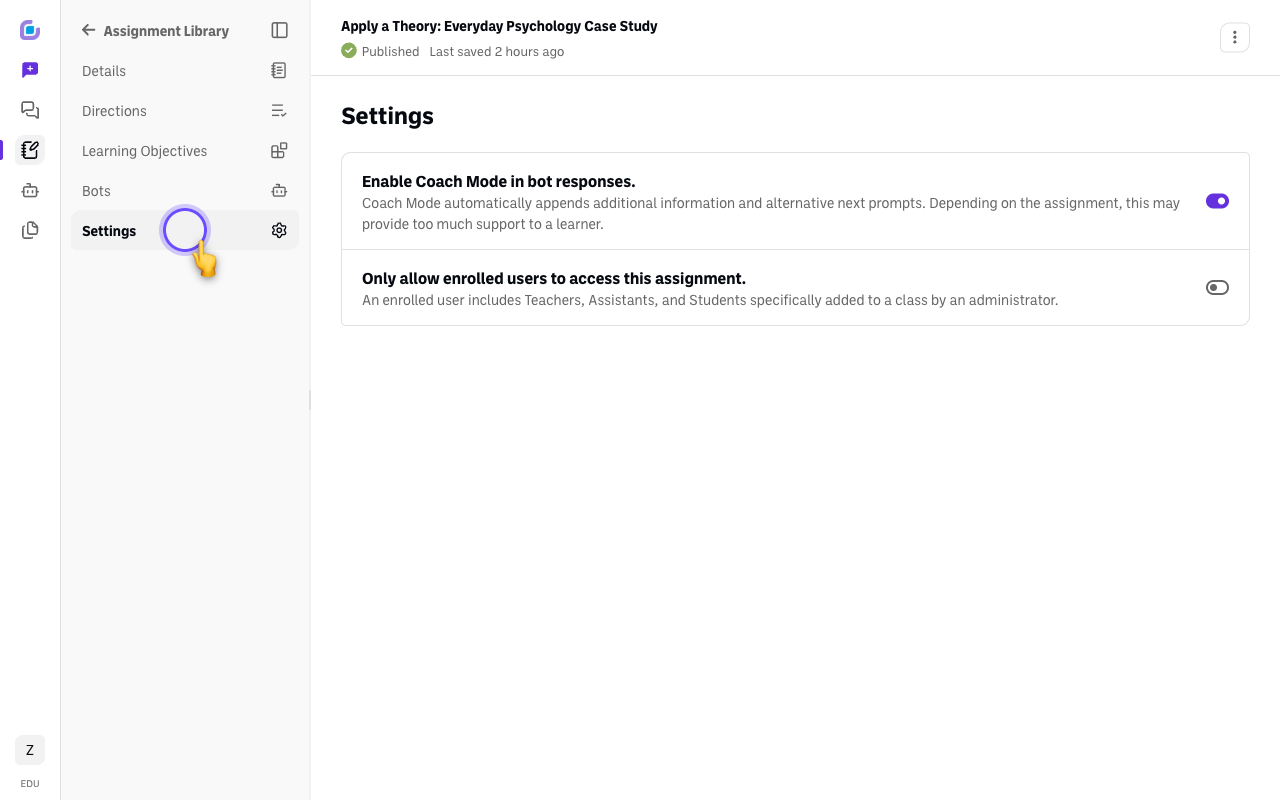
Settings. Toggle Coach Mode (the bot appends tips and suggested next prompts) and Only allow enrolled users to access this assignment.
-
Publish when it's ready. It auto-saves as a Draft until you do.
Assign it to a class
-
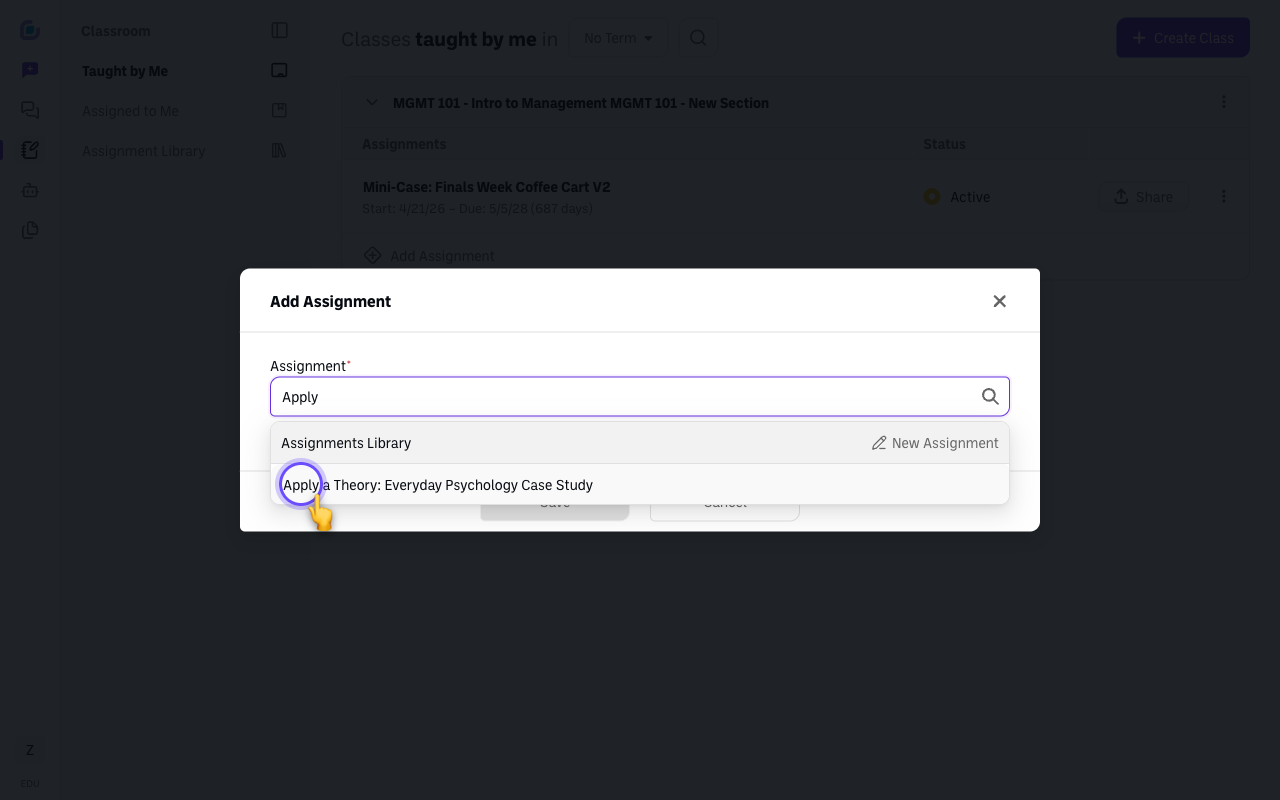
Open your class under Taught by Me, click Add Assignment, pick the assignment from your library, and set the due dates. Enrolled students then see it under Assigned to Me.
Verify it's working
- The class shows under Taught by Me.
- The published assignment is visible to enrolled students under their Assigned to Me tab.
Still stuck?
See How to enroll students in a classroom and How to build a custom bot (you can drop your own bot into a Chat element). Email success@boodle.ai — typical response within 8 business hours.