
How to import classroom rosters
Goal
Add a whole class roster at once by uploading a CSV — best for full rosters from your registrar.
You need a team workspace and admin rights for this. Click your initials at the bottom-left to see your workspaces — the one you're in has a check mark next to it. If that's your Personal Account, click the team workspace you want instead; Workspace Settings doesn't exist on a Personal Account. You also need to be the workspace Owner or an Admin.
Quick path
- Workspace Settings → Classes, then click the Enrollments count for your class.
- Add Enrollment → Invite via CSV, upload your file, and confirm.
Step-by-step
-
Open Workspace Settings → Classes. Click your initials at the bottom-left, switch to your team workspace if you aren't already in it, then click your workspace name under Workspace Settings and choose Classes. You'll see a table of your classes with an Enrollments column.
-
Click the Enrollments count for your class to open its Enrollments window, then click Add Enrollment.
-
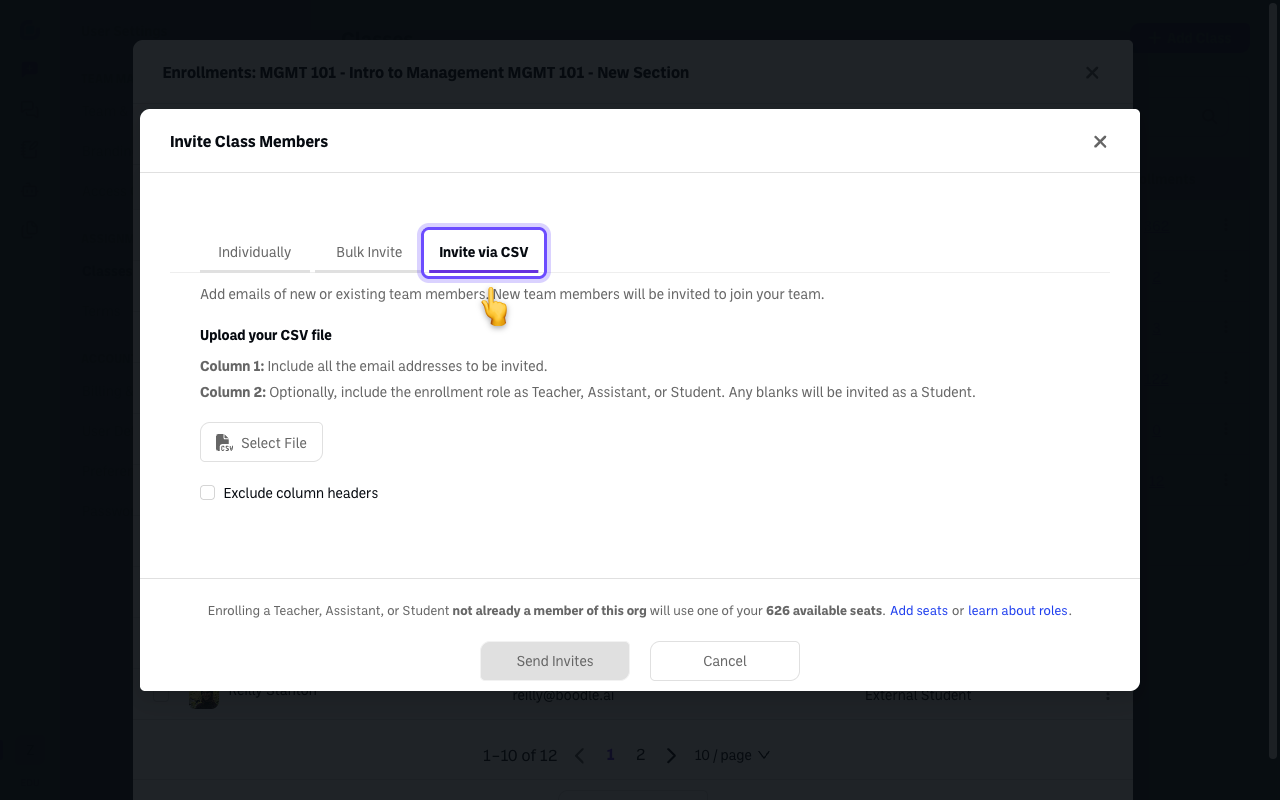
Choose the Invite via CSV tab.
-
Prepare your CSV with two columns:
- Column 1 — every email address to invite.
- Column 2 (optional) — the role: Teacher, Assistant, or Student. Blanks default to Student.
-
Select File, upload it, and tick Exclude column headers if your file's first row is a header. Then Send Invites — everyone in the file is invited at once.
Verify it's working
- The people from your file appear in the class Enrollments list with the role you assigned, and your assignments show up for them under Assigned to Me.
Still stuck?
For team-wide (not class-specific) bulk adds, see How to add or remove a whole group at once with a CSV. Email success@boodle.ai — typical response within 8 business hours.