
How to manage your team & users
Goal
See everyone in your workspace, invite new people, and manage your seats.
Before you start: make sure you're in the right workspace
Everyone has a Personal Account workspace, and this page doesn't exist there — a personal workspace can't have other people in it. You need to be in a team workspace, and you need to be its Owner or an Admin.
- Click your initials at the bottom-left.
- Your workspaces are listed there. The one with a check mark next to it is where you are now.
- If that's Personal Account, click the team workspace you want — the check mark moves to it.
If you don't have a team workspace yet, click Create a Team Workspace in that same menu. You'll name it and choose how many seats to buy. A Personal Account cannot be converted into a team — creating a team workspace is the only way to add other people. See Team Admin Setup Checklist.
Quick path
- Click your initials (bottom-left) and switch to your team workspace.
- Go to Workspace Settings → Members.
- Use Invite to add people and Manage Seats to adjust capacity.
Step-by-step
-
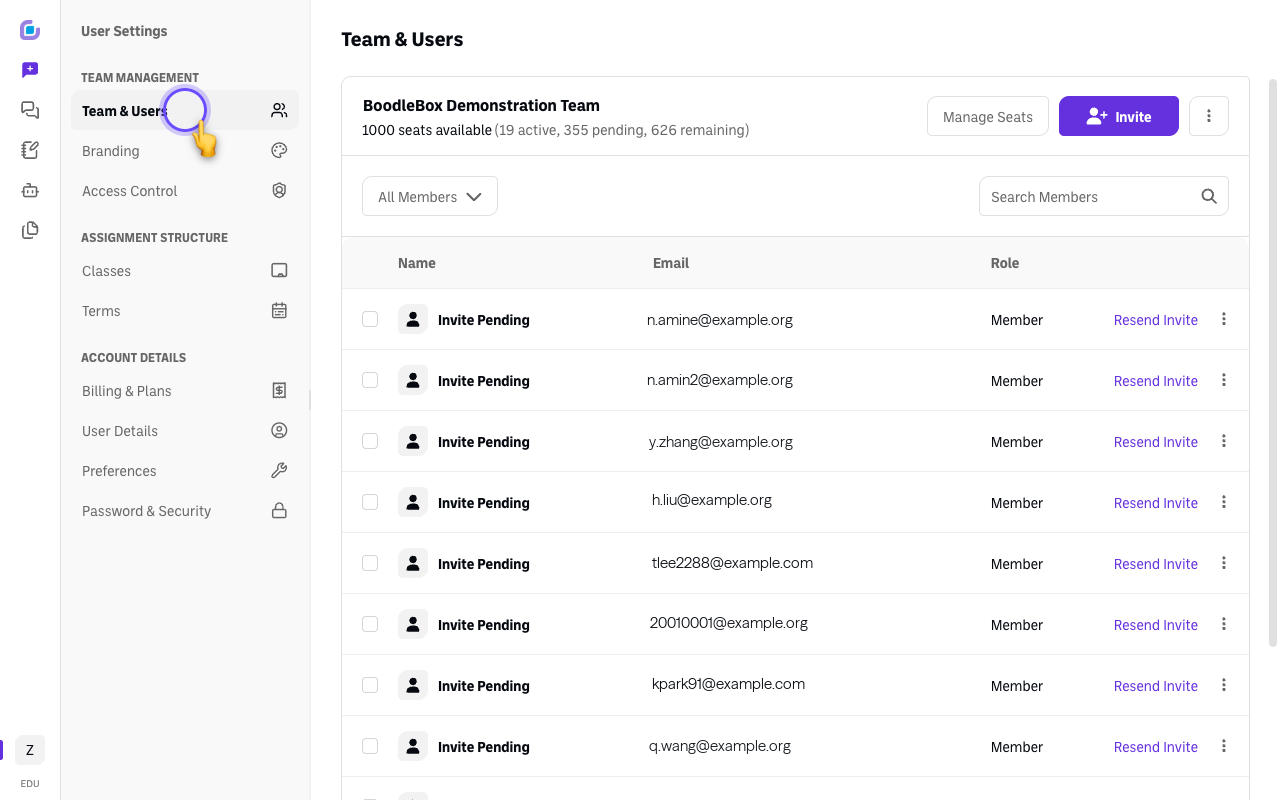
Open Workspace Settings → Members. Click your initials at the bottom-left, then click your workspace name under Workspace Settings, then choose Members. You'll see a roster listing each person's Name, Email, and Role.
(Team Management is a heading above Members in the sidebar, not a button — you don't click it.)
-
Find people fast with the All Members filter or the Search Members box. Each row has an Actions menu for managing that member.
-
Invite new people with the Invite button. If you've used all your seats, you'll be prompted to add more first.
-
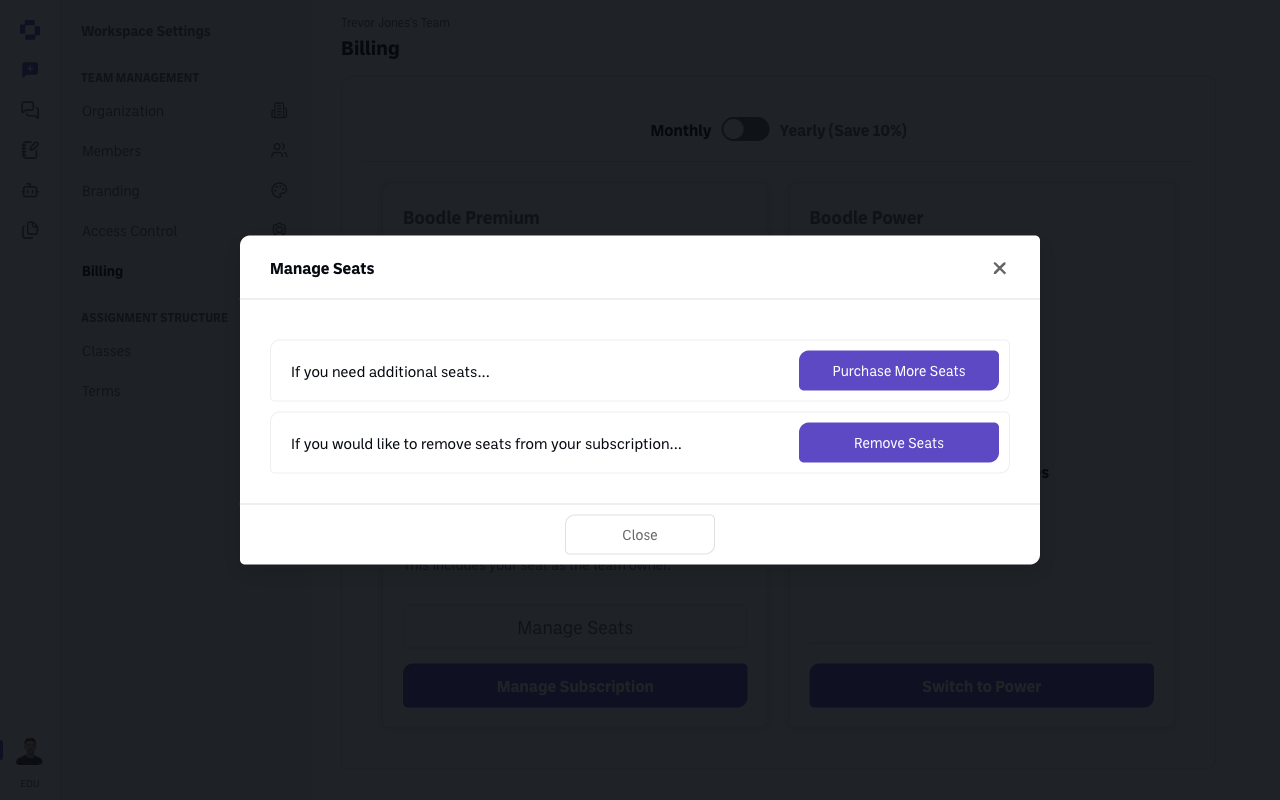
Adjust seats any time with Manage Seats — choose Purchase More Seats or Remove Seats. Use More team actions (top-right) for bulk operations.
Where to see your seat count
Your seat total lives on Workspace Settings → Organization, not on Members. It shows your workspace name and avatar plus a Seats panel ("Your plan includes N seats") with its own Manage Seats and Invite Members buttons.
Verify it's working
- The roster lists each member with the correct role.
- Workspace Settings → Organization shows a seat count that matches your plan.
Still stuck?
Running out of seats blocks new invites until you add capacity. Email success@boodle.ai — typical response within 8 business hours. (See also How to add or remove a whole group at once with a CSV.)