
How to share a chat with someone
Goal
Let other people into one of your chats. Sharing takes two decisions: who you add, and what General access allows. Sending the link on its own is not enough.
The one thing to know first
A chat link is not a permission. Every chat starts at Restricted, which means only people you've specifically given access can open it — anyone else gets turned away even with a working link.
So there are two ways to share, and you need one of them:
- Add the person by name or email — best for a few specific people.
- Widen General access — best when you don't know exactly who needs in, or you're handing the link to a group.
Quick path
- Open the chat and click the person-plus icon (top-right).
- In the Share window, add people by name or email — or change General access.
- Click Copy link and send it.
Step-by-step
-
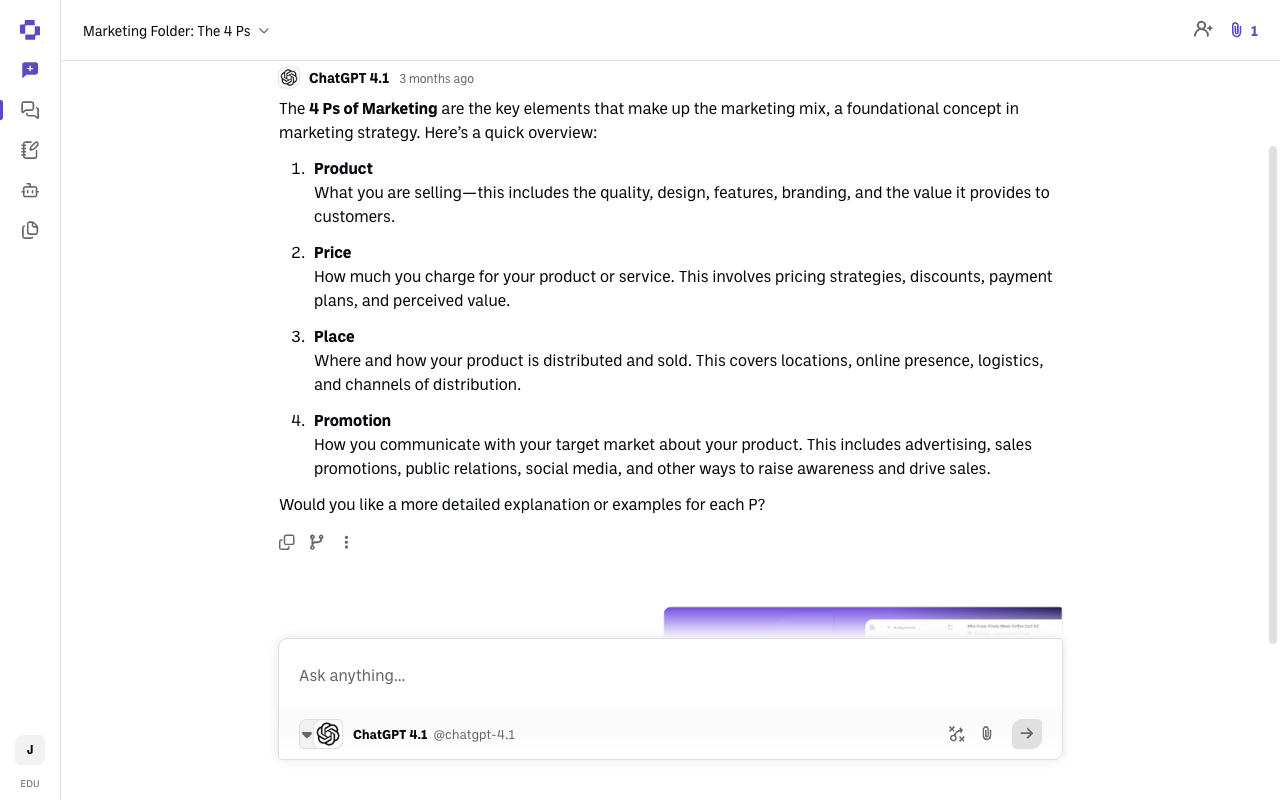
Open the chat, then click the person-plus icon in the top-right corner (next to the paperclip).
-
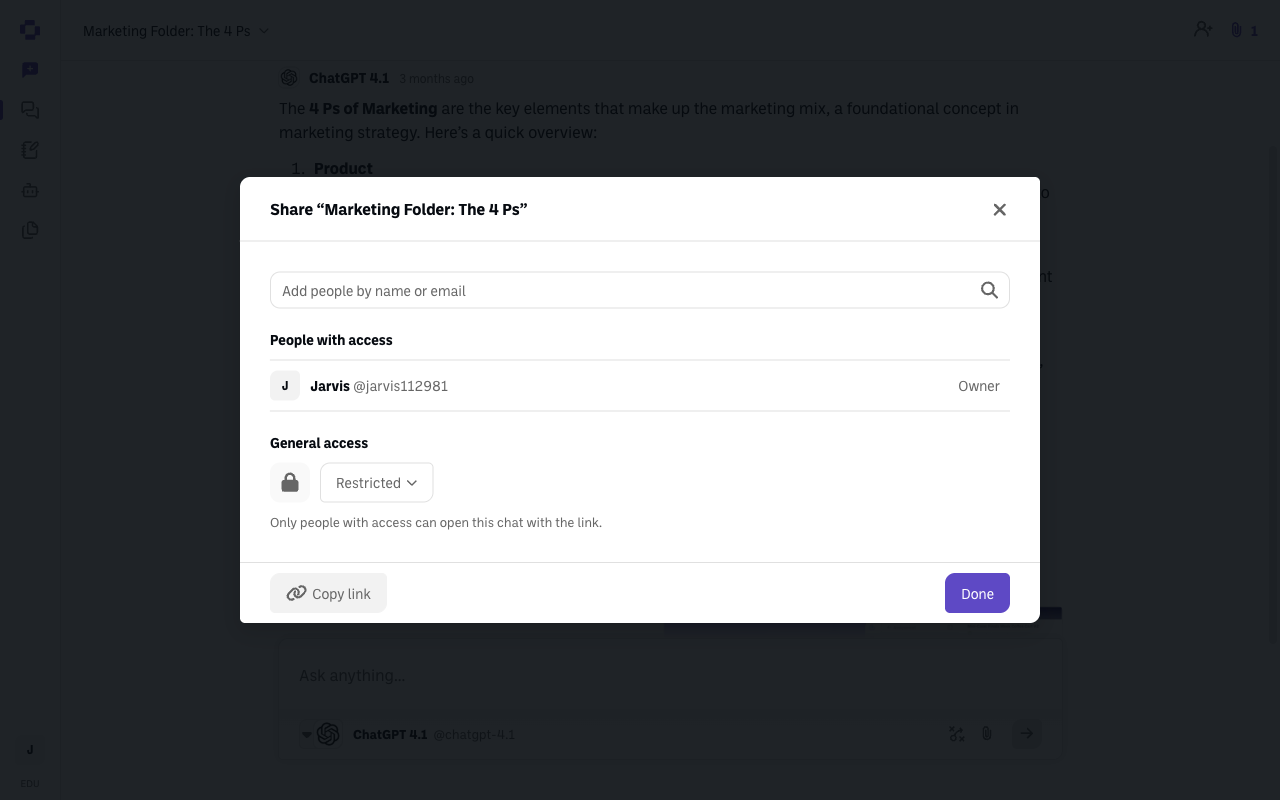
The Share window opens, titled Share "your chat name". It has three parts: a box to add people, a People with access list, and a General access setting.
-
To share with specific people: type a name or email into Add people by name or email. They're added as a Viewer, which means they can read the chat but not participate. To let them prompt bots, open the dropdown on their row and choose Editor.
Access level What they can do Editor Can prompt bots and edit shared knowledge Viewer Can read the chat only The same dropdown has Remove access if you need to take someone back out.
-
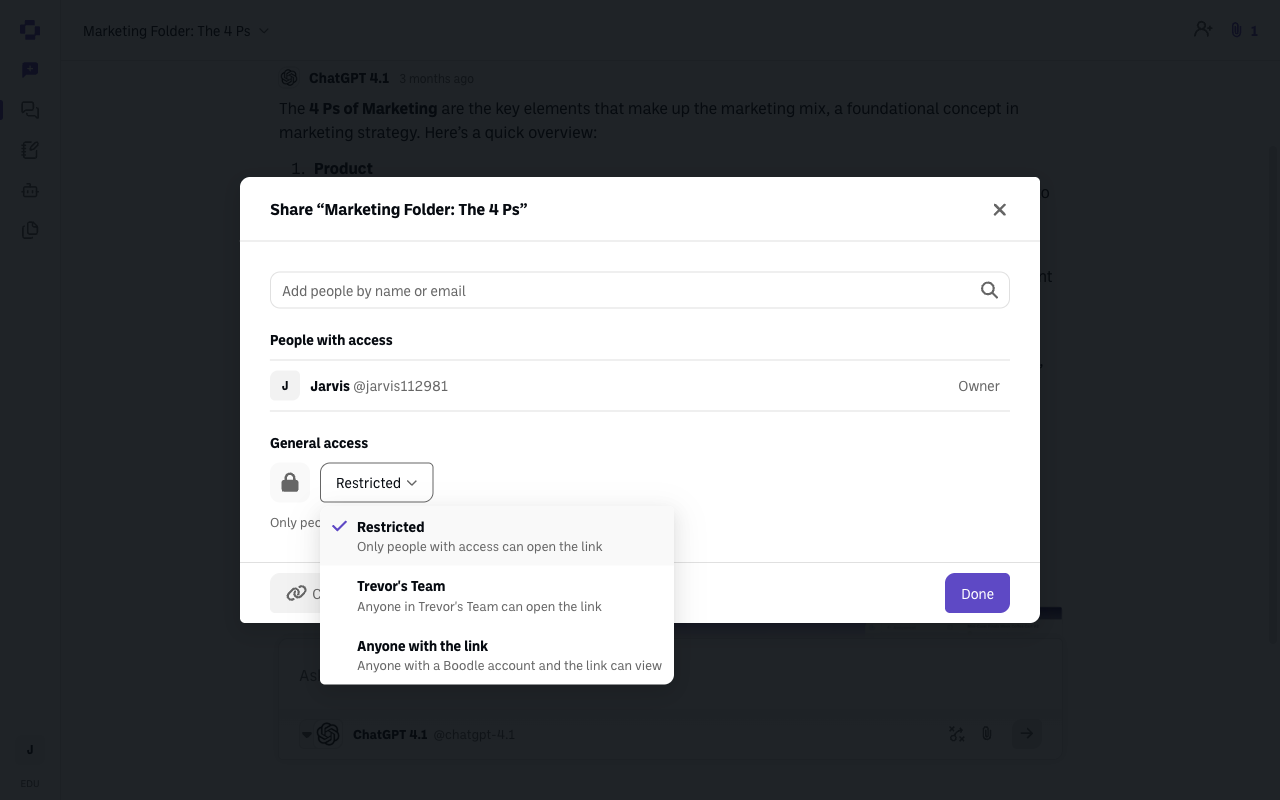
To share more broadly: click the General access dropdown and pick one:
Setting Who can open the link Restricted (the default) Only the people listed above Your workspace name Anyone in your team workspace Anyone with the link Anyone who has a BoodleBox account and the link The middle option is named after your own workspace, so it reads as your team's name rather than the word "workspace."
-
Click Copy link and send it. Note that Copy link stays greyed out while the chat is Restricted with nobody added — that's the product stopping you from sending a link nobody can open. Add someone or widen General access and it turns on. Click Done when you're finished.
"Anyone with the link" still isn't public
Even at the widest setting, the person needs a BoodleBox account to open the chat. There is no way to publish a chat to someone without an account, so a chat link is never safe to treat as a public web page — but it is also not a way to reach people outside BoodleBox.
Faster option: copy the link from the chat header
Once a chat is shareable, a Copy link to chat button appears in the chat header next to the person-plus icon — same link, one click. You can also click the chat title and choose Copy Chat Link. Neither one changes permissions, so if the chat is still Restricted, the link you copy still won't open for anyone new.
Verify it's working
- People with access lists everyone you added, at the level you intended.
- General access shows the setting you chose, and the description beneath it matches.
- Copy link is clickable rather than greyed out.
Still stuck?
If someone says your link doesn't work, the cause is almost always General access still being Restricted — reopen the Share window and check it before resending. Email success@boodle.ai with the chat link — typical response within 8 business hours. (See also How to create and share a chat folder.)