
How to create and share a chat folder
Goal
Group related chats together in your sidebar, and send someone a link to the folder.
Read this before you share a folder
Sharing a folder does not share the chats inside it. This is the single most common misunderstanding about folders, and it catches teachers out constantly.
A folder has no permissions of its own — it only has a link. Access is decided per chat. So when you send someone a folder link:
- They can open the folder and see it exists.
- They can see the chats listed inside it.
- They cannot read any of those chats unless each one individually grants them access.
If you need someone to actually read the chats, the owner of each chat has to widen that chat's General access — see How to share a chat with someone. There is no folder-level shortcut for this.
Quick path
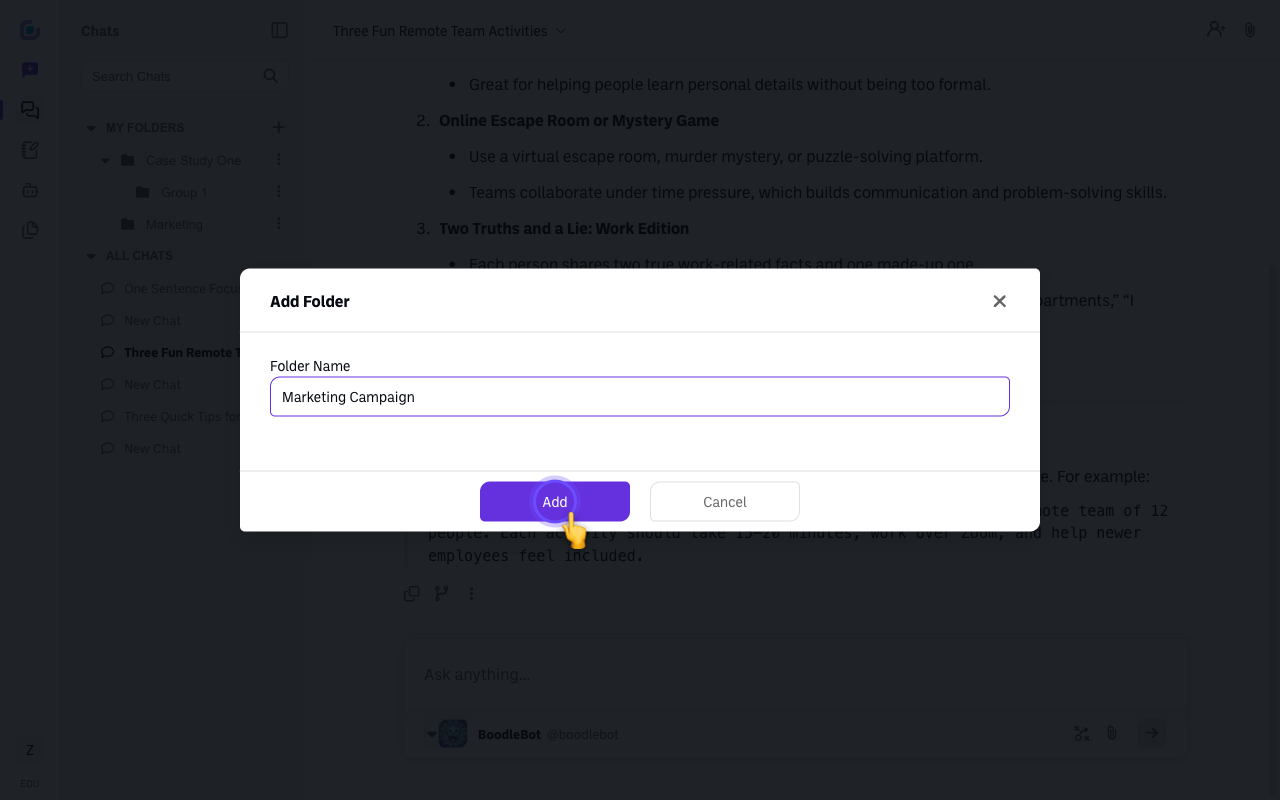
- In the sidebar, click Add Folder and name it.
- Add chats to the folder.
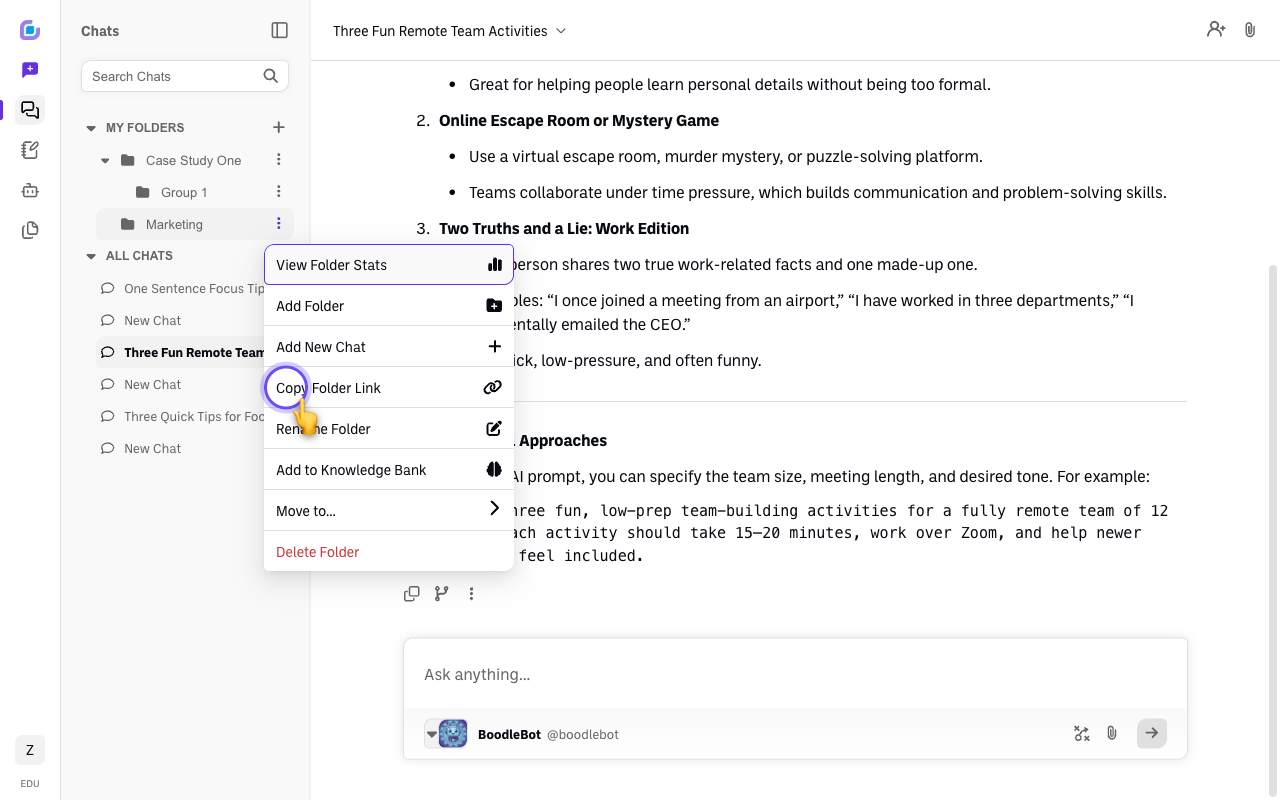
- Open the folder's actions menu and choose Copy Folder Link.
Step-by-step
-
In the sidebar, next to "My Folders," click Add Folder. Give it a name and click Add.
-
Add chats to it. Open the folder's actions menu and choose Add New Chat, or move an existing chat in from that chat's own menu (Move to folder).
Folders can hold other folders, so you can nest a structure a couple of levels deep.
-
Copy the link. Open the folder's actions menu (the icon next to its name) and choose Copy Folder Link.
-
Tell the recipient what they'll need. Because the folder link doesn't carry chat access, say so when you send it — otherwise they'll open it, see locked chats, and report it as broken.
For teachers collecting student work
This is the workflow people most often get wrong. Putting a shared folder in front of your students does not let you read what they write in it. Each student still has to open their own chat and widen its General access before you can see it.
If you want work submitted to you without that per-chat step, use a classroom assignment instead of a folder — see How to create a class and an assignment.
Verify it's working
- The folder appears under My Folders in the sidebar.
- Copy Folder Link copies the folder's URL to your clipboard.
- If you're checking whether someone can read a chat, verify that chat's General access — not the folder's.
Still stuck?
The folder actions menu also has View Folder Stats, Rename Folder, Add to Knowledge Bank, Move to…, and Delete Folder. Email success@boodle.ai — typical response within 8 business hours.