
How to work on a group assignment
Goal
Work with your group on a shared assignment and submit it together.
How to tell it's a group assignment
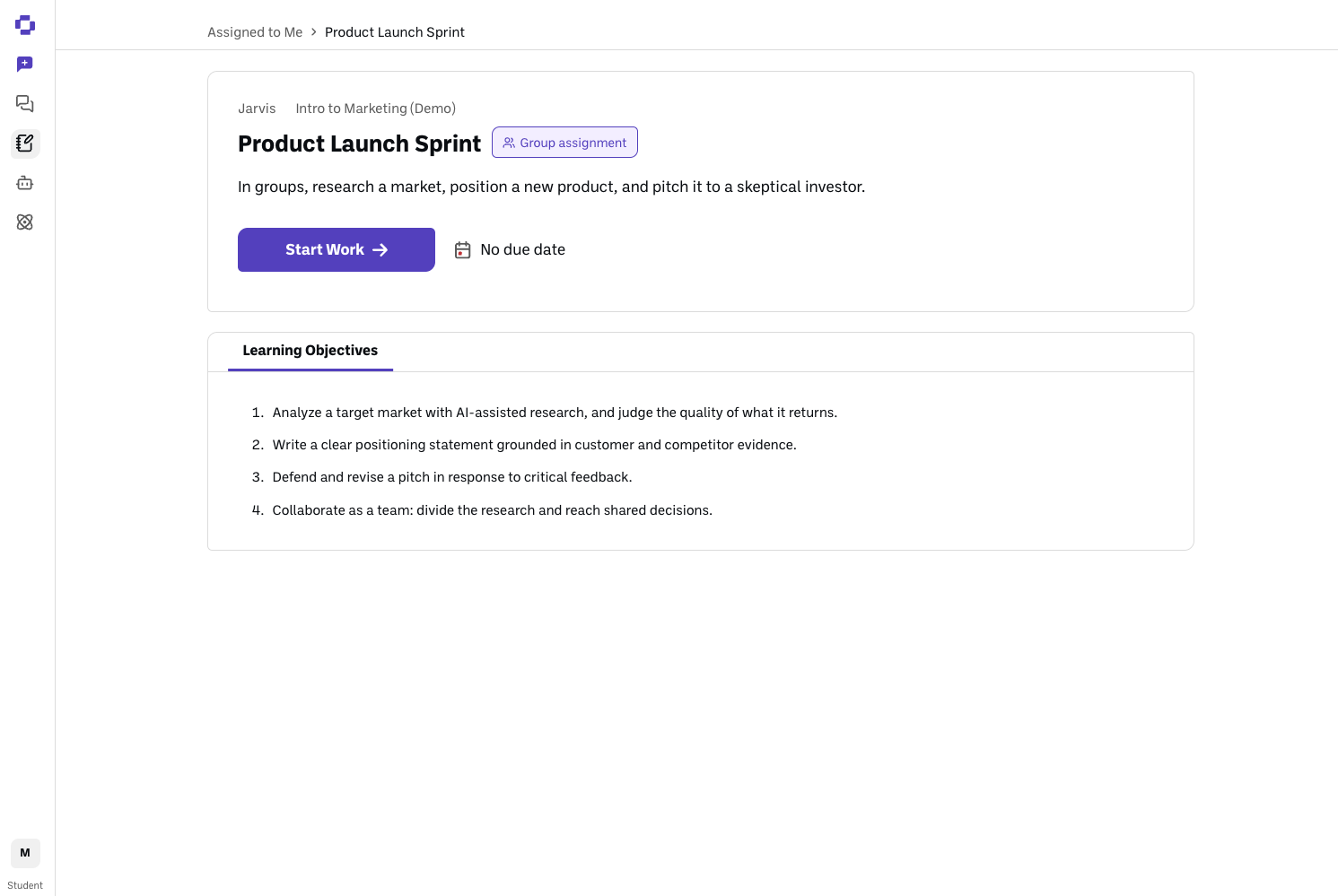
Open the assignment under Classroom → Assigned to Me. A Group assignment label appears next to its title.
Once you're working, your group members' pictures appear at the top. Hover over them to see your group's name and every member's full name.
Don't see the label? Your teacher may not have put you in a group yet. Ask them.
Quick path
Open the assignment under Assigned to Me and click Start Work.
Work with your group in the assignment's shared chats.
When your group is done, one person clicks Submit for everyone.
Working in group chats
Every chat is shared with your group. Any chat someone in your group starts shows up for everyone, and anyone in the group can post in it. Each chat appears as a tab above the chat area.
Buttons in the directions that open a bot either start a new chat or join the chat that's open right now. Before you click one that joins a chat, open the right chat tab first, or you may land in a different chat than you meant to.
+ starts a new chat with any bot available in the assignment.
Continue from here on a message starts a new chat that picks up from that point, with the earlier conversation carried over.
Talk to your group without the AI: start a message with -- (Comment Mode) to post a note to your teammates that doesn't trigger a reply.
The ⋮ menu on a chat lets you rename it, add it to your Knowledge Bank, or download its transcript. Anyone in the group can rename a chat. Only the person who started a chat can delete it.
Tip: give chats clear names so your group knows what each one is for.
Submitting
Anyone in the group can click Submit, and it submits the work for the whole group. You'll be asked to confirm: "Submit for the whole group? This ends everyone's editing. Only your teacher can reopen it."
Agree as a group on who submits and when. If your group submitted too early, ask your teacher to reopen it.
If you're moved or removed
Moved to another group: you'll see "You've been moved to a new group." Your old group's chat is no longer available. Click Go to assignment to keep working with your new group, or Assigned to Me to go back to your list.
Removed from the class: you'll see "You've been removed from [class name]." You no longer have access to the class. Click Go to Assigned to Me. Your past messages stay in your old group's chats under your name.
Good to know
Your teacher can see your group's chats from the moment you start, and can post in them too.
Do graded work inside the assignment, not in a personal chat. See How to submit assignments.
Using a keyboard or screen reader? See Accessibility for students in Classroom.
Still stuck?
Ask your teacher, or reach out through our contact form and we'll get back to you.