
How to change groups after setup
Goal
Move or remove students, rename or empty groups, reshuffle, or start over on a group assignment.
Haven't made groups yet? See How to set up groups for an assignment.
Quick path
Go to Classroom → Taught by Me, open your class, then open the assignment.
Click Manage groups above the student list. (It's also in the ⋮ menu on the assignment's row in your class.)
Drag students between groups, or use the ⋮ menu at the top right of the board to reshuffle or delete all groups.
Move a student to another group
Drag the student's name onto another group, or click the arrow next to their name and pick a group under Move to group (or Move to new group). The arrow works with a keyboard and screen reader.
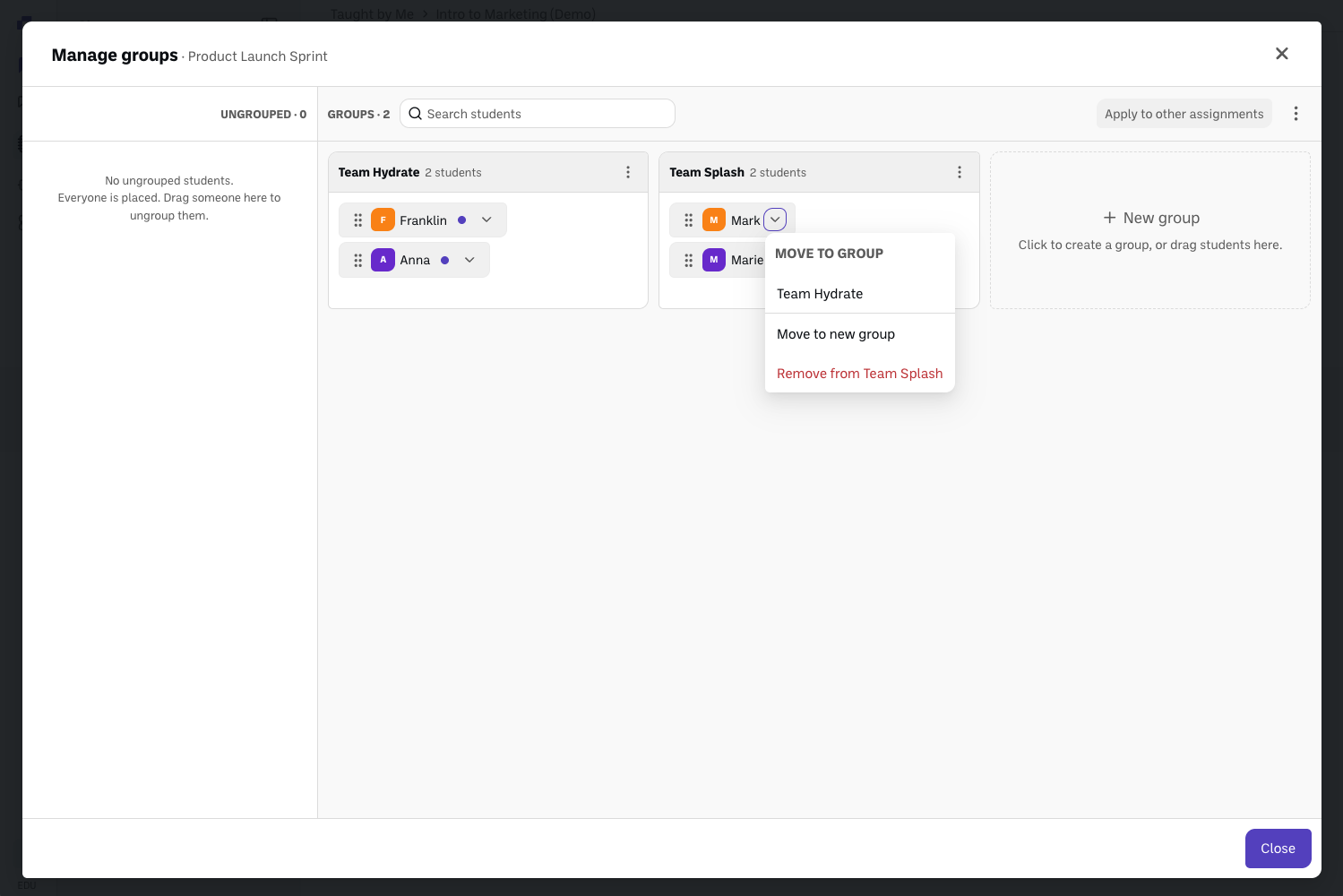
If the student hasn't done any work in their group yet, the move happens right away and you'll see a message with an Undo link.
If they have done work, a dialog asks you to confirm. This move can't be undone.
Once the assignment is live, the student's chats from their old group lock, and they see a message that they've been moved, with a button to their new group's assignment.
Take a student out of a group
Click the arrow next to their name and choose Remove from [group name], or drag them back to the Ungrouped list. The same rule applies: an instant change with Undo if they haven't done any work, and a confirmation if they have.
Add a student who already started on their own
A dot next to a student's name means they've already started the assignment on their own. If you add them to a group, you'll be asked to confirm: they'll work in the group's submission from then on and won't be able to get back to the work they started.
Rename or empty one group
Open the ⋮ menu on the group:
Rename group gives the group a new name, for example a team name your students pick.
Ungroup members moves everyone in that group back to the Ungrouped list.
On a group with nobody in it, the menu shows Delete group instead.
Reshuffle every group
Open the ⋮ menu at the top right of the board and choose Reshuffle groups. You keep the same number of groups and the same group names, and everyone is redistributed at random, including students in the Ungrouped list. If you want someone left out of a group, move them back to Ungrouped after reshuffling.
Start over
Open the ⋮ menu at the top right of the board and choose Delete all groups. This clears every group and takes you back to the setup choices. It can't be undone.
When students join or leave the class
New students appear in the Ungrouped list with a New tag. Place them and the tag goes away.
Students removed from the class, or changed to Assistant, are taken out of their groups. Their name stays grayed out at the top of the group with the reason: No longer enrolled or Now an Assistant. Their past submissions are kept.
Good to know
Why did a group disappear? A group goes away on its own when its last student is moved or removed. A group you created and never put anyone in stays until you delete it.
Assistants can do everything on this page, the same as Teachers.
Verify it's working
On the assignment's page, each group shows as its own row with the right student count, and the Ungrouped list only holds people you meant to leave out.
Still stuck?
See How group assignments work for the basics, or reach out through our contact form and we'll get back to you.