
How to attach knowledge to a chat
Goal
Give the AI a file to work from in any chat — either upload a new file or pick one you've already saved in your Knowledge Bank.
Quick path
- In the chat input, click Attach Knowledge (paperclip).
- Use Upload File for a new file, or From Knowledge for a saved one.
- Select it — the file attaches to the chat.
Step-by-step
-
Click Attach Knowledge in the chat input — the paperclip icon at the bottom-right of the prompt box.
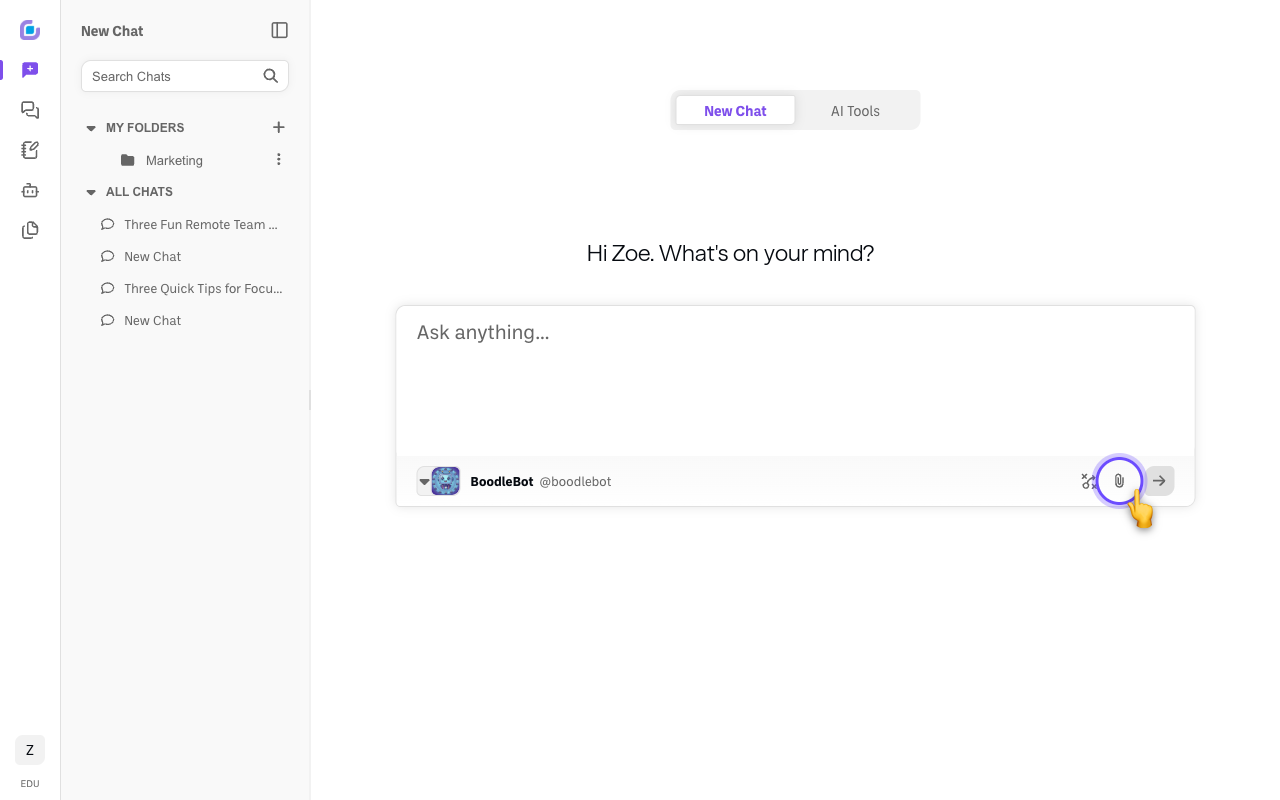
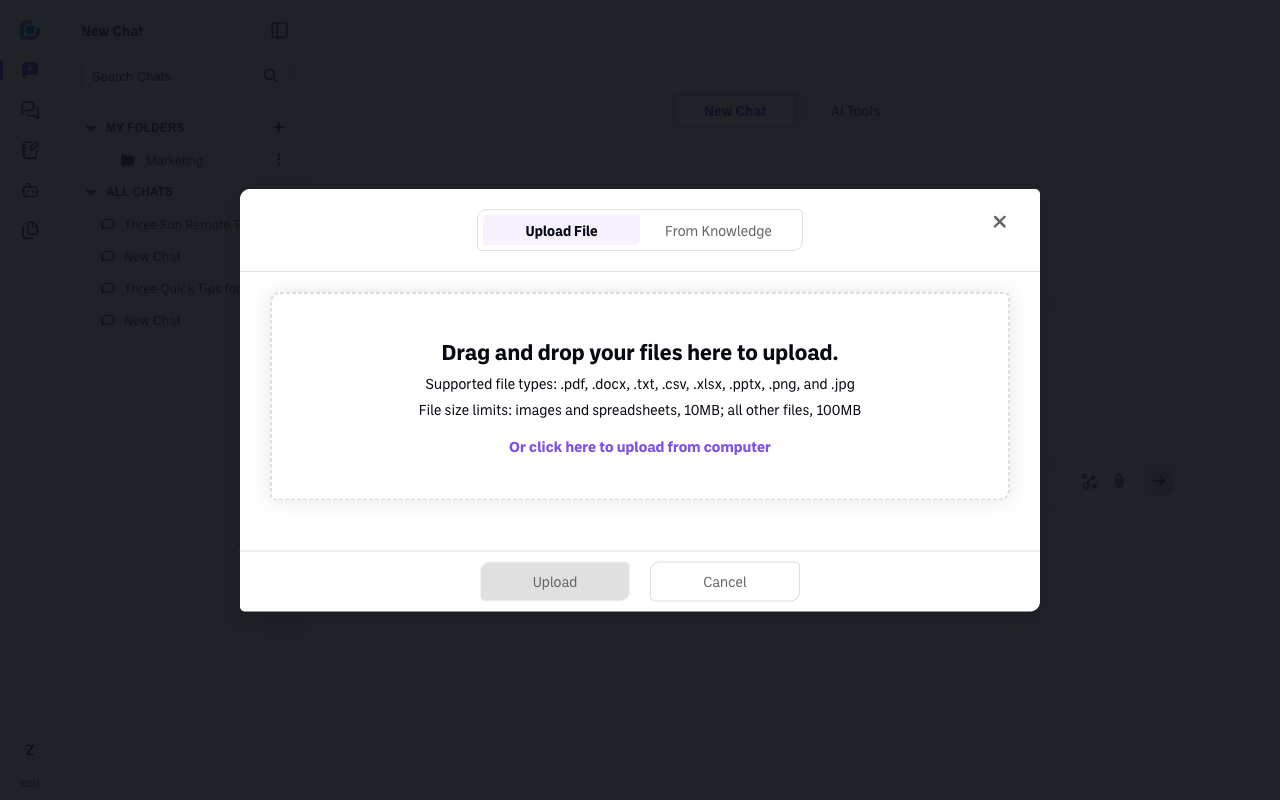
A window opens with two tabs: Upload File and From Knowledge.
-
To add a new file — use the Upload File tab. Drag your file in, or click to choose it. Supported types: .pdf, .docx, .txt, .csv, .xlsx, .pptx, .png, .jpg (images and spreadsheets up to 10MB, other files up to 100MB).
-
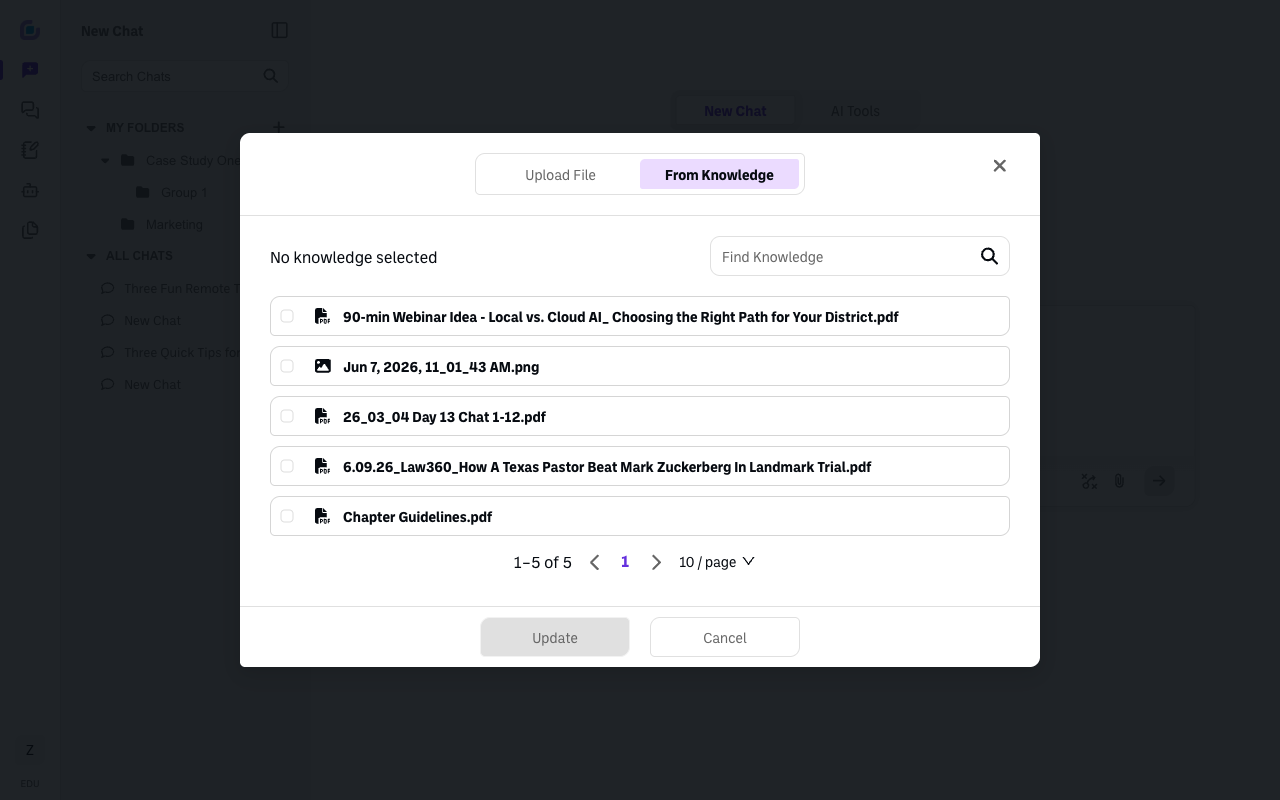
To reuse a saved file — use the From Knowledge tab and pick a file from your Knowledge Bank.
-
Confirm, and the file attaches to the chat. From then on, the AI can use what's in it.
Verify it's working
- The file shows as attached to the chat, and the AI can reference its contents in its answers.
Still stuck?
Files you upload here are also saved to your Knowledge Bank for reuse. Email success@boodle.ai — typical response within 8 business hours. (See also How to use your Knowledge Bank.)