
How to manage your plan & seats
Goal
See your current plan, switch plans, adjust how many seats you have, and manage your subscription.
First: there are two separate billing pages
Billing lives in two places, and they bill separately:
| You want to manage… | Go to | What it's called |
|---|---|---|
| Your team's plan and seats | Your workspace | Workspace Settings → Billing |
| Just your own individual plan | Your personal account | Personal Settings → Billing & Plans |
Your settings sidebar shows both: your Personal Settings pages, and a Workspace Settings group listing any team workspace you belong to.
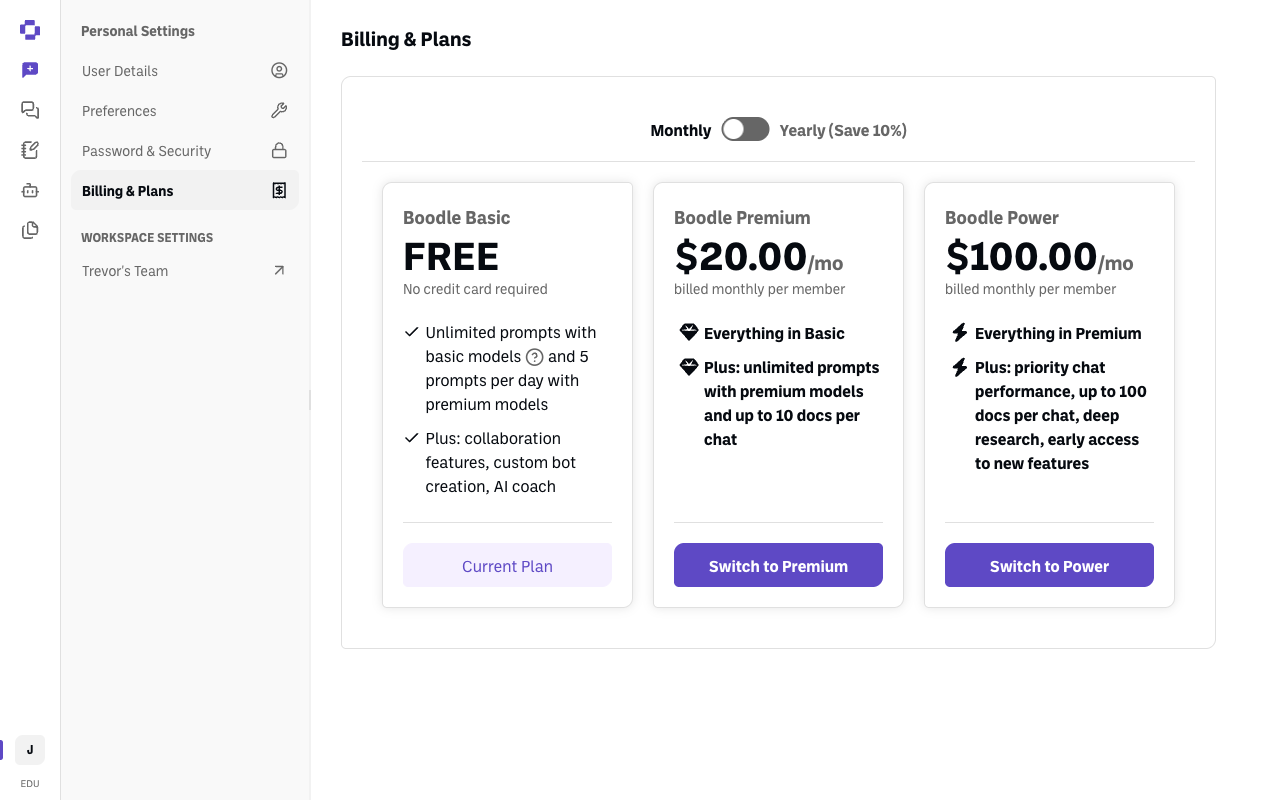
Seats only exist on a team workspace. If you're managing a team, you want Workspace Settings → Billing — and you'll need to be the workspace Owner or an Admin.
⚠️ A team plan already includes a seat for you. So if your personal account is also on a paid plan, that subscription is redundant once your team workspace is set up — cancel it. See How to cancel your subscription.
Quick path
- Click your initials (bottom-left) and switch to your team workspace.
- Go to Workspace Settings → Billing.
- Compare plans and Switch to … if you want to change.
Step-by-step
-
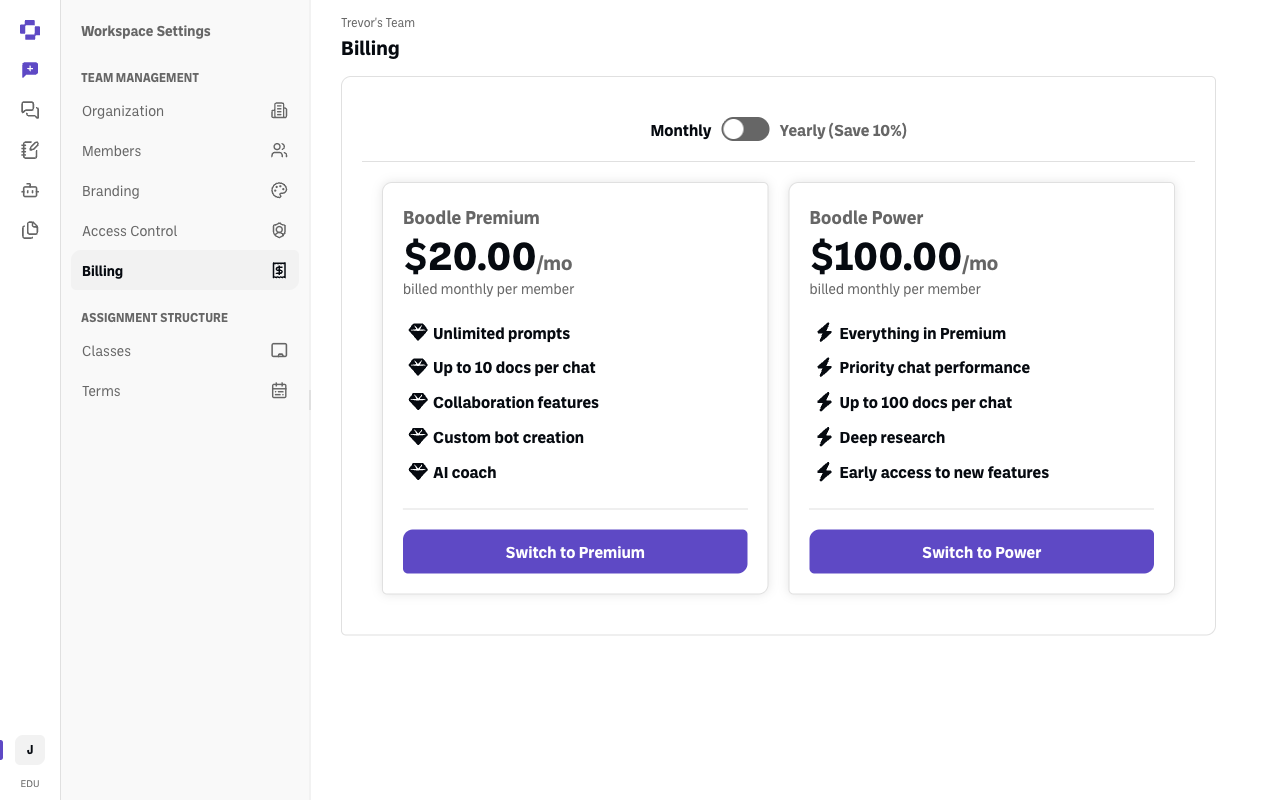
Open Workspace Settings → Billing. Click your initials at the bottom-left, switch to your team workspace if you aren't already in it, then click your workspace name under Workspace Settings and choose Billing.
-
Find your current plan. It's the card whose button is greyed out and reads Current Plan. The plans you're not on have an active Switch to … button instead.
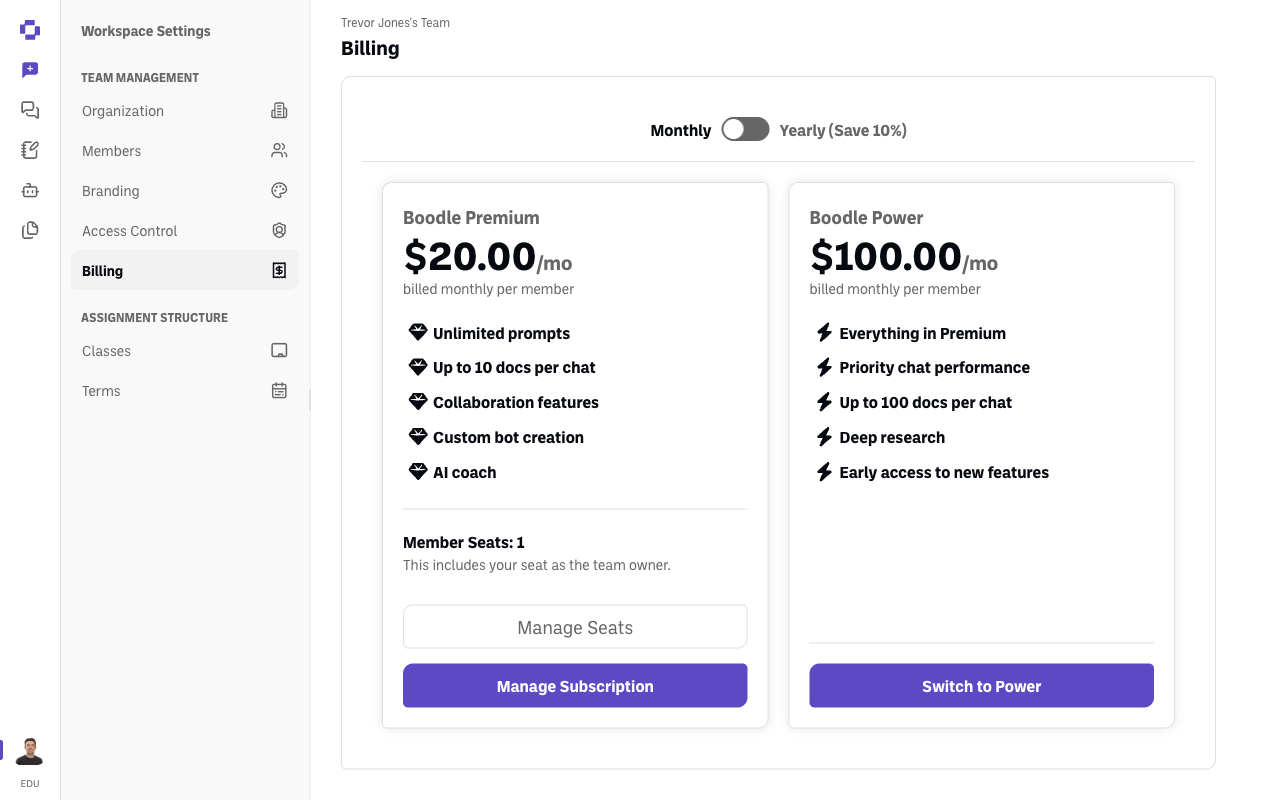
On a paid team plan, the current plan's card looks different: instead of a button, it shows your Member Seats count with Manage Seats and Manage Subscription beneath it.
-
Change plans by clicking Switch to … on the plan you want.
-
Choose a billing cycle. Toggle between Monthly and Yearly using the Annual plan pricing switch — Yearly (Save 10%).
-
Adjust seats and billing. Use Manage Seats to add or change member seats, and Manage Subscription for payment and billing details.
The plans
| Plan | Price | What you get |
|---|---|---|
| Boodle Basic | Free, no credit card required | Unlimited prompts with basic models, 5 prompts per day with premium models, plus collaboration features, custom bot creation, and AI coach |
| Boodle Premium | $20.00/mo per member — $16.00 for education | Everything in Basic, plus unlimited premium-model prompts and up to 10 docs per chat |
| Boodle Power | $100.00/mo per member | Everything in Premium, plus priority chat performance, up to 100 docs per chat, deep research, and early access to new features |
Prices shown are monthly; yearly billing saves 10%. The Basic plan card has a List of Basic Models button if you want to see exactly which models are included.
Education pricing: if your account's email ends in .edu, the discounted $16/user/month rate for Premium is applied when you upgrade — you don't need to ask for it or enter a code.
"Boodle Unlimited" was renamed to Boodle Premium. Same plan, new name — so if you're looking at an older invoice, help article, or email that says Unlimited, that's Premium.
Verify it's working
- Your plan's card has a greyed-out Current Plan button; the others say Switch to ….
- On a paid team plan, the Member Seats count reflects any changes you make.
Still stuck?
Your Member Seats count includes your own seat as the workspace owner. Email success@boodle.ai — typical response within 8 business hours. (See also How to manage your team & users.)