
How to change a user's role within a team
Goal
Change a team member between Admin and Member.
You need a team workspace and admin rights for this. Click your initials at the bottom-left to see your workspaces — the one you're in has a check mark next to it. If that's your Personal Account, click the team workspace you want instead; Workspace Settings doesn't exist on a Personal Account. You also need to be the workspace Owner or an Admin.
Quick path
- Go to Workspace Settings → Members.
- Find the person and open the Role dropdown on their row.
- Pick Admin or Member.
Step-by-step
-
Open Members. Go to Workspace Settings → Members. Use the search or filter to find the person.
-
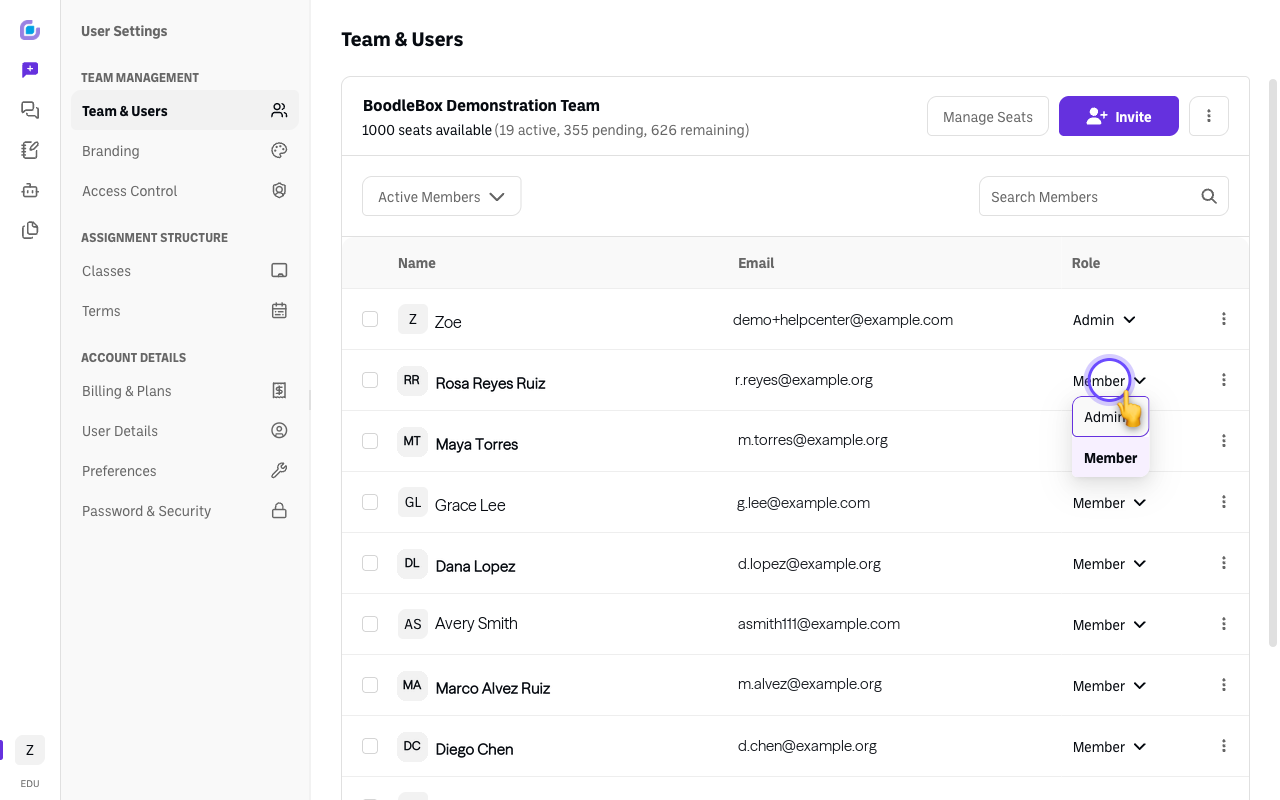
Open the Role dropdown on that person's row — the Member ▾ / Admin ▾ control in the Role column.
-
Pick the new role — Admin (can invite people and manage seats) or Member (standard access). The change applies right away. (The per-row ⋮ menu is for Remove Member, not role changes.) See Understanding team roles and permissions.
Good to know
- Default to Member for most people; grant Admin only to those who help manage the team.
Verify it's working
- The person's role updates in the roster.
Still stuck?
Email success@boodle.ai — typical response within 8 business hours.