
How to enroll students in a classroom
Goal
Add students (and co-teachers or assistants) to one of your classes.
Most teachers don't need to do this
Enrolling a roster by hand is the slowest way to get students into a class, and it needs workspace admin rights that most faculty don't have. We generally recommend against it.
Instead, set your assignment to allow anyone with the link, and share that link. Students are enrolled in the class automatically the first time they open it. No roster work, no admin rights. See How to create a class and an assignment.
Enroll manually when you specifically need to:
- add a co-teacher or assistant rather than a student,
- pre-populate a roster before term starts, or
- satisfy an institutional policy that requires students to be formally enrolled.
Check your institution's policy. Some institutions require students to be enrolled explicitly. Most don't — but that call isn't ours to make for you.
If you do need to enroll manually
You need a team workspace and admin rights for this. Click your initials at the bottom-left to see your workspaces — the one you're in has a check mark next to it. If that's your Personal Account, click the team workspace you want instead; Workspace Settings doesn't exist on a Personal Account. You also need to be the workspace Owner or an Admin.
Quick path
- Workspace Settings → Classes, then click the Enrollments count for your class.
- Add Enrollment, then choose Individually, Bulk Invite, or Invite via CSV.
- Pick each person's role and send.
Step-by-step
-
Open the class roster. Click your initials (bottom-left), switch to your team workspace if you aren't already in it, then click your workspace name under Workspace Settings and choose Classes. Click the Enrollments count for your class to open its enrollment window, then click Add Enrollment.
-
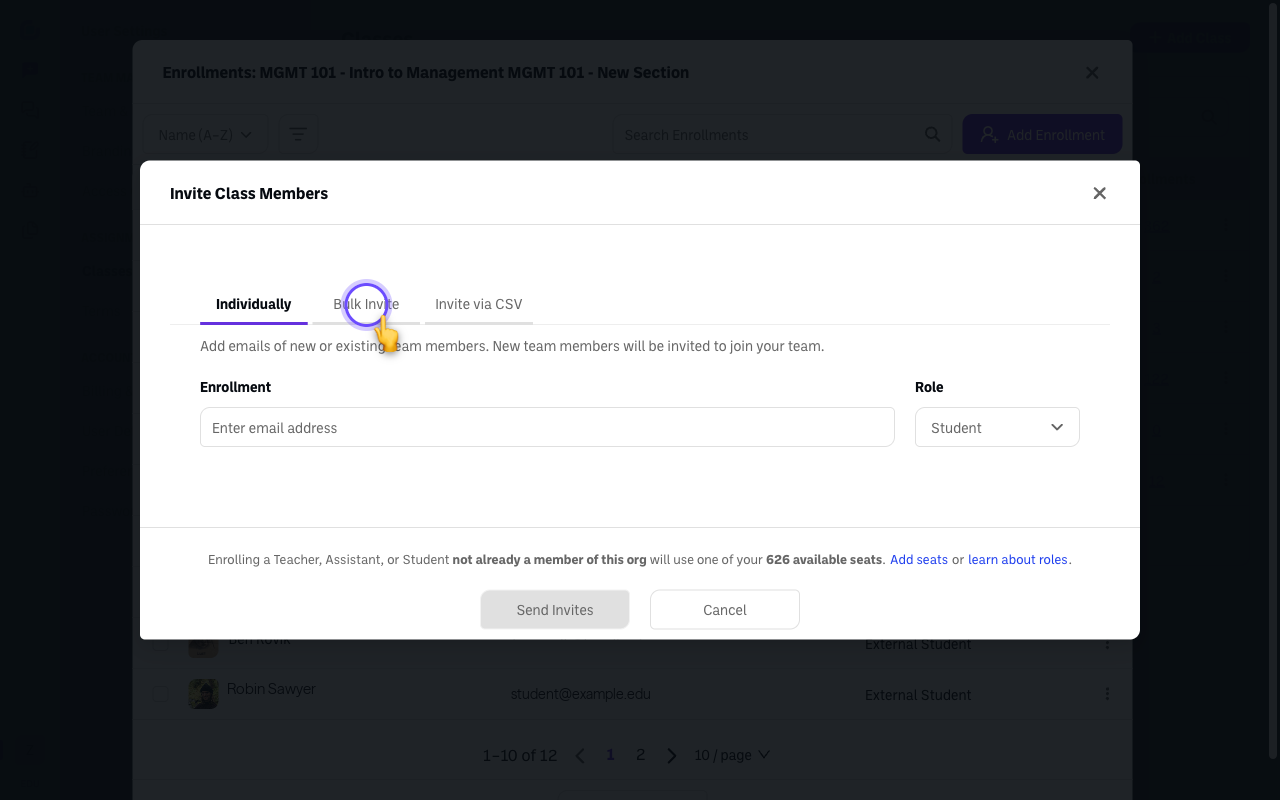
Pick an enrollment method:
- Invite Individually — add one person by email and pick their role.
- Bulk Invite — paste a list of emails to invite many at once with the same role.
- Invite via CSV — upload a CSV with email (and role) columns; best for a full roster (see How to import classroom rosters).
-
Choose roles. Each person can be a Student, Teacher (co-teaching), Assistant (view-only teacher access), or External Student (not on your team). See Understanding classroom roles in BoodleBox.
Verify it's working
- Enrolled people appear in the class roster with the role you assigned, and assignments show up for them under Assigned to Me.
Still stuck?
Email success@boodle.ai — typical response within 8 business hours.