
Managing group AI projects
Goal
Run group projects where each group collaborates with AI in its own shared space — and you can keep an eye on every group from one place.
⚠️ Check this before you build a course around it
Sharing a folder does not share the chats inside it. A folder has no permissions of its own — access is granted per chat — so a folder link lets someone see that chats exist without letting them read or take part in them.
For a group project that means each chat's owner has to widen that chat's General access before the rest of the group (or you) can read it. Chats a student creates inside a shared group folder start out Restricted to that student.
So build the sharing step into the assignment:
- Tell each group that whoever starts a chat must set its General access so the group and you can open it — see How to share a chat with someone.
- If you need reliable visibility into student work, use a classroom assignment instead of folders — see How to create a class and an assignment.
How this works (read this first)
Group projects use shared folders, not assignments:
- Folders = groups. Assignments = individuals. Use a folder when several students share one space; use an assignment when each student needs their own.
- Because a group project is built on shared folders, the assignment-only tools — sandboxing (limiting which bots/models a student can use) and the Assignment Dashboard — are not available here. For groups you monitor with Folder Stats instead (covered below).
Quick path
- Create a parent folder named for the project (e.g., Case Study One).
- Inside it, create one subfolder per group (Group 1, Group 2…), plus an Instructions subfolder.
- Share each group's folder link (three-dot menu → Copy Folder Link) with that group only.
- Watch progress from the parent folder and View Folder Stats.
Step-by-step
-
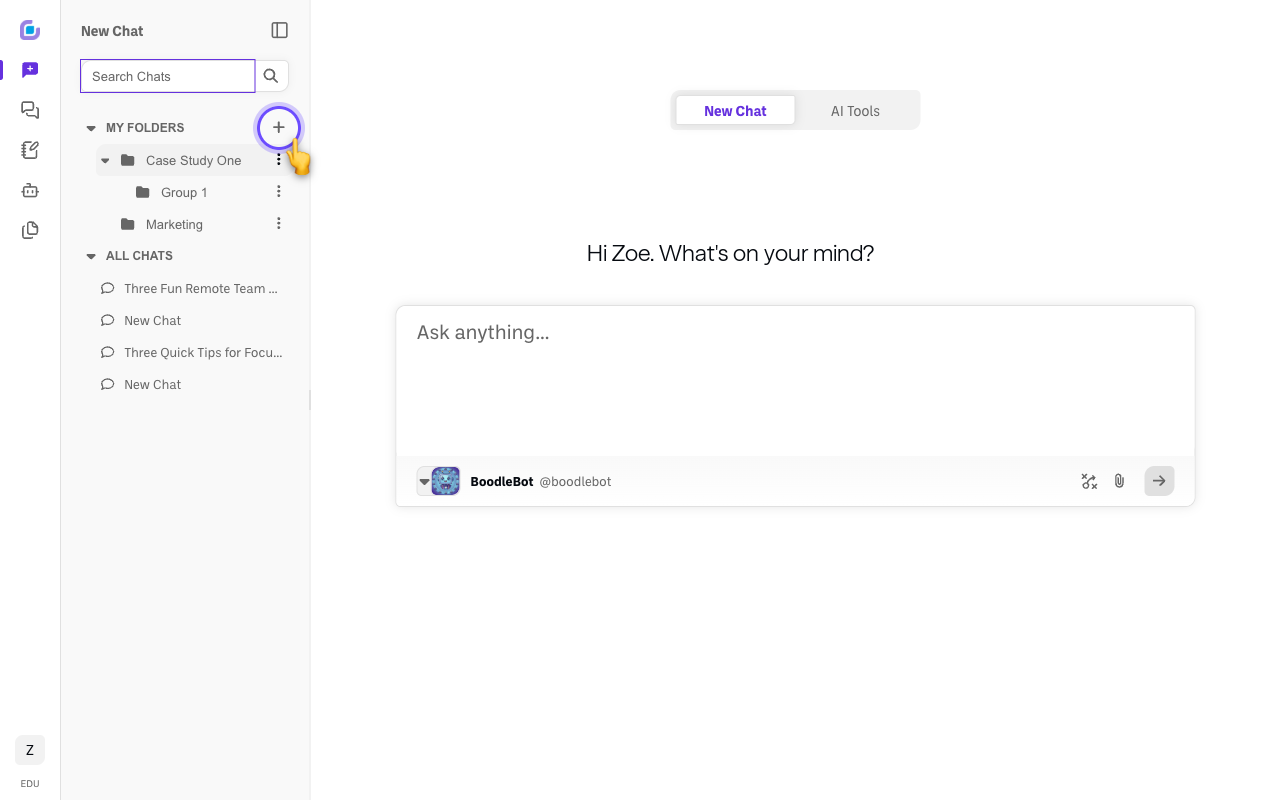
Create the parent folder. In My Folders, click + and name it for the project (e.g., Case Study One). You own this folder and can see everything inside it.
-
Add a subfolder for each group. On the parent folder, open the three-dot menu → Add Folder. Make one per group — Group 1, Group 2, and so on.
-
Add an Instructions subfolder shared with everyone. Put your daily prompts and directions here, and use Message Mode to post human-only instructions that don't trigger an AI reply (name the chats descriptively, e.g., Day 1 Instructions).
-
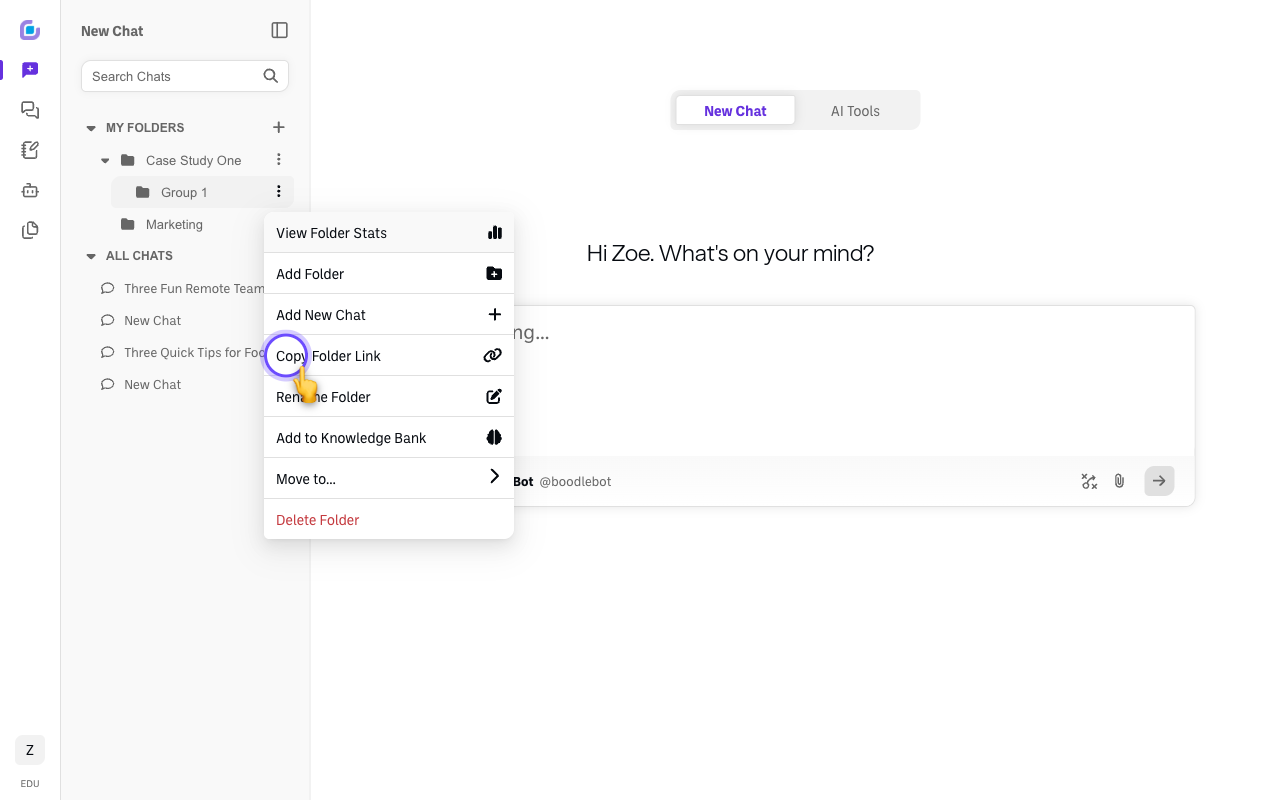
Share each group's folder link — separately. On a group's subfolder, open the three-dot menu → Copy Folder Link and send it to that group only. Send each group only its own link, so nobody has a link to a folder they shouldn't be in.
-
Let groups work — and have them share their chats. Inside their folder, students can add chats and subfolders (three-dot menu → Add New Chat). Whoever creates a chat has to set its General access so their group can join in, otherwise it stays private to them. Everything is timestamped.
Keep an eye on it
-
Open any group's folder from the parent folder. Owning the parent folder lets you into the group folders, but it does not by itself let you read the chats inside them — each chat's access still governs that. Ask groups to make their project chats readable to you.
-
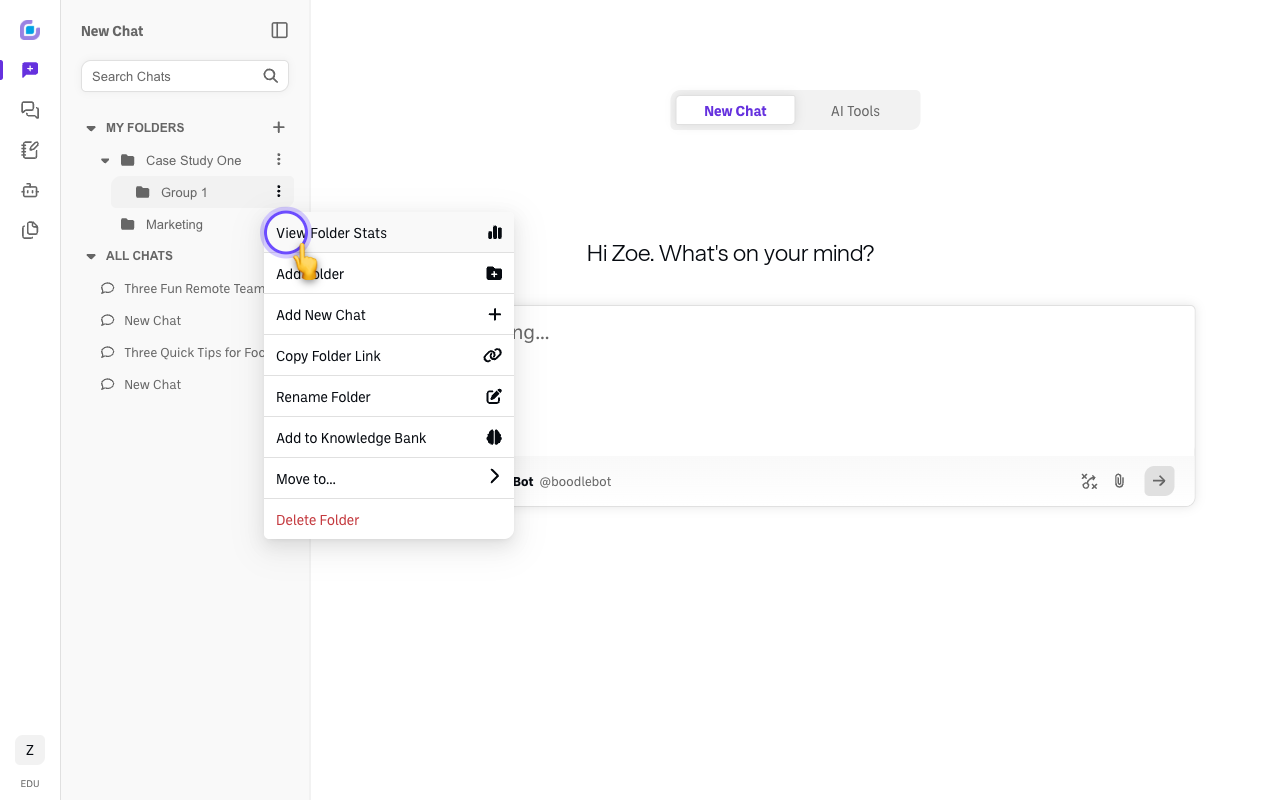
Use Folder Stats for the numbers. On any folder, three-dot menu → View Folder Stats shows Total Chats, Prompts, Messages, and Bots, with a per-member breakdown so you can see who's contributing.
-
Analyze participation with AI. Add a group's folder to your Knowledge Bank (context menu → Add to Knowledge Bank), start a new chat, attach that folder, and ask the AI to summarize participation (e.g., "Who in this folder has contributed most?"). For a lot of data, a large-context model like Gemini handles it well.
Verify it's working
- Each group can open its own folder link.
- New chats the groups create appear under their subfolder in your parent folder.
- You can actually open and read a group's chat — if it won't open, that chat's General access hasn't been widened yet.
- View Folder Stats shows activity for the members you expect.
Still stuck?
Need per-student grading or to lock students to specific bots? That's an assignment, not a folder — see Designing AI-supported classroom assignments. For setting up the sharing, see How to share a chat with someone. Email success@boodle.ai — typical response within 8 business hours.