
How to set up groups for an assignment
Goal
Split your class into groups for one assignment. Choose Generate automatically, Build manually, or Copy from another assignment.
New to group assignments? Start with How group assignments work.
Before you start
The assignment already exists and is assigned to a class with enrolled students. See How to create a class and an assignment.
You're a Teacher or Assistant in that class.
Quick path
Go to Classroom → Taught by Me and open your class.
Open the ⋮ menu on the assignment's row and choose Set up groups.
Choose Generate automatically, Build manually, or Copy from another assignment.
Step-by-step
Open Set up groups. You can get there two ways:
On your class's Assignments tab, open the ⋮ menu on the assignment's row and choose Set up groups.
On the assignment's page, click Set up groups above the student list.
Once an assignment has groups, the same option is called Manage groups, and the assignment shows a Groups enabled tag in your class's assignment list.
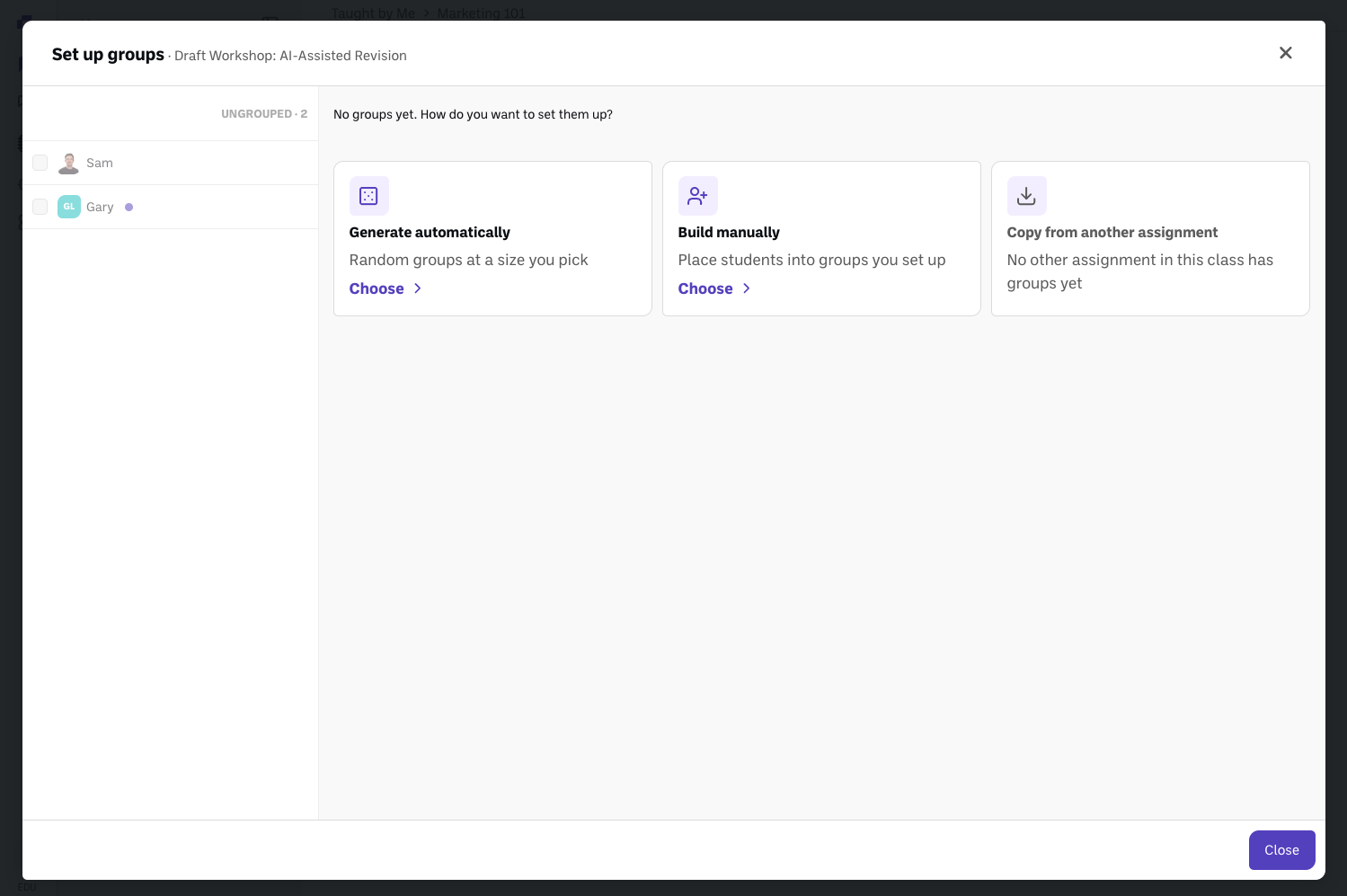
Choose how to make the groups. You'll see "No groups yet. How do you want to set them up?" with three options:
Generate automatically makes random groups at a size you pick. As you choose a size, you'll see the split it creates, for example 5 groups of 4, plus 1 group of 5. If the class doesn't divide evenly, the extra students join a larger group, so no one is ever left in a group alone.
Build manually lets you choose the number of groups, then click Start building to place students yourself.
Copy from another assignment reuses the groups from another assignment in this class. Until another assignment has groups, it's grayed out with the note "No other assignment in this class has groups yet."
Place or adjust students on the groups board. Students who aren't in a group are listed on the left under Ungrouped, and groups are on the right.
Drag a student's name onto a group, or click the arrow next to their name and pick a group (or Add to new group). The arrow works with a keyboard and screen reader.
Place several students at once: check the boxes next to their names, open Add to group, and pick a group or choose Create new group.
+ New group on the board adds another group. New groups are named for you (Group A, Group B, and so on). To rename one, open its ⋮ menu and choose Rename group.
(Optional) Reuse these groups on other assignments. At the top of the groups board, click Apply to other assignments and check the assignments that should get the same groups. Only assignments in this class that don't have groups yet are listed.
Good to know
A student who already started the assignment on their own has a dot next to their name (Has started work). If you add them to a group, BoodleBox asks you to confirm: they'll work in the group's submission from then on and won't be able to get back to the work they started. Set up groups before students start, when you can.
Copies are independent. Whether you use Copy from another assignment or Apply to other assignments, each assignment gets its own copy. Changing groups on one never changes the other.
Copying never overwrites. You can only copy groups onto an assignment that has no groups yet.
Students who aren't in a group see the assignment like a regular one until you place them.
Students who join the class later show up in Ungrouped with a New tag. Place them in a group and the tag goes away.
Need to move someone, reshuffle, or start over? See How to change groups after setup.
Verify it's working
On the assignment's page, each group shows as its own row with its student count, and only students you meant to leave out are listed under Ungrouped.
Once the assignment is live, students in a group see a Group assignment label next to the assignment's title.
Still stuck?
Reach out through our contact form and we'll get back to you.